Can Claude Generate Images? How to Generate Images in Claude
Claude can't make photos on its own. Here's how to generate images in Claude with an image connector, see the credit cost first, and get a whole set at once.
On this page
- Can Claude generate images?
- How to generate images in Claude in 3 steps
- Step 1: Open the Add custom connector dialog
- Step 2: Sign in and allow access
- Step 3: Ask for images
- What does it cost?
- A real run: illustrating an eight-slide talk
- How to ask Claude for a good batch
- Generating images in Claude Code
- When a chat isn't the right place
- FAQ
- Can Claude generate images for free?
- Can Claude generate images like ChatGPT?
- Which image models can I use from Claude?
- Does Claude Design make images?
- Where do the finished images show up?
- Is it safe to connect?
If you want to generate images in Claude, the short answer is that Claude can't do it by itself, but it can once you connect an image model to it. Claude writes, reasons and reads images you upload. It does not paint photos or illustrations. What it can do is call tools, and an image generator is just another tool. Add one as a connector and you can say "make an illustration for each of these eight slides" in the middle of a conversation and get eight images back.
This guide covers what Claude can and can't make on its own, verified against Anthropic's help center in November 2026, then walks through connecting an image model in three steps and one real run: an eight-slide talk, illustrated from Claude's own outline, for 40 credits.
Generate in bulk
One prompt per line, hundreds of images, one ZIP to download.
Can Claude generate images?#
Not natively. Anthropic's help center says it plainly: "Claude doesn't generate photos or illustrations the way image-generation tools do." That article was last updated on March 16, 2026, and it is still true in the Claude apps as of November 2026.
What Claude does make is visuals built from code. In the chat it can "build diagrams, charts, and interactive visuals directly in your conversation," drawn with HTML and SVG. Anthropic also launched Claude Design in April 2026, an Anthropic Labs product for "designs, prototypes, slides, one-pagers, and more." Neither one produces a photograph or a painted illustration.
| What you want | Claude on its own | Claude with an image connector |
|---|---|---|
| Flowchart, chart, diagram | Yes (HTML/SVG) | Yes |
| Slide layout, one-pager | Yes (Claude Design, paid plans) | Yes |
| Photo, illustration, product shot | No | Yes |
| A different image for each item in a list | No | Yes, in one batch |
| Edit a photo you upload | No | Yes, if the photo has a public link |
So the question is really "which image model do I plug in, and how?"
How to generate images in Claude in 3 steps#
Claude talks to outside tools through connectors, which are built on the open Model Context Protocol (MCP). Anthropic's help article on custom connectors says they work on the Free, Pro, Max, Team and Enterprise plans, on the web, the desktop app and the mobile apps. Two limits are worth knowing before you start:
- Free Claude accounts are "limited to one custom connector."
- On Team and Enterprise plans, an Owner (or an admin role with the right permission) adds the connector for the organization, and members then click Connect.
Here is the setup with BulkImagen, an image generator that runs GPT Image, Nano Banana, Seedream, Flux and other models.
Step 1: Open the Add custom connector dialog#
Go to the BulkImagen MCP page and click Add BulkImagen to Claude. Claude opens the Add custom connector dialog with the name and the server URL already filled in. Claude shows a warning that the connector was suggested by an external link; check that the URL is https://mcp.bulkimagen.com/mcp, then click Continue.
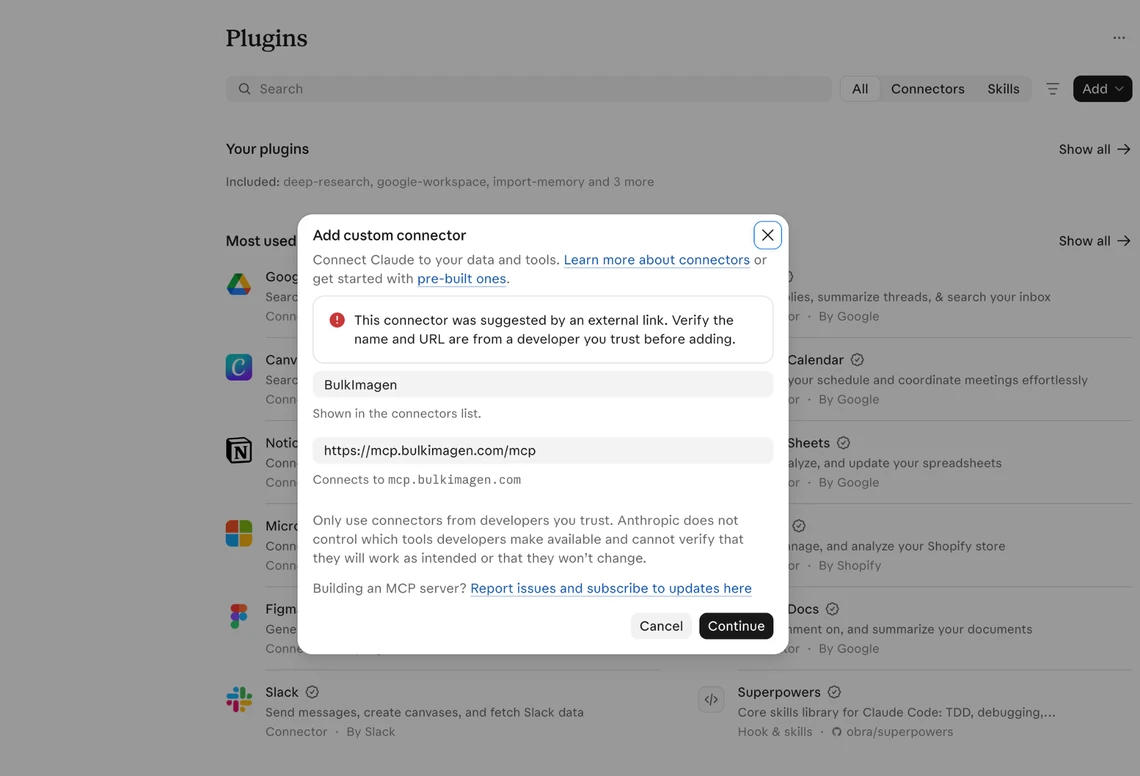
If the dialog doesn't open, add it by hand: in Claude, open Customize → Connectors, click + Add → Add custom connector, and paste the URL.
Step 2: Sign in and allow access#
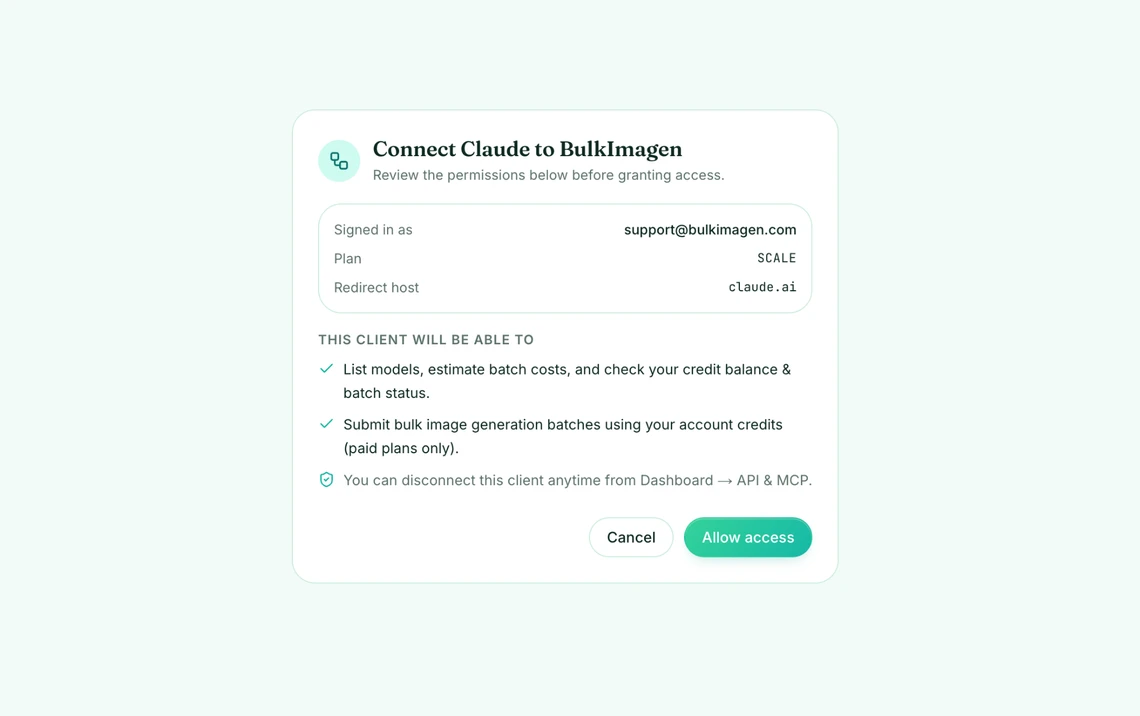
After Continue, a browser tab opens (if it doesn't, click Connect next to BulkImagen in your connectors list). It asks you to sign in to BulkImagen and shows exactly what Claude will be able to do: list models, estimate costs, check your balance and batches, and submit batches with your credits (paid plans only). Click Allow access. There is no API key to copy.
Step 3: Ask for images#
Start a new chat and ask for what you want. Claude now has six tools: list the models, estimate a batch, check your balance, create a batch, check a batch and list past batches. It reads the model list itself, so you can describe the job in plain words ("16:9, cheapest model that does clean illustrations") instead of knowing model names.
Note
Connecting, browsing models and estimating cost are free. Creating images needs a paid BulkImagen plan, because every image is billed in credits. See pricing for the plans.
What does it cost?#
You pay for images, not for the connection. Each model has a fixed price per image in credits, by resolution: GPT Image 2 at 1K is 5 credits, Nano Banana Pro at 2K is 6. The model comparison lists every price.
Claude is instructed to estimate before it spends anything. The connector's own guide tells it to call the estimate tool, "show the user the exact credit cost before spending anything" and wait for your yes. Images that fail are refunded automatically.
A real run: illustrating an eight-slide talk#
Here is the kind of job where doing this inside Claude beats a separate image app: the content already lives in the conversation. The test was an eight-slide talk for a beginner composting workshop, with one illustration per slide.
We ran it in Claude Code, connected to the same server; the Claude app gets the same six tools, so the conversation goes the same way. The request, in plain words:
Illustrate each of the 8 slides. Same flat illustration style on every slide, leave the left third empty for the slide title, no text in the images. 16:9. Estimate the cost first.Claude wrote eight prompts that share one style sentence and differ only in the scene, which is the single most useful habit for a matching set. It priced the batch at 8 images × 5 credits = 40 credits on GPT Image 2 at 1K, waited for a yes, then submitted it. All eight were done about 70 seconds later, and Claude handed back a link to each image plus the batch page, where the whole set downloads as one ZIP.
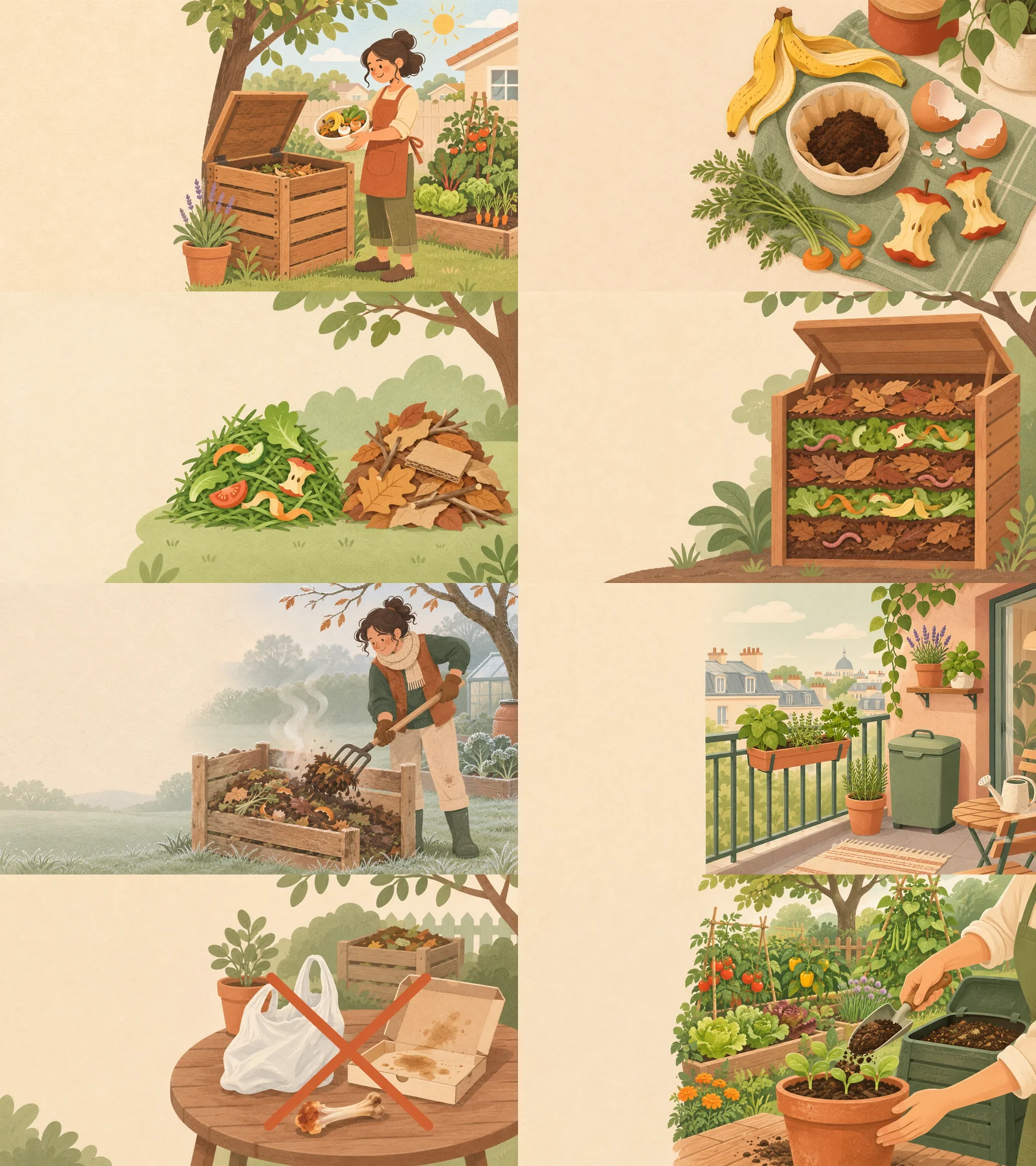
What held up across the set:
- Empty space for the title: 8 of 8. Every image kept the left third clear, so a title sits on top without a box behind it.
- Style: 8 of 8. Same palette, same paper grain, same line weight.
- No stray text: 8 of 8. No fake letters, labels or logos.
What we'd check before presenting:
- Slide 7's cross doesn't cover everything. The prompt asked for the bag, the bone and the pizza box to be crossed out; the X covers the bag and the box and misses the bone. One re-run with "one large X over all three items" is the fix.
- The same woman shows up twice. Slides 1 and 5 have the same gardener, which we didn't ask for. Nice here, but don't count on it. For a recurring character, describe her in the style sentence or use a reference image.
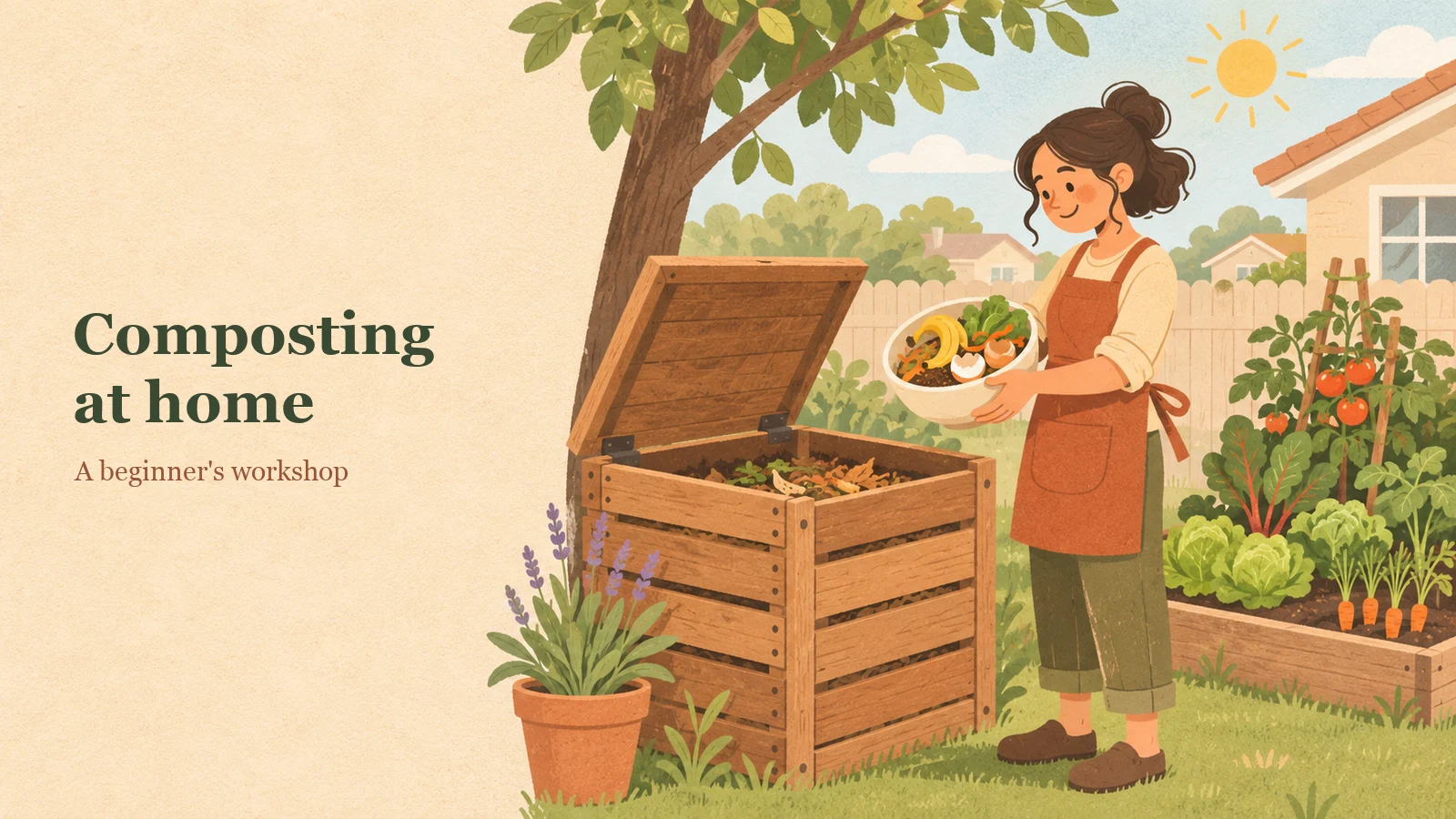
These are the eight prompts Claude sent (we fixed one typo, a doubled "kitchen", that made no difference to the image). Click Generate to run them yourself:
Flat editorial illustration for a presentation slide, soft muted palette of sage green, warm terracotta and cream, gentle paper grain texture, simple rounded shapes, generous empty space on the left third for slide text, no words, no letters, no logos. Scene: a sunny suburban backyard with a wooden compost bin beside a small vegetable garden, a smiling person holding a bowl of kitchen scraps.
Flat editorial illustration for a presentation slide, soft muted palette of sage green, warm terracotta and cream, gentle paper grain texture, simple rounded shapes, generous empty space on the left third for slide text, no words, no letters, no logos. Scene: a kitchen counter flat lay of compostable scraps — banana peels, eggshells, coffee grounds, apple cores, carrot tops — arranged neatly.
Flat editorial illustration for a presentation slide, soft muted palette of sage green, warm terracotta and cream, gentle paper grain texture, simple rounded shapes, generous empty space on the left third for slide text, no words, no letters, no logos. Scene: two neat piles side by side, one of green materials (grass clippings, vegetable scraps) and one of brown materials (dry leaves, cardboard, twigs).
Flat editorial illustration for a presentation slide, soft muted palette of sage green, warm terracotta and cream, gentle paper grain texture, simple rounded shapes, generous empty space on the left third for slide text, no words, no letters, no logos. Scene: a cutaway view of a compost bin showing alternating layers of brown leaves and green scraps, with a few earthworms.
Flat editorial illustration for a presentation slide, soft muted palette of sage green, warm terracotta and cream, gentle paper grain texture, simple rounded shapes, generous empty space on the left third for slide text, no words, no letters, no logos. Scene: a person turning a compost pile with a garden fork, light steam rising from the warm pile on a cool morning.
Flat editorial illustration for a presentation slide, soft muted palette of sage green, warm terracotta and cream, gentle paper grain texture, simple rounded shapes, generous empty space on the left third for slide text, no words, no letters, no logos. Scene: a small apartment balcony with a compact lidded compost bin and potted herbs, city rooftops in the background.
Flat editorial illustration for a presentation slide, soft muted palette of sage green, warm terracotta and cream, gentle paper grain texture, simple rounded shapes, generous empty space on the left third for slide text, no words, no letters, no logos. Scene: things that do not belong in home compost — a plastic bag, a meat bone and a greasy pizza box — set apart on a garden table, gently crossed out by a simple terracotta X shape.
Flat editorial illustration for a presentation slide, soft muted palette of sage green, warm terracotta and cream, gentle paper grain texture, simple rounded shapes, generous empty space on the left third for slide text, no words, no letters, no logos. Scene: hands scooping dark, crumbly finished compost from a bin into a terracotta pot of seedlings, the vegetable garden thriving behind.
How to ask Claude for a good batch#
Claude is good at writing prompt lists. A few instructions make the difference between eight images and eight images you can use together:
- Ask for one shared style sentence. "Same style on every image" works best when Claude repeats an identical style sentence at the start of every prompt and changes only the scene.
- Say where the text will go. "Leave the left third empty" or "keep the top quarter plain" gives you room for titles without editing.
- Name the shape. 16:9 for slides and video, 1:1 or 4:5 for social posts, 3:4 for printed pages.
- Ask for the estimate first, and say which model if you care. "Show me two cheaper models and what the batch would cost on each" is a fair question; estimates are free.
- One image per prompt. If you want ten different scenes, ask for ten prompts, not "ten images of" one prompt. One prompt with a count gives you variations of the same idea.
Warning
Photos you drop into the Claude chat can't be passed to the image model directly; the connector takes reference images as public links. For a batch built on your own product or character photos, upload them in the BulkImagen dashboard instead.
Generating images in Claude Code#
Claude Code connects the same way from the terminal, and Anthropic's docs confirm it supports remote MCP servers with OAuth:
claude mcp add --transport http bulkimagen https://mcp.bulkimagen.com/mcpThen run /mcp in Claude Code, pick bulkimagen and finish sign-in in the browser. Claude Code is the better fit when the prompts live in a file: point it at a CSV of products or a script with scene notes and ask for a batch per row. It can also download the finished images straight into your project folder.
When a chat isn't the right place#
A chat is the easiest way to go from an idea to a dozen images. For hundreds of images, or when the prompt list is already written, paste it into a bulk image generator directly: one line per image, pick the model, download a ZIP. Our guide to generating images from a list of prompts covers that route, and the ChatGPT bulk image generator guide covers the same question for ChatGPT.
FAQ#
Can Claude generate images for free?#
Claude itself doesn't generate photos or illustrations on any plan. With a connector, Free Claude accounts can add one custom connector, and BulkImagen is free to connect, browse and estimate. Creating images needs a paid BulkImagen plan.
Can Claude generate images like ChatGPT?#
Not on its own. ChatGPT has image generation built in; Claude needs an image model connected as a tool. Once connected, Claude can also run models ChatGPT doesn't offer, such as Nano Banana, Seedream or Flux, and many images in one request.
Which image models can I use from Claude?#
Every model on the models page: GPT Image, Nano Banana, Seedream, Flux, Qwen, Grok, Midjourney and others. Ask Claude "which models are available and what do they cost at 1K?" and it reads the live list.
Does Claude Design make images?#
Claude Design makes designs, prototypes and slides. Anthropic hasn't said it generates photos or illustrations, and its launch post doesn't describe it that way. You can use connector-made images alongside it.
Where do the finished images show up?#
The connector returns a link to every finished image and a link to the batch page in your BulkImagen dashboard. Open the links to view single images, or open the batch page to download the whole set as a ZIP, with options for format, width and cropping.
Is it safe to connect?#
You sign in with OAuth, so Claude never sees your password or an API key, and you can disconnect Claude at any time from Dashboard → API & MCP in BulkImagen. Claude itself warns you to add only connectors from developers you trust, which is good advice for any connector.