A history video or lesson falls apart when the pictures look like they belong to different centuries and different artists. This historical image generator lets you fix the era and the look once, list the scenes of your narration — a campfire, a harbour, a siege, a workshop — and render every historical image in one batch of scene images.
One per line — paste a whole column from a spreadsheet. Add “ | ” then the Setting to set it per line.
—
Drag & drop or click to upload — PNG / JPEG / WEBP / GIF, up to 10MB each.
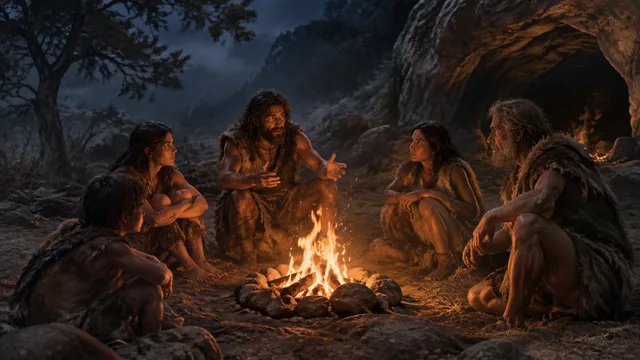
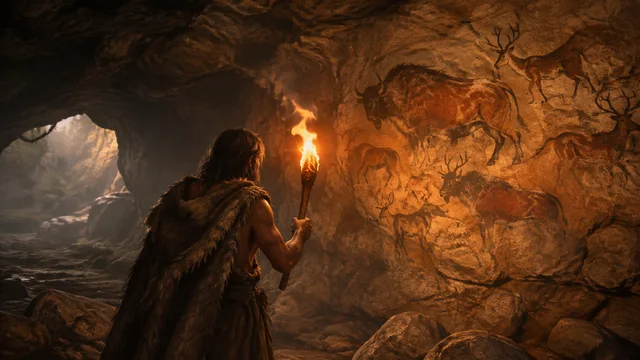
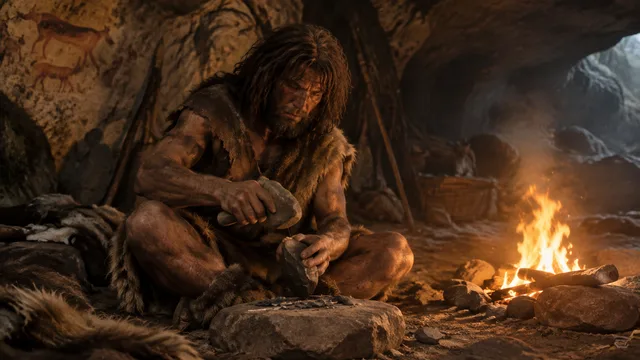
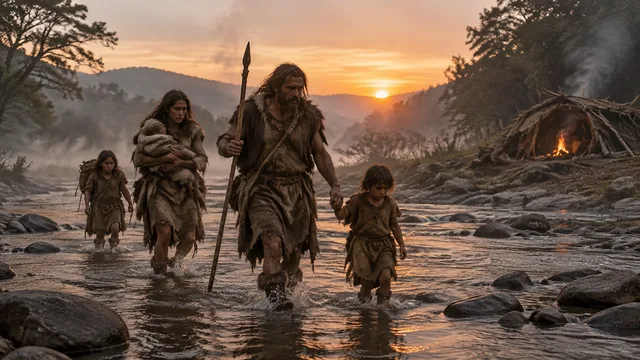
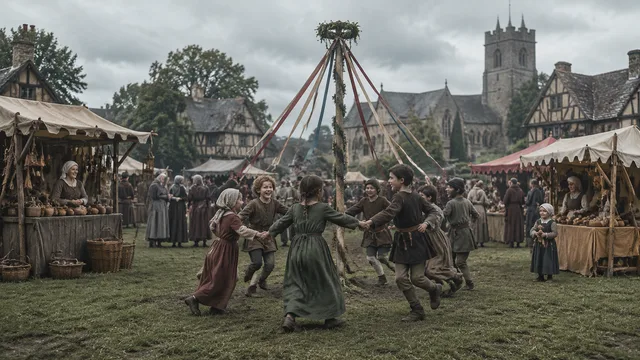
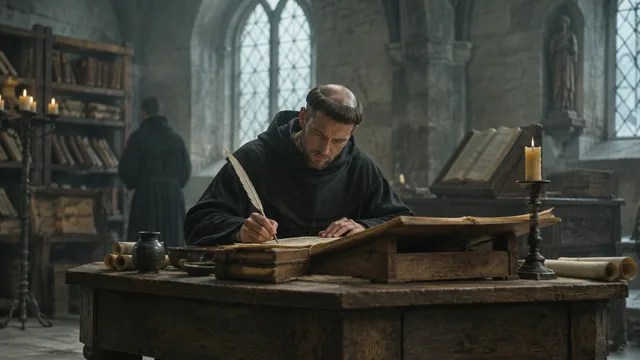
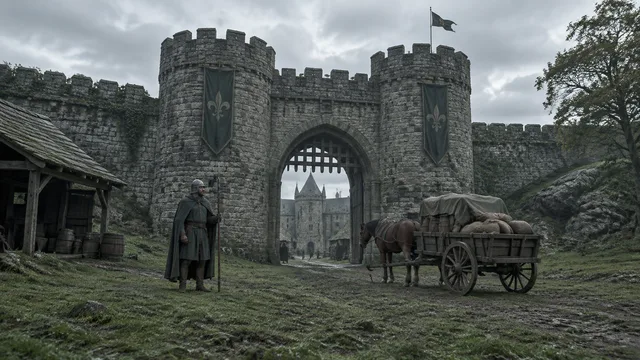
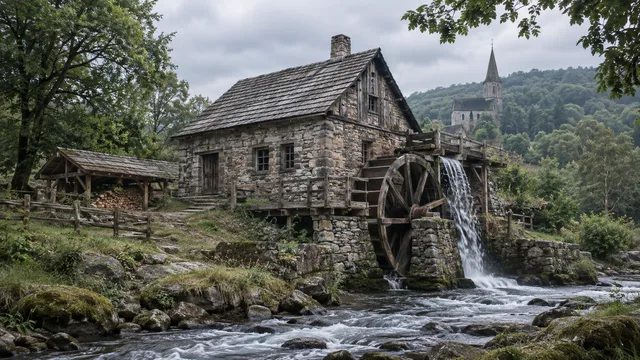
Each row is one run of the historical image generator: one era-and-look sentence held fixed, four scene descriptions, and the four images that came back. Read across a row — the point is that the scenes belong to the same world, and writing the era and look once is what gives you that.
cinematic film still, firelight, muted earth tones — campfire, cave painting, flint knapping, river crossing
oil painting, warm Mediterranean light — harbour market, marble workshop, philosophers' walk, trireme at dawn
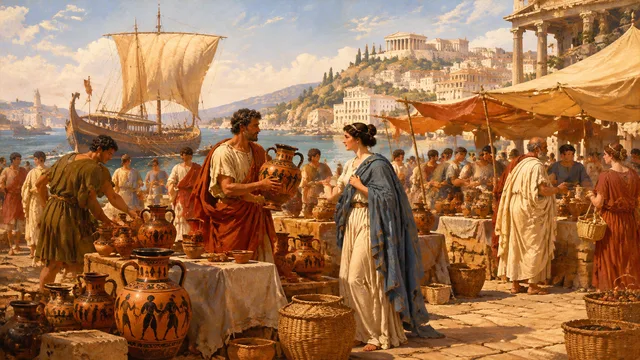
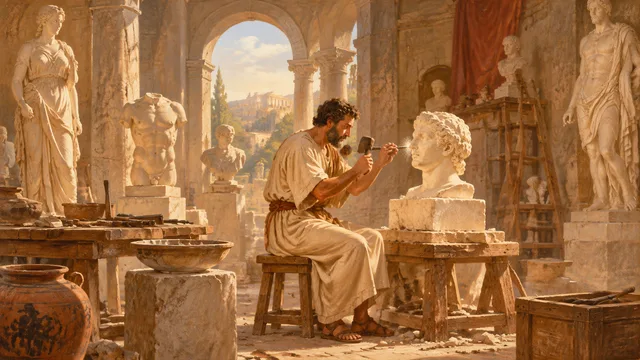
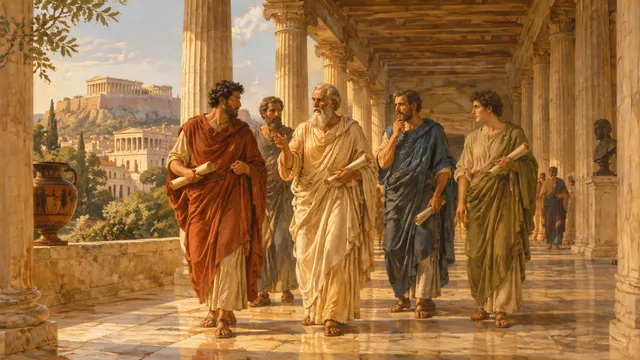
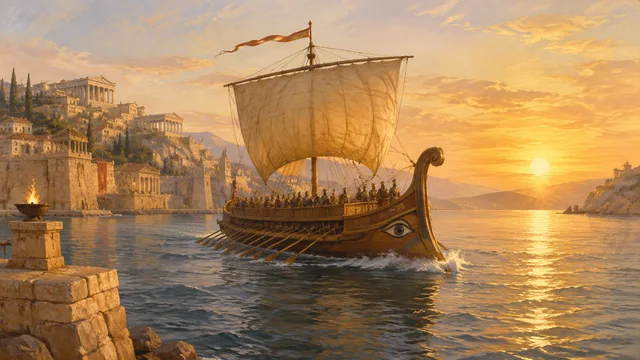
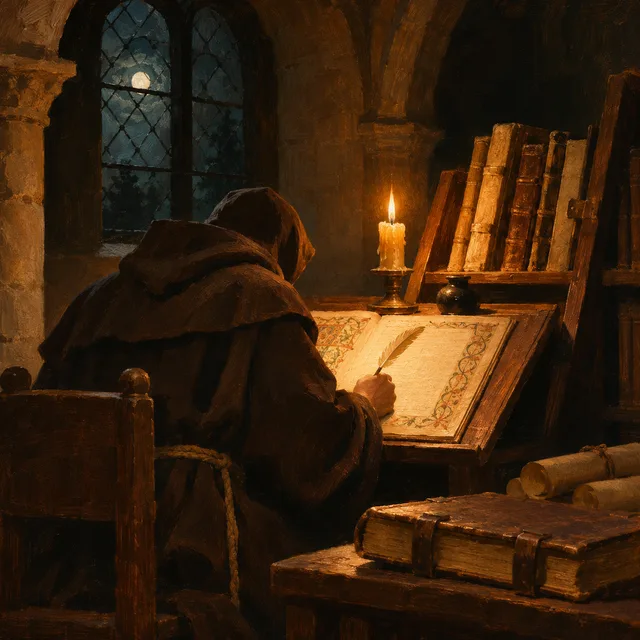
film still, overcast northern light — village fair, scriptorium, castle gate, water mill
fine copperplate engraving, cream paper — printing press, observatory, apothecary, sailing ship
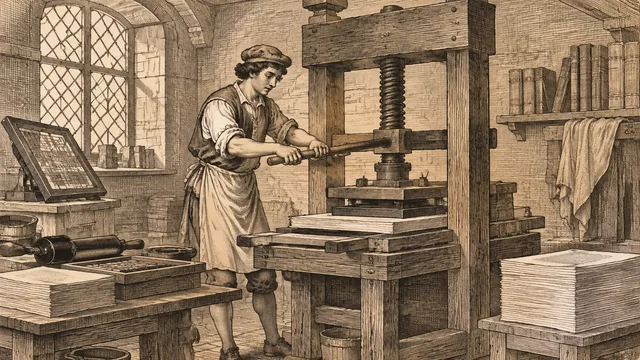
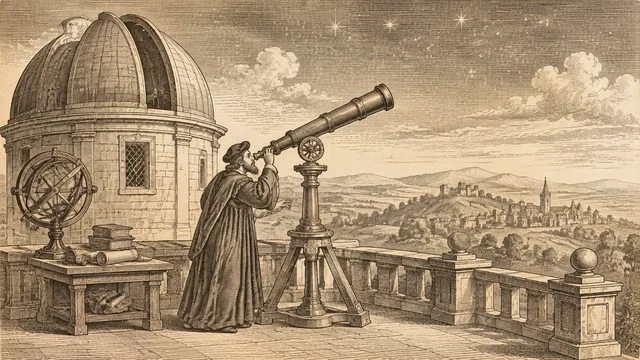
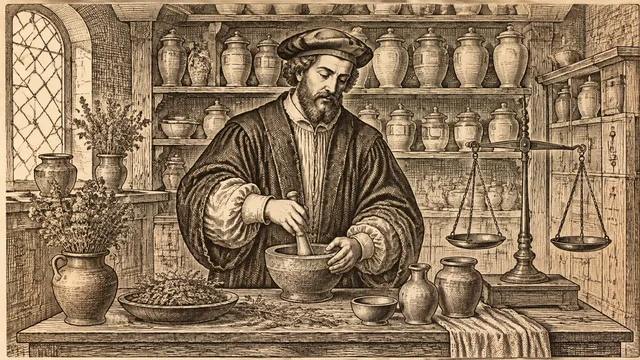
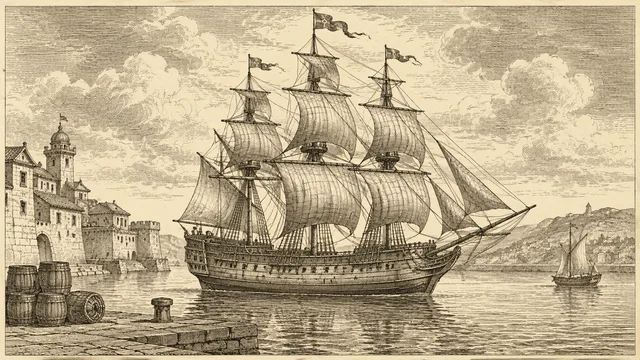
documentary-style illustration, soot and brass — cotton mill, railway cutting, foundry, tenement street
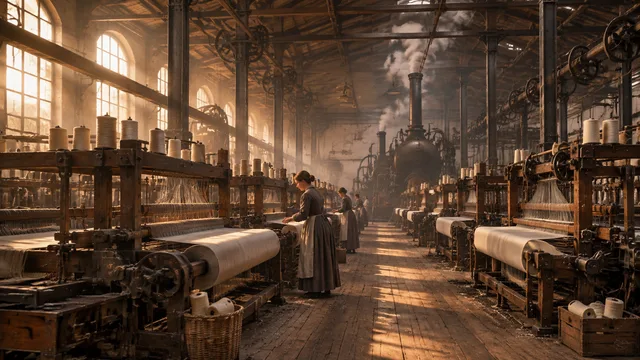
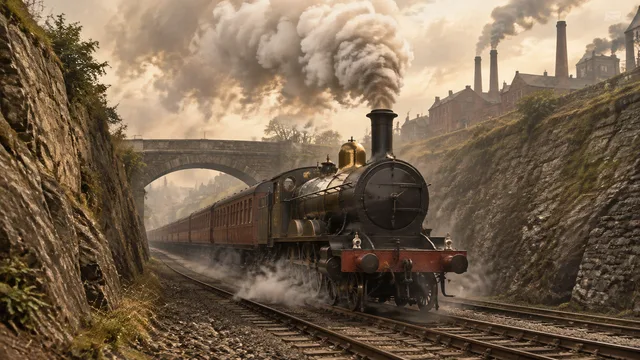
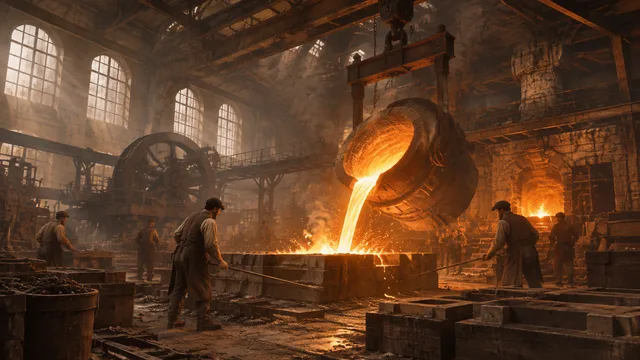
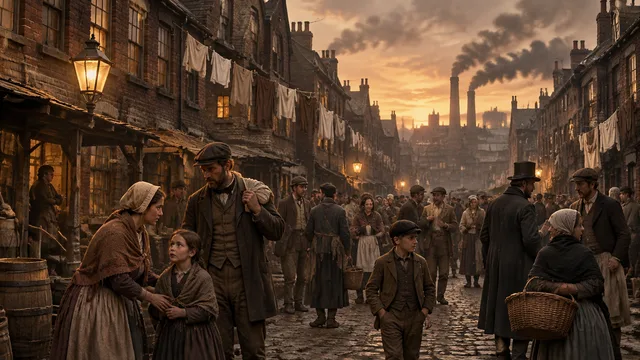
One era and look · a list of scenes · a matching set of historical images in one ZIP
One striking historical image is easy to get from any image tool. Thirty historical images that all look like the same documentary is a different job, and it is the job this historical image generator is built around.
Clothing, tools, buildings and light have to stay inside one period across the whole set, or a viewer notices the drift. Pick the era and the look once, keep them identical on each row, and change only the scene — that is how the historical images stay in one world.
Every scene carries the same instruction to avoid modern objects, roads, wires and anachronistic props. It does not make an image accurate, but it removes the most common slip, a plastic bottle or a power line in an ancient valley.
An image model draws a plausible picture of a period; it does not know what was really there. Treat each historical image as an illustration to accompany a narration, check details against your sources, and say in your video or lesson that the pictures are AI-generated.
Three steps, one screen. The work you keep is the research and the scene list; the historical image generator does the rendering.
Choose a period — Stone Age, Bronze Age, classical, medieval, Renaissance or industrial — and a visual register such as a cinematic film still, an oil painting, an engraving or a museum illustration. Add a palette in plain words if you want one. That sentence is the identity of the whole set.
Add one line per scene, in the order of your script: a village at dawn, a market, a battle line. A line can also carry a detail after a vertical bar, such as the setting or the weather. Review the full list of historical image scenes as plain lines on the confirmation screen before anything is spent.
Each historical image renders one or more takes, so you can keep the historical images that fit and re-run the rest. The run downloads as one ZIP of 16:9 historical images, ready for your editor, slides or lesson.
If a script, a lecture or an exhibit needs many pictures of one period, a bulk historical image generator saves the repetitive part.
A narrated video needs a new picture every few seconds. Paste the scenes from your script, keep one era and look, and get a consistent library of historical images to cut against the voice-over.
Slides on the Bronze Age or the Industrial Revolution look tidier when every historical image comes from the same set. List the scenes of the lesson and build the whole deck's artwork at once.
Exhibit panels, book chapters and tabletop settings often need atmospheric period scenes rather than documentary proof. Generate a lineup of historical images for a concept pass and commission or source final art where accuracy matters.
Something not covered? Email us at support@bulkimagen.com
An AI storyboard generator for whole sequences: one line per scene, one character anchor on every line, and every frame rendered in a single batch at 16:9.
A YouTube image generator that works from your script: one scene per line, one style lock on every line, every 16:9 image for the video in one batch.

A game asset generator for whole sets: write the art style once, list the sprites, icons or props, and get a matching batch on plain backgrounds in one ZIP.
Fix the period and the look, list the scenes of your narration and let the historical image generator render them together. Keep the historical images that fit, download one ZIP, and spend your time on research and storytelling instead of re-prompting the same world.