Model comparison
One prompt, several models

Compare AI image generators
on your own prompt

Benchmarks and other people's sample images tell you little about your job. Type the prompt you actually need, pick the models to compare, and see every result side by side — then batch the whole job with the one that wins.

One per line — each line is a separate prompt.

0 prompts

Drag & drop or click to upload — PNG / JPEG / WEBP / GIF, up to 10MB each.

3 picked · 2–6
0 images · 0 credits at 1K
You see the exact credit cost on the next screen before anything is charged.

Why compare AI image generators before you batch

Every image model has a personality. One nails lettering, another renders skin better, a third is cheaper and good enough. You cannot know which fits your prompt until you compare them on it — and comparing by hand means opening several tools, pasting the same prompt again and again, and lining the results up yourself.

One prompt, every model at once

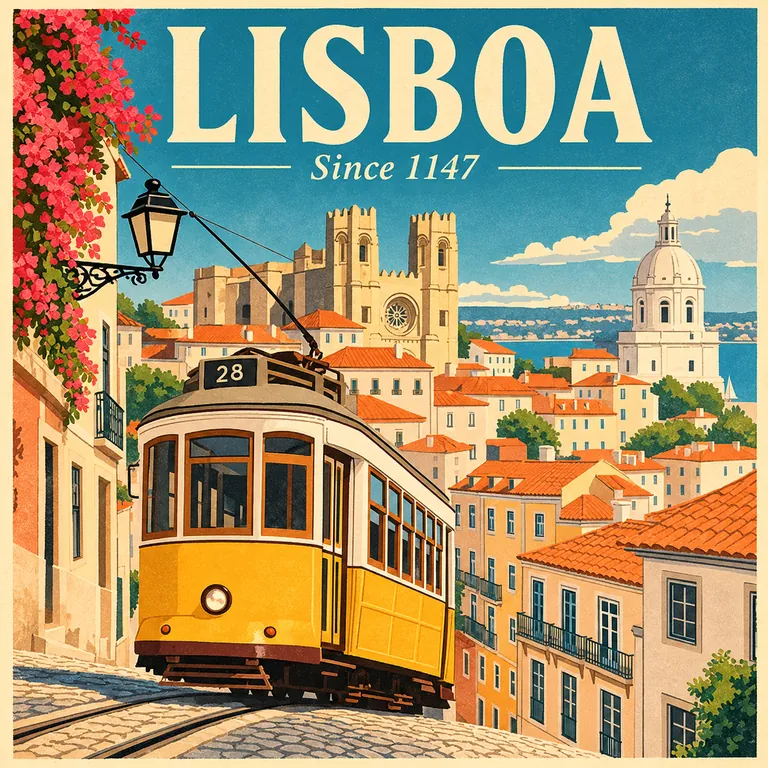
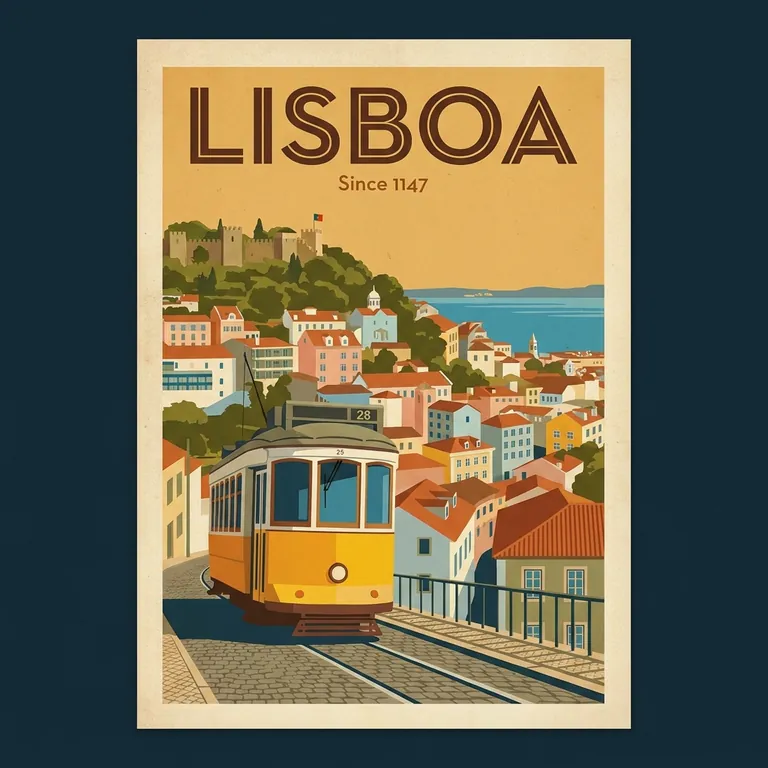
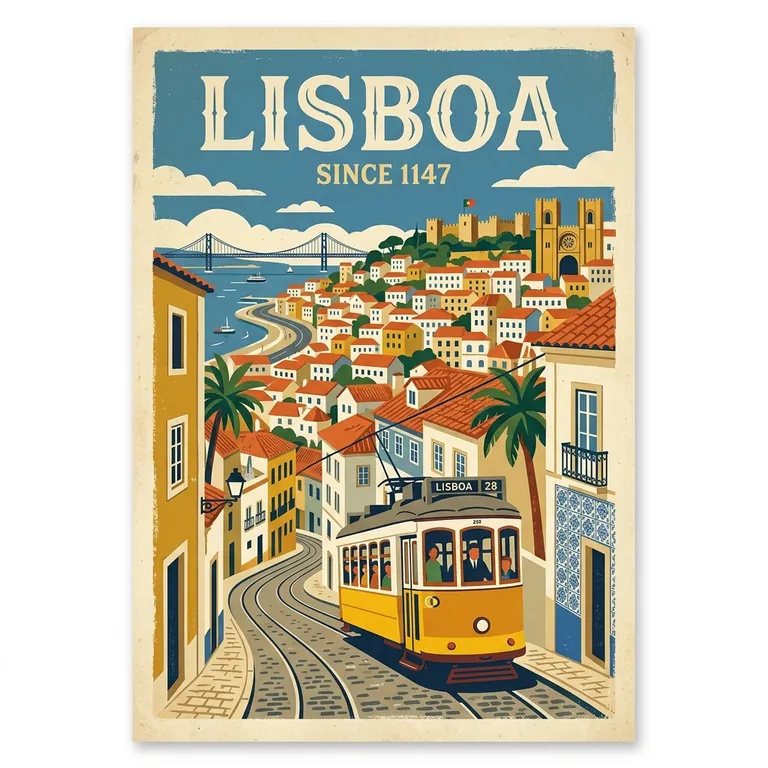
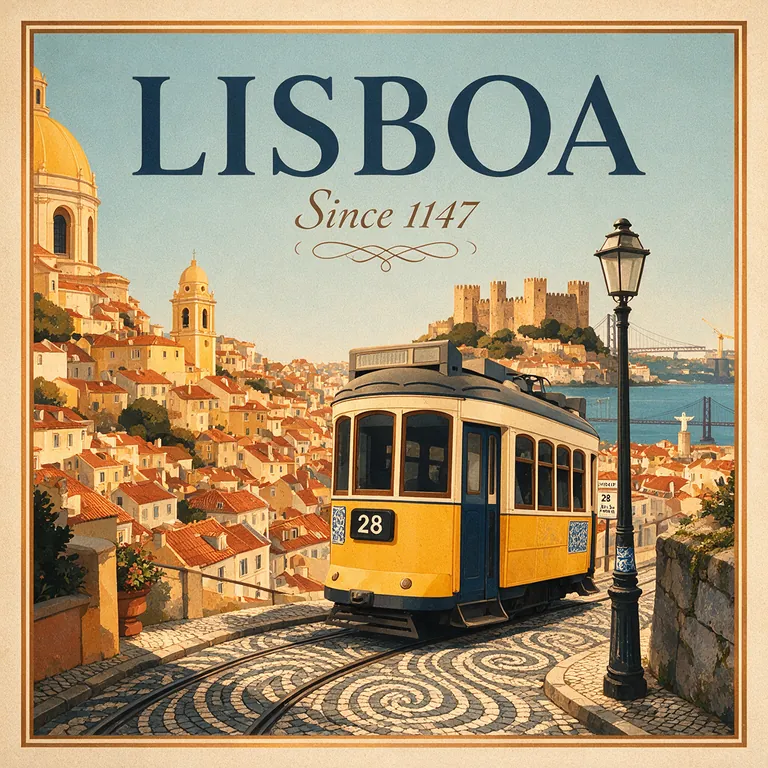
Write the prompt once and pick the models to compare. Each one renders the same text with the same aspect ratio and resolution, so the only thing that changes is the model.

Results side by side

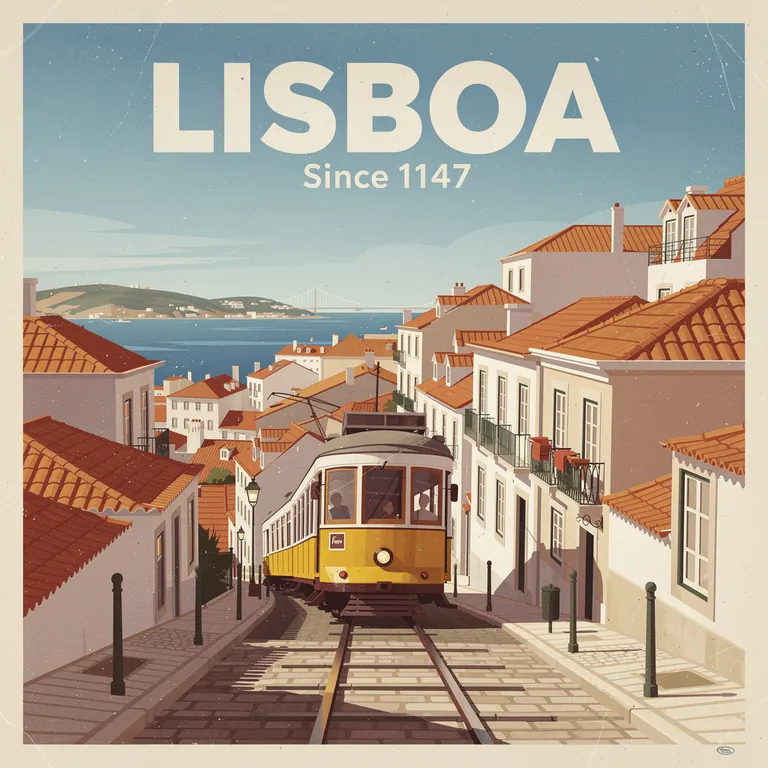
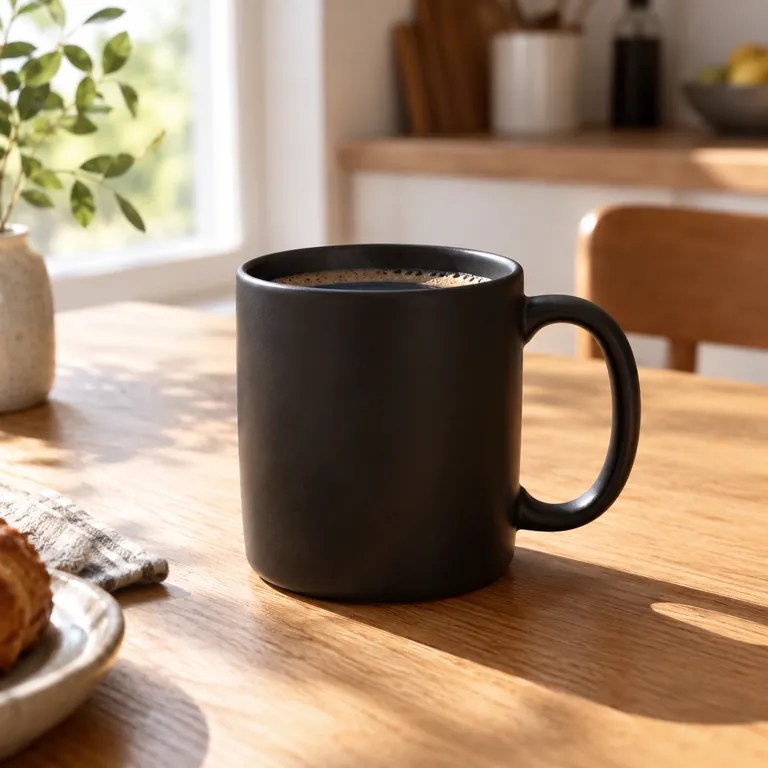
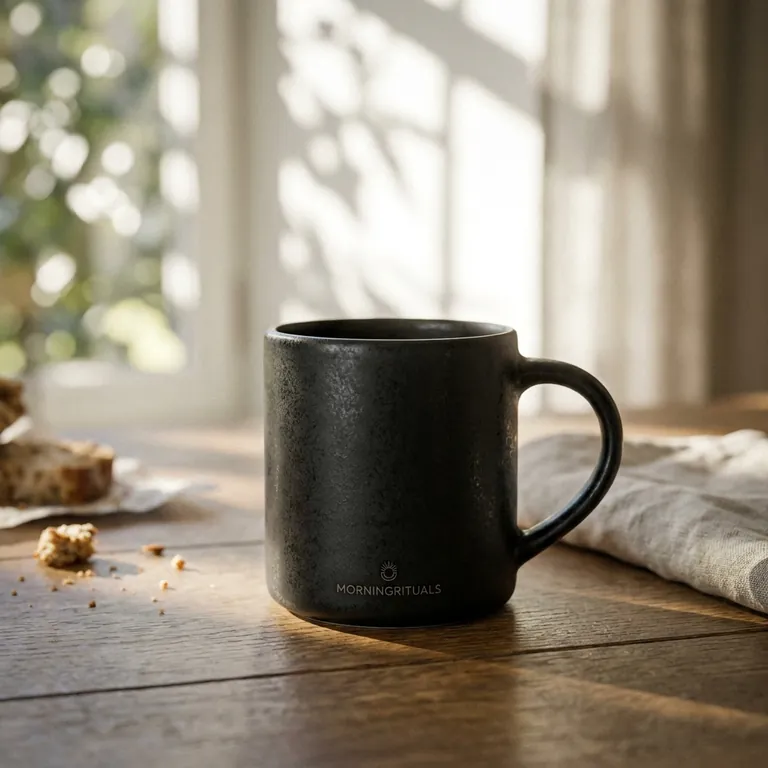
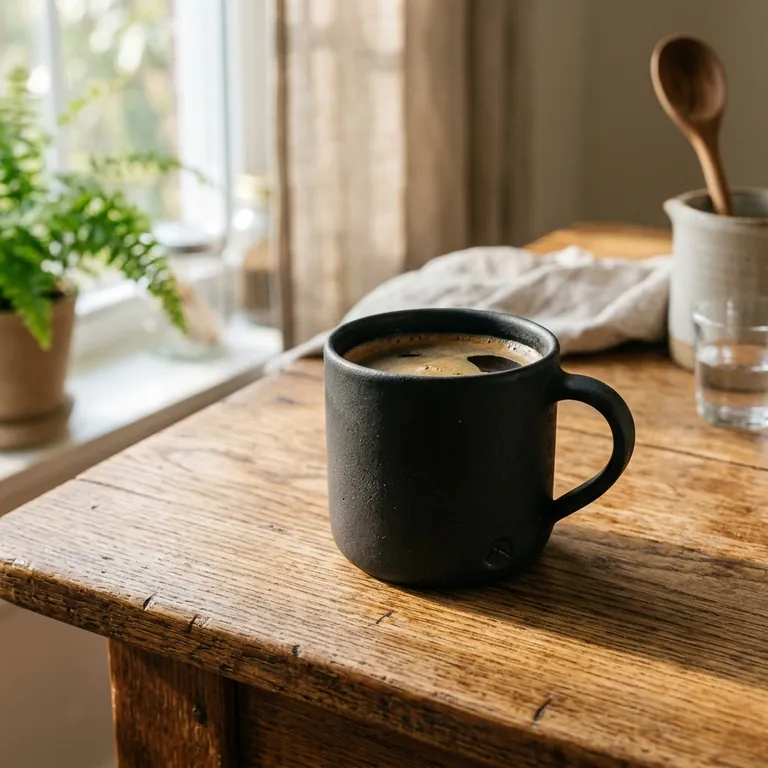
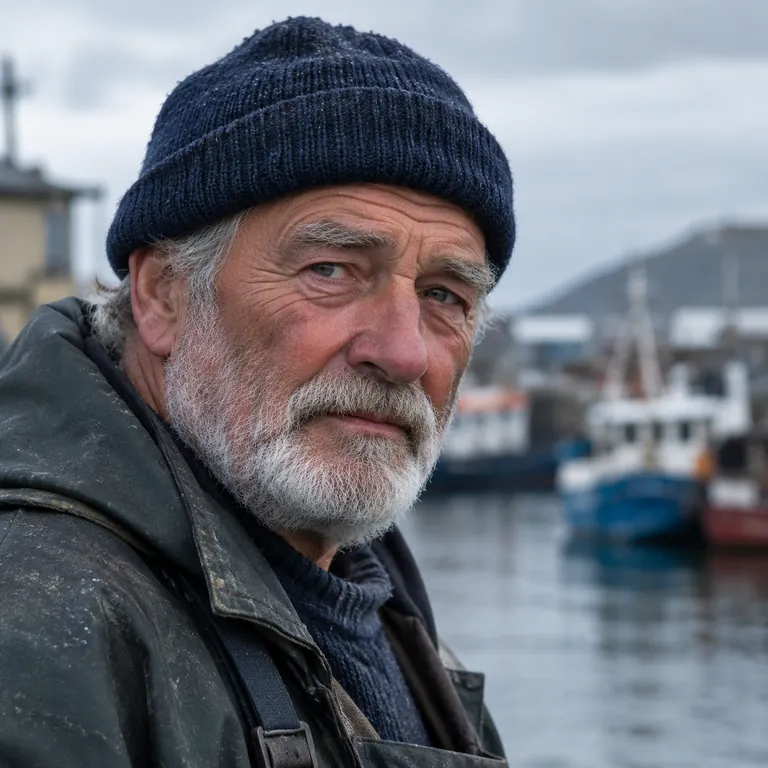
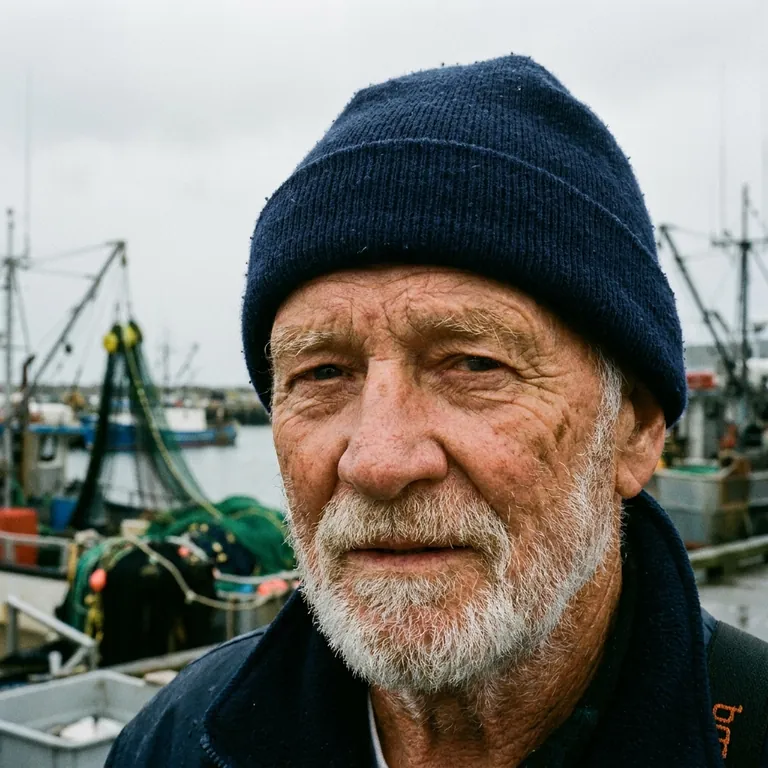
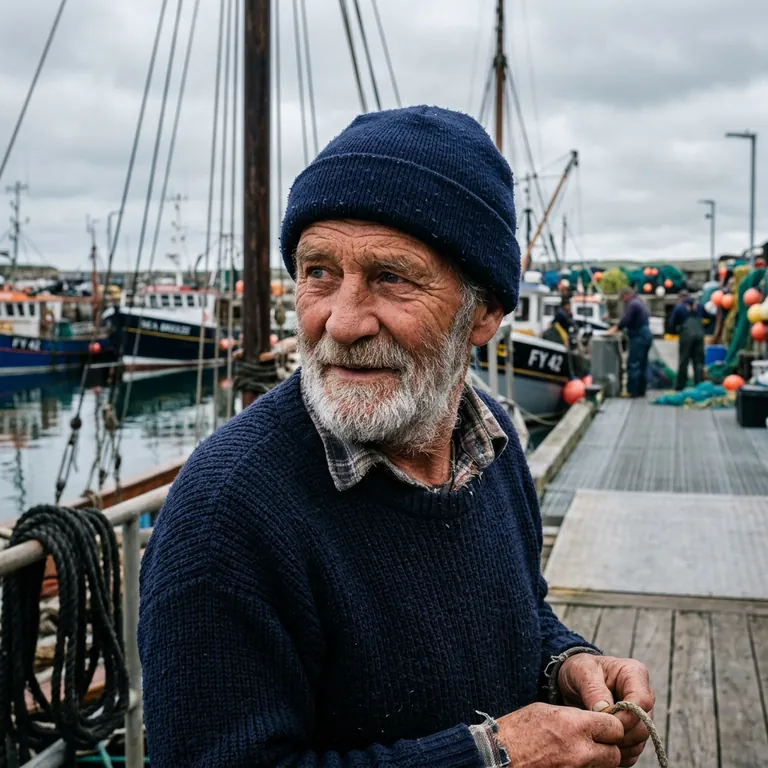
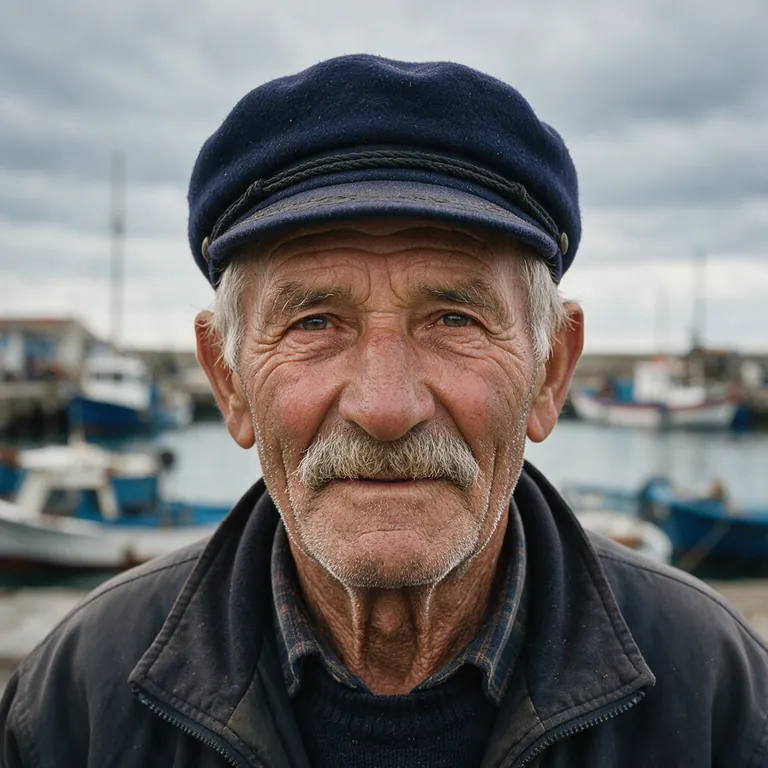
The results land in one grid: one row per prompt, one image per model, each labelled with the model that made it. Open any image full size and step across the models to compare details.

Edits compare too

Upload a photo and compare how each model edits it — a new background, a new style, a cleaned-up product shot. Text-only models are flagged before you pay, so an edit never goes to a model that cannot do it.

From winner to batch in one click

Under every model sits one button: batch with this model. Your prompts and settings carry over to a new batch, so the comparison turns straight into the real job.

How to compare in three steps

The whole comparison takes one screen and about as long as the slowest model takes to render.

  1. 01

    Write the prompt you need

    Paste the prompt from your real project — a product shot, a poster, a character, a scene. Add more lines to compare several prompts in one go, and attach a photo if you want to compare edits.

  2. 02

    Pick the models to compare

    Choose the models side by side on one card each, with the resolutions every model supports and its price at each tier. Set the shared aspect ratio and resolution; a model that cannot render them is flagged before you pay.

  3. 03

    Compare, then batch the winner

    Compare the results in one grid, keep the images you like, and send the winning model into a full batch with the same prompts. Images that fail are refunded automatically.

Who compares AI image models and why

Anyone about to generate a lot of images with one model has a good reason to compare a few first.

Ecommerce teams

Before rendering a whole catalog, compare which model keeps the product closest to the reference photo and gets the lighting right, then batch every SKU with that one.

Designers and marketers

Compare lettering, layout and brand colors on the actual ad or poster prompt, instead of trusting a model's reputation for text.

Creators and storytellers

Compare how each model holds a character, a style or a mood across a few scenes before you commit a whole storyboard or picture book to it.

Developers choosing a default

Compare quality against price on the prompts your users send, then set the model your app or API integration uses by default.

Anyone switching models

New models arrive every few months. Compare the newcomer with the model you use today on your own prompts, and switch only when it is clearly better.

People on a budget

A cheaper model is often good enough. Compare the low-cost option with the premium ones and keep the savings when the difference does not show.

Questions about how to compare AI image generators

Still have a question? Email us at support@bulkimagen.com

  • Every model in your BulkImagen dashboard: OpenAI's GPT Image models, Google's Nano Banana family, ByteDance's Seedream, Black Forest Labs' Flux, Qwen, Grok and more. The models page lists each one with its supported sizes and price.
  • Each image is charged at that model's normal price for the resolution you pick — there is no extra fee to compare. The form shows the cost per model and the total before you start, and any image that fails is refunded.
  • Yes. Put one prompt per line and every model renders each of them, so you can compare models across a few typical prompts from your project instead of judging on a single lucky result.
  • Yes. Upload one or more reference images and every selected model edits them with your prompt. Models that only accept text are flagged while references are attached and cannot be submitted, so you never pay for an edit a model cannot do.
  • Click batch with this model under the winner. A new batch opens with your prompts and settings already filled in, so you can scale the job up with the model you just picked. Nothing is charged until you submit it.
  • The models page lists sizes, reference limits and prices side by side. This page lets you compare actual results on your own prompt. Use the specs to shortlist and the comparison to decide.
  • You need a free account to run a comparison, because each image is generated and charged to your credit balance. New accounts get free credits to try it.

Stop guessing which model to use — compare them

Type your prompt, pick the models, and compare every result side by side. When one wins, batch the whole job with it in a single click.