How to Make Transparent Clipart With AI: 12 PNGs in One Batch
How to make transparent clipart with AI: one style line, a list of objects, and a batch of real PNG cutouts. Tested results, a failure to watch for, prompts.
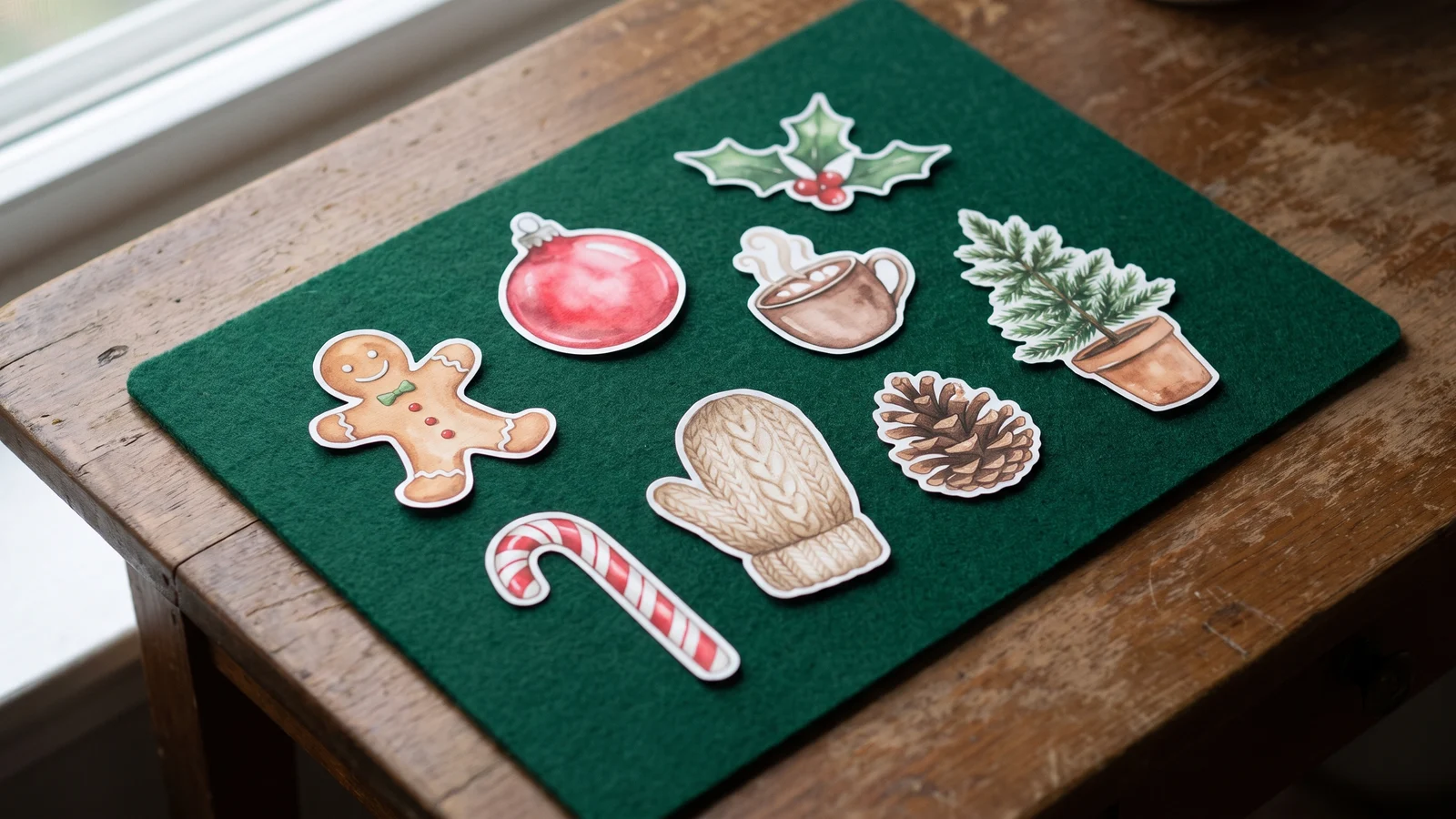
Clipart is only useful when it can sit on anything. A gingerbread man that arrives on a white square is fine on a white page and ugly everywhere else: on a kraft-paper planner, a dark green banner, a red gift tag. What you actually want is transparent clipart, a PNG where everything that is not the drawing is empty, so the piece drops onto any background without a box around it.
Most AI image tools hand you a flat picture. The background is painted in, even when you ask for "transparent", and you spend the next hour in a background remover, one file at a time. That gets old fast when the job is not one image but a whole set: twelve Christmas elements for a sticker sheet, thirty icons for a printable, a seasonal pack for a shop.
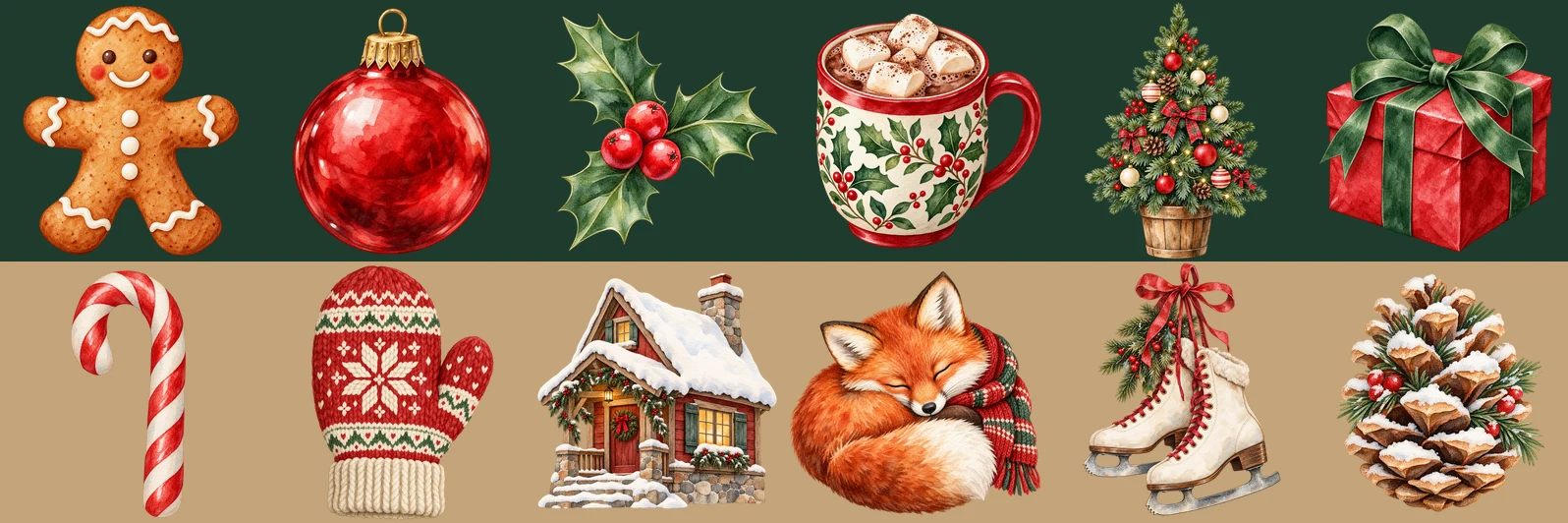
We ran the whole job as one batch: twelve watercolor Christmas objects, one shared style line, the transparent background setting on. Below is what came back, the one failure we hit (and how to spot it in a second), and the prompts you can copy.
Generate in bulk
One prompt per line, hundreds of images, one ZIP to download.
What "transparent" has to mean#
A transparent PNG has a fourth channel, alpha, that says how see-through each pixel is. The drawing pixels are opaque, the background pixels are fully transparent, and the edge pixels sit in between so the outline blends smoothly into whatever is behind it.
That is a property of the file, not of the picture. A model can paint a perfect-looking grey-and-white checkerboard behind the drawing and the file will still be a flat image with a fake checkerboard baked in. So the only test that counts is to put the file on a dark background and look. Real transparency disappears; a painted checkerboard shows up immediately. We checked every file in this post that way, and also read the alpha channel directly.
How we tested#
- Model: GPT Image 2, the default model in the form, at 1K (5 credits per image). Files came back at 1254 × 1254 px.
- Setting: Background set to Transparent. The form labels it "Beta — may not apply to every image", and that label turned out to be fair.
- Batch: 12 prompts, one image each, 1:1. Every prompt was an object name plus the same style line.
- Extras: a control batch of 4 prompts with the setting left on Auto and "transparent background" written into the prompt instead, and 2 prompts at 2K with the setting on.
The results#
12 of 12 came back with real transparency. Every file was an RGBA PNG, with roughly 37–80% of the canvas fully transparent depending on the shape (the thin candy cane had the most empty space, the cabin the least). Edges were clean on a near-black background: no white fringe around the holly leaves, the fox's fur or the snow on the pinecone.
The style line held across all twelve. The red, the pine green and the cream match from piece to piece, and the paper-grain texture is there in every wash, which is what makes it read as one pack and not twelve random downloads.
What did not go exactly to plan:
- The model added small extras. The ice skates came with a pine sprig and a red bow, the pinecone gained holly berries, and the tree arrived in a wooden bucket. "Single isolated object" in the prompt did not stop it. If a piece has to be just the object, say so in that line (for example "no added decorations"); we did not test that wording, so try it on one image first.
- The control batch also worked. With the setting on Auto and "transparent background" written into the prompt, all 4 files still came back transparent. So on GPT Image 2 the words alone can do it. The setting is still worth switching on: it sends the same instruction to every image without you having to remember it, and it works on prompts that do not mention the background at all.
The failure to watch for: a painted checkerboard#
At 2K, one of the two images came back wrong in the most deceptive way possible. The fox was a real transparent PNG at 2048 × 2048. The candy cane was a flat image with a grey-and-white checkerboard painted behind it, plus a pine sprig nobody asked for.
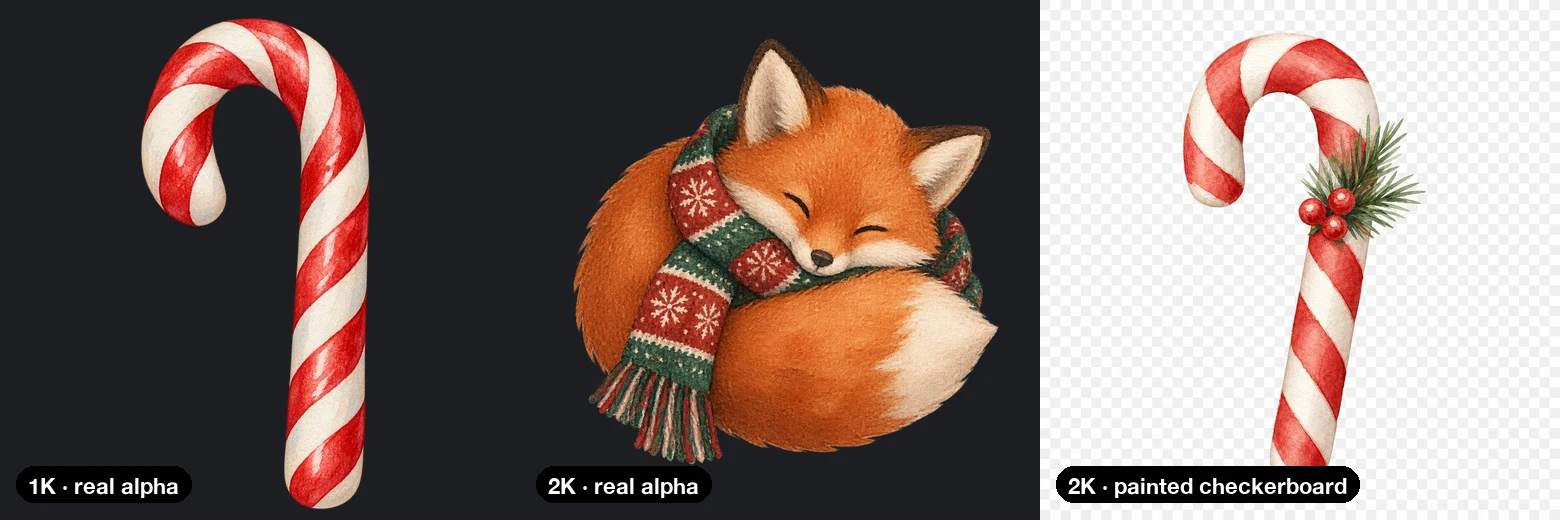
On a white page you would never notice; it looks exactly like the transparency preview in an image editor. That is why the dark-background check matters before anything goes into a listing or a print file.
Two samples is too few to put a number on it, so treat it as a warning, not a rate: in this test 1K was 12 for 12 and 2K was 1 for 2. For clipart we would start at 1K. At 1254 px a piece prints at about 4 inches wide at 300 dpi, which covers stickers, tags and planner elements. Only move to 2K for pieces that genuinely need it, and check each file.
Step by step#
- Write one style line. Medium, palette, texture, framing, and what to leave out. The palette is what makes a set match, so name colors, not moods.
- List the objects, one per line. Each line is the object plus the style line. One line becomes one image.
- Pick GPT Image 2 and set Background to Transparent. GPT Image 2 is the default model. The Background control is available on GPT Image 2 at every resolution and on GPT Image 2.5 at 1K only. The other models do not offer it.
- Use 1:1 and 1K. Square canvases give every piece the same room and make the set easy to lay out.
- Check on dark, then download. Leave Format on Keep as is to get the PNG files, or choose WebP, which also supports transparency. Do not choose JPG: JPG has no transparency at all.
If a piece fails, rerun just that line. A batch is the list, not one fixed result.
The prompts we used#
The style line, if you want to build your own list:
Watercolor Christmas clipart, soft hand-painted washes, visible paper-grain texture inside the shapes, muted red, pine green and cream palette, single isolated object, centered, no text, no letters, no border, transparent backgroundThe full set of twelve, ready to run (switch Background to Transparent before you generate):
a gingerbread man with white icing buttons. Watercolor Christmas clipart, soft hand-painted washes, visible paper-grain texture inside the shapes, muted red, pine green and cream palette, single isolated object, centered, no text, no letters, no border, transparent background
a red glass Christmas ornament with a gold cap. Watercolor Christmas clipart, soft hand-painted washes, visible paper-grain texture inside the shapes, muted red, pine green and cream palette, single isolated object, centered, no text, no letters, no border, transparent background
a sprig of holly with three red berries. Watercolor Christmas clipart, soft hand-painted washes, visible paper-grain texture inside the shapes, muted red, pine green and cream palette, single isolated object, centered, no text, no letters, no border, transparent background
a steaming mug of hot cocoa topped with marshmallows. Watercolor Christmas clipart, soft hand-painted washes, visible paper-grain texture inside the shapes, muted red, pine green and cream palette, single isolated object, centered, no text, no letters, no border, transparent background
a small decorated pine tree in a wooden pot. Watercolor Christmas clipart, soft hand-painted washes, visible paper-grain texture inside the shapes, muted red, pine green and cream palette, single isolated object, centered, no text, no letters, no border, transparent background
a wrapped gift box tied with a green ribbon bow. Watercolor Christmas clipart, soft hand-painted washes, visible paper-grain texture inside the shapes, muted red, pine green and cream palette, single isolated object, centered, no text, no letters, no border, transparent background
a red and white striped candy cane. Watercolor Christmas clipart, soft hand-painted washes, visible paper-grain texture inside the shapes, muted red, pine green and cream palette, single isolated object, centered, no text, no letters, no border, transparent background
a knitted red mitten with a snowflake pattern. Watercolor Christmas clipart, soft hand-painted washes, visible paper-grain texture inside the shapes, muted red, pine green and cream palette, single isolated object, centered, no text, no letters, no border, transparent background
a cozy snow-covered cabin with a lit window. Watercolor Christmas clipart, soft hand-painted washes, visible paper-grain texture inside the shapes, muted red, pine green and cream palette, single isolated object, centered, no text, no letters, no border, transparent background
a sleeping red fox curled up with a scarf. Watercolor Christmas clipart, soft hand-painted washes, visible paper-grain texture inside the shapes, muted red, pine green and cream palette, single isolated object, centered, no text, no letters, no border, transparent background
a pair of vintage ice skates tied together. Watercolor Christmas clipart, soft hand-painted washes, visible paper-grain texture inside the shapes, muted red, pine green and cream palette, single isolated object, centered, no text, no letters, no border, transparent background
a pinecone with a dusting of snow. Watercolor Christmas clipart, soft hand-painted washes, visible paper-grain texture inside the shapes, muted red, pine green and cream palette, single isolated object, centered, no text, no letters, no border, transparent background
The prompts above include "transparent background" in the text as well, so the words are there even if you forget the setting.
Other styles to try#
Swap the style line and keep the list. These are untested starting points, so run one image before the whole set:
Flat vector clipart, clean shapes with no outlines, limited palette of [three colors], single isolated object, centered, no text, no letters, no border, transparent backgroundCute kawaii sticker-style clipart, thick dark outline, soft pastel [color] and [color] palette, simple happy face, single isolated object, centered, no text, no letters, transparent backgroundTip
Keep the object first and the style line second. Downloaded files are named from the start of the prompt, so "a-red-glass-ornament…" sorts better than twelve files that all begin with "watercolor-christmas…".
Note
Avoid style lines that ask for a drop shadow, a sticker border or a "die-cut" look if you want a clean cutout. A shadow under the object has to be drawn somewhere, and the model may paint a background to hold it.
When to use a white background instead#
Transparency is not always the goal. If the clipart is going straight onto white pages, a coloring book or a printed worksheet, a plain white background is simpler and every model can do it. Our bulk clipart generator is set up for exactly that kind of matching pack, and the coloring book guide covers line art for print. Choose transparent when the pieces will be layered over color, photos or other designs.
Checklist#
- One style line with named colors, appended to every object line
- GPT Image 2 (or GPT Image 2.5 at 1K), Background set to Transparent
- 1:1 at 1K; 2K only where you need it, and check every file
- Dark-background check for a painted checkerboard before you use a file
- Format left on Keep as is (PNG) or WebP, never JPG
- Rerun single lines instead of the whole batch
FAQ#
Can AI make clipart with a transparent background? Yes, if the model can output an alpha channel. In our test GPT Image 2 returned real transparent PNGs for 12 of 12 pieces at 1K. Many image models can only paint a background, which is why the setting is limited to the GPT Image models in our form.
Why does my "transparent" image show a checkerboard? Either it is a real transparent PNG shown in a viewer that draws a checkerboard behind it, or the model painted the checkerboard into the image. Put it on a dark background: if the squares stay, they are part of the picture. Rerun that line.
How many pieces can I make at once? One line per piece, as many lines as your plan's batch size allows. Limits are on the pricing page. Larger packs can be split across several batches with the same style line.
What does it cost? GPT Image 2 is 5 credits per image at 1K and 10 at 2K. The 12-piece set above was 60 credits.
Do I need to remove the background afterwards? Not for the files that come back transparent. Check each one on dark; only a file that failed needs fixing, and rerunning that one line is usually faster than editing it.
When you have a whole list of pieces to make, a bulk image generator turns it into one batch: one style, one setting, every file a cutout you can drop anywhere. For more on writing lists that run in one go, see how to generate images from a list of prompts.