Batch Edit Photos with AI: 4 Fixes Run on 6 Photos at Once
How to batch edit photos with AI: one prompt cleans up clutter, swaps backgrounds, removes date stamps or fixes lighting on every photo, with honest results.
On this page
- How we tested
- Results at a glance
- The one line that protects your subject
- Edit 1: Clean up the clutter
- Edit 2: Replace the background
- Edit 3: Remove a date stamp or text overlay
- Edit 4: Fix lighting and white balance
- How to batch edit your own photos
- Which fixes work well in bulk, and which need care
- Checklist
- FAQ
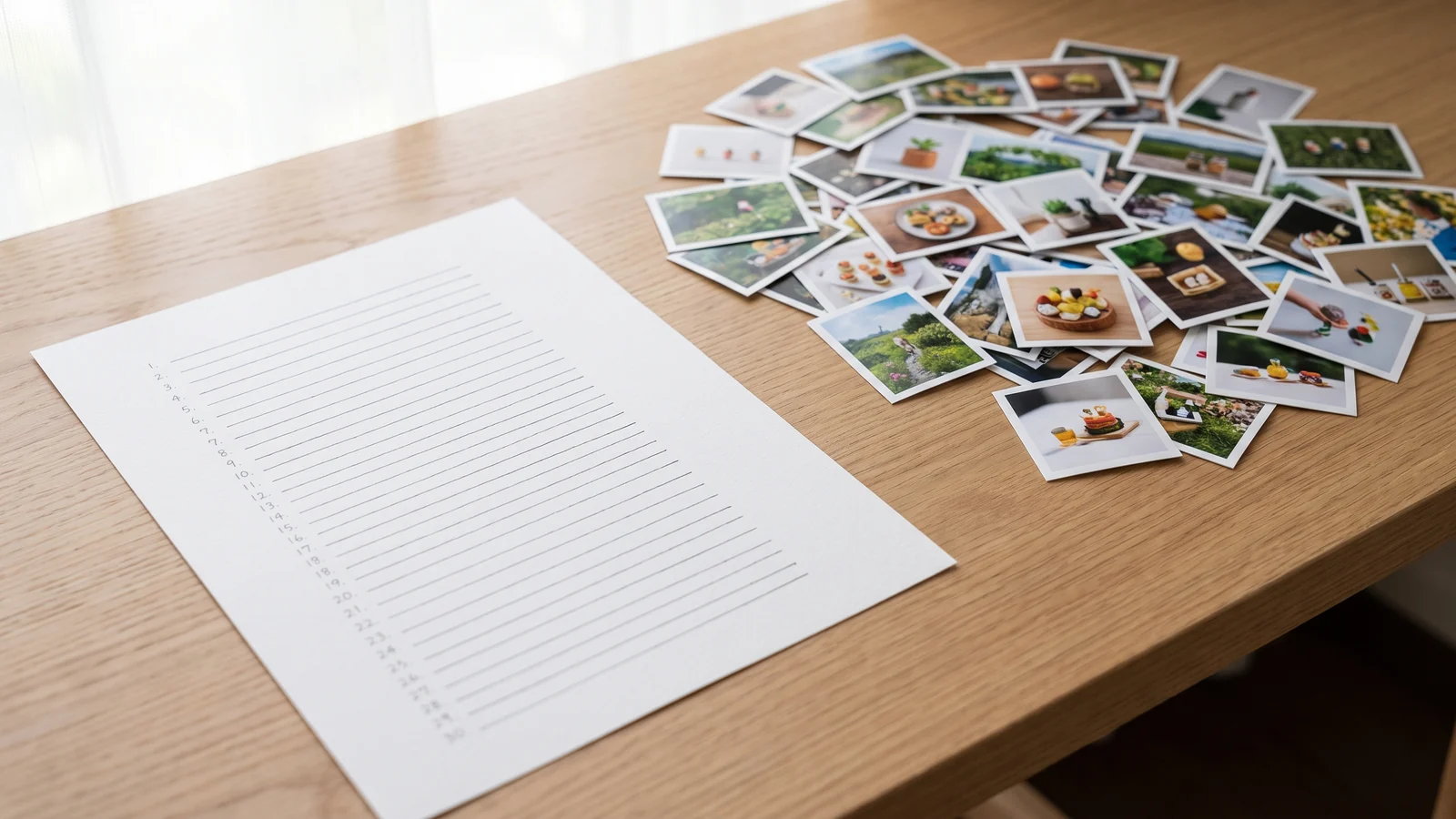
Most photo fixes are boring because they are the same fix, over and over. The phone shots of your products all have a mug or a cable in the corner. The whole folder came out yellow under the kitchen lamp. Every picture from an old camera carries the same orange date in the corner. Fixing one photo is easy; fixing sixty is an afternoon, unless you batch edit photos with AI.
Presets and actions in classic editors help when the fix is a slider: the same exposure and white balance on every file. They do not help when the fix depends on what is in each photo, like removing whatever clutter happens to be on that particular table. That is the job AI image editing is good at, and the reason people ask whether AI can edit multiple photos at once.
It can. We wrote four edit prompts, ran all four on six photos in a single batch, and checked every result against its original. Below are the prompts you can copy, the results (including the ones that went wrong), and how to set up the same batch yourself.
Generate in bulk
One prompt per line, hundreds of images, one ZIP to download.
How we tested#
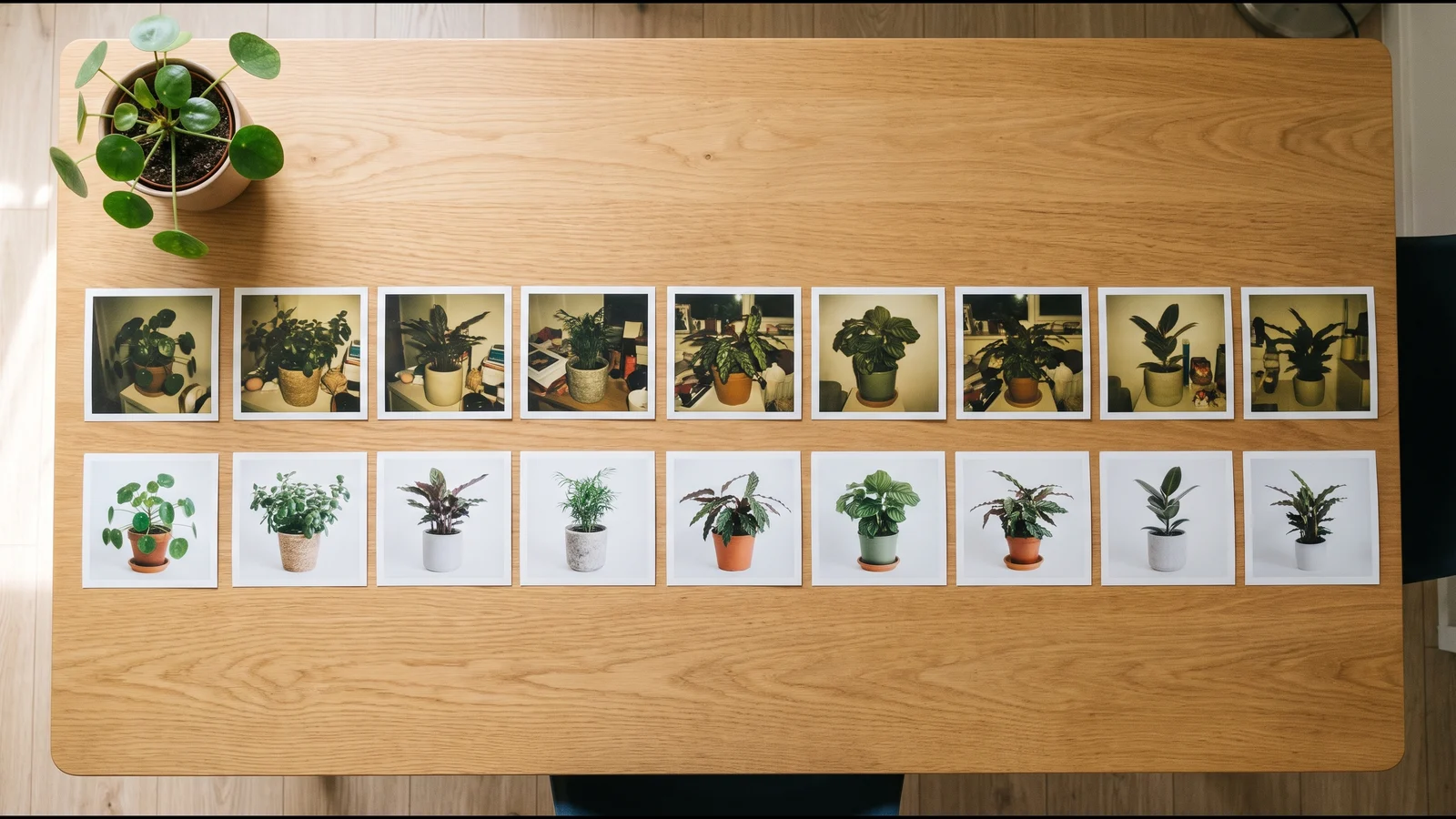
- Six photos of the kind people actually take. A small plant shop photographing its stock at home: dim lamp light with a yellow cast, everyday clutter around each pot, and an orange camera date stamp on three of the six. The photos themselves are AI-generated for this test; no real shop or customer is involved.
- Four edits, one prompt each: clean up the clutter, replace the background, remove the date stamp, fix the lighting.
- One batch. The six photos went in as reference images in Per image mode and the four prompts went in as four lines, so every prompt ran on every photo: 4 × 6 = 24 edited images.
- One model, one attempt, no cherry-picking: Nano Banana 2.1 at 1K with the aspect ratio set to auto, so every output came back at the same 3:4 shape as its original. All 24 rendered on the first try.
Six photos is a small sample, so read the counts below as tendencies. We did look at every image at full size, because most of the problems only show up there.
Results at a glance#
| Edit | Worked | What went wrong |
|---|---|---|
| Clean up clutter | 6 of 6 | A lamp base hidden behind a tissue box was filled in with a different-looking base |
| Replace the background | 6 of 6 look like studio shots | The plants are redrawn, not cut out; one photo lost two of its three pots |
| Remove the date stamp | 3 of 3 photos with a stamp | Nothing; the three photos without a stamp came back unchanged (but still cost credits) |
| Fix lighting and color | 6 of 6 | One photo barely changed; every object stayed where it was |
The short version: edits that remove something small or change the light are very reliable. Edits that replace most of the picture are where the model starts redrawing things you wanted kept.
The one line that protects your subject#
Every prompt in this test ended with the same sentence. It names the parts a customer would notice first and tells the model not to touch them:
Keep the plant, every leaf, the pot and the camera angle exactly as they are in the reference photo; do not add, remove or redesign any leaves, and do not change the pot.For your own photos, swap in your subject: keep the jacket exactly as it is: same color, same buttons, same stitching. Without a line like this, image models treat your photo as inspiration rather than as something to preserve.
Edit 1: Clean up the clutter#
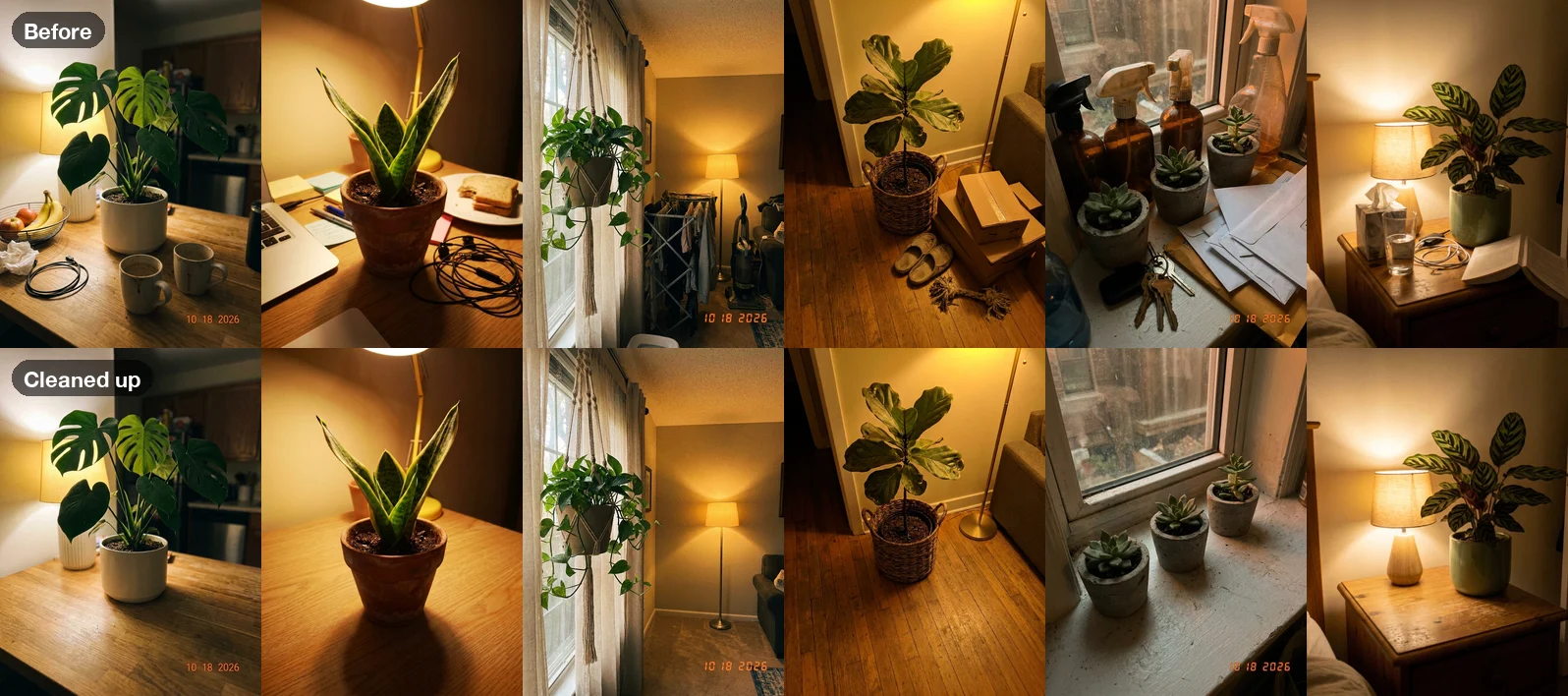
Clean up this photo: remove the loose clutter around the plant (cables, mugs, dishes, food, papers, envelopes, boxes, clothes, laundry rack, vacuum, cleaning bottles, keys, slippers, toys, tissues) and fill the gaps naturally with the same surface, floor and wall. Keep the furniture, the room, the lighting and any date stamp as they are. Keep the plant, every leaf, the pot and the camera angle exactly as they are in the reference photo; do not add, remove or redesign any leaves, and do not change the pot.This was the strongest edit. In all six photos the listed items disappeared and the table, floor or windowsill underneath looked natural. The room, the light and the plant stayed the same.
Two details worth copying. First, the prompt lists the kinds of clutter instead of just saying "remove clutter"; the model then leaves the furniture and lamps alone. Second, it says keep any date stamp, because we wanted each edit to do one thing. If you want both at once, say so in one prompt.
The one flaw: on the bedside table, the bottom of the lamp had been hidden behind a tissue box. With the box gone, the model had to invent what was behind it, and it drew a wooden base that the original probably did not have. Anything that was hidden in the original gets made up, so check the spots where you removed something large.
Edit 2: Replace the background#
Replace the whole background with a plain, seamless warm-white studio backdrop, with the plant and pot standing on it and a soft natural shadow under the pot. Bright, even, neutral daylight, like a simple product photo for an online shop. Keep the plant, every leaf, the pot and the camera angle exactly as they are in the reference photo; do not add, remove or redesign any leaves, and do not change the pot.At a glance this looks like the most impressive result: six home snapshots turned into six clean shop photos.
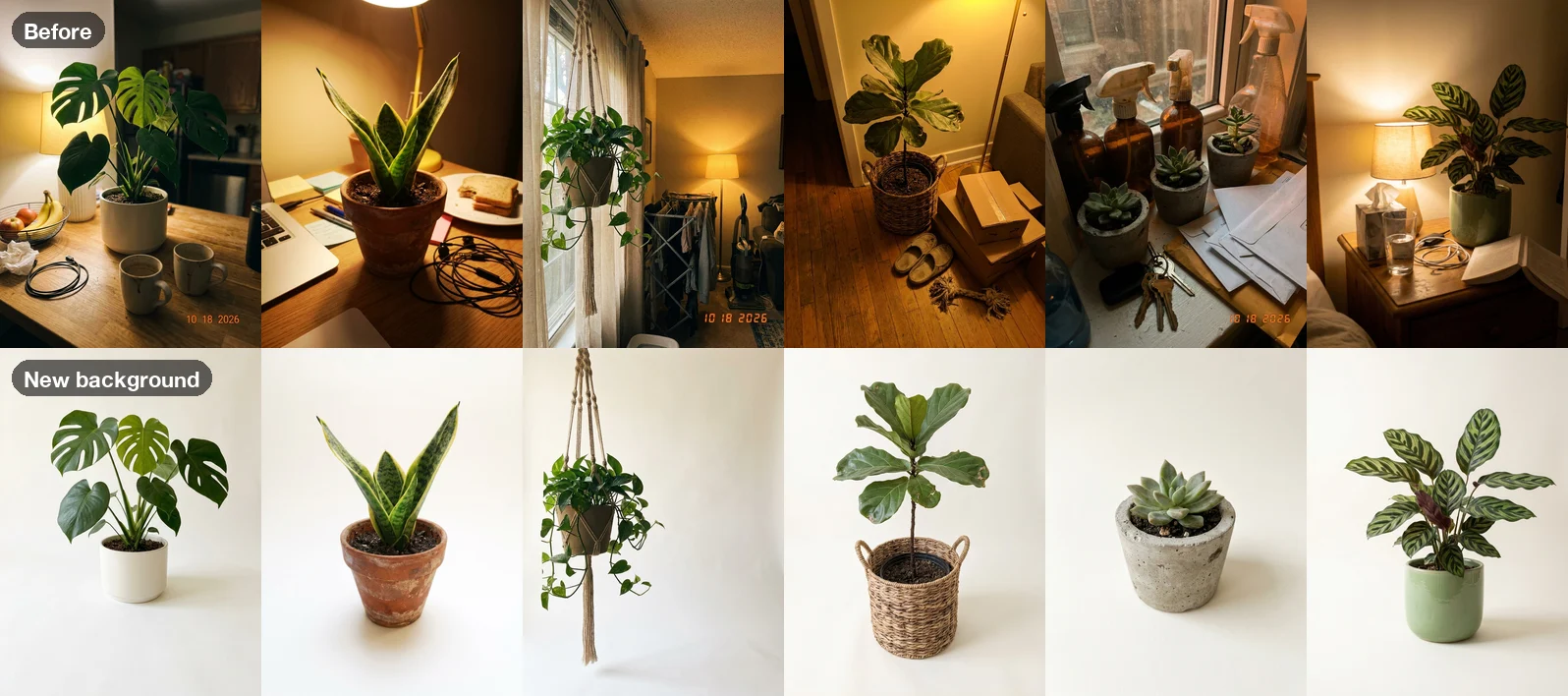
Look closer and the plants are not the same plants. The pots and species match, but the leaves are arranged differently. The model did not cut the plant out and drop it on white; it photographed a new plant of the same kind on a new backdrop. On the windowsill photo it went further and turned three small pots of succulents into one.
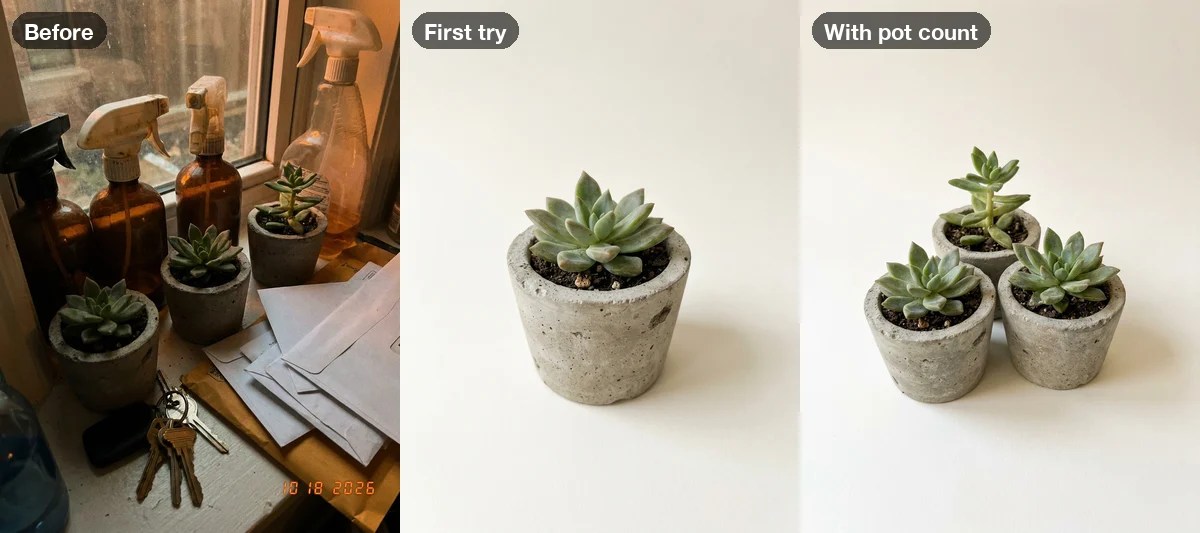
We ran that one photo again with one more sentence: There are three succulents in three separate pots in this photo: keep all three pots, in the same arrangement. All three pots came back. The plant in the back pot, though, became a different-looking succulent. So spelling out how many objects there are fixes the count, but not the exact look.
Warning
If a buyer will receive the exact item in the photo (a one-of-a-kind plant, a used camera, a vintage dress), a redrawn background edit can show something that is not quite what you are selling. Use it for mood shots and catalog-style images, and check each result against the original before you publish it.
Edit 3: Remove a date stamp or text overlay#
Remove the orange date stamp from the corner of the photo, if there is one, and restore the area underneath it. Change nothing else: same objects, same lighting, same colors, same framing. Keep the plant, every leaf, the pot and the camera angle exactly as they are in the reference photo; do not add, remove or redesign any leaves, and do not change the pot.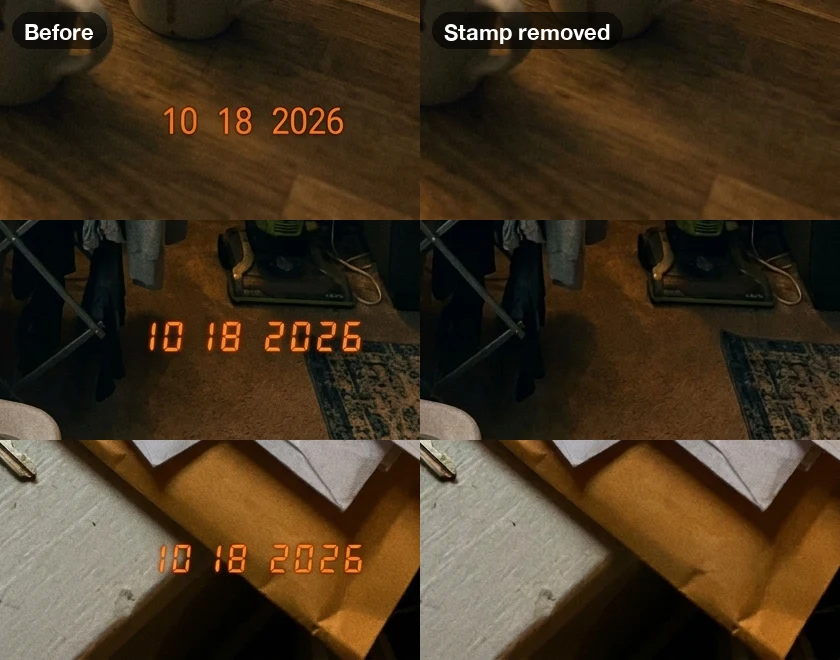
All three stamps disappeared, and at full size the wood grain, rug pattern and envelope under them look continuous. This is the same kind of job as removing a caption, a watermark you own, or text burned into a screenshot.
The three photos without a stamp came back essentially unchanged, which is what if there is one is for. But they were still rendered and still charged. More on that in the batch setup below.
Note
Only remove marks you have the right to remove: your own date stamps, captions and watermarks. Stripping someone else's watermark or logo from their photo is a copyright and trademark problem, not an editing task.
Edit 4: Fix lighting and white balance#
Fix the lighting and color of this photo: correct the yellow-orange cast to a neutral white balance, brighten the exposure so it looks like soft daylight, and make it slightly sharper. Do not add, remove or move any object; keep the room, the clutter, the framing and any date stamp exactly as they are. Keep the plant, every leaf, the pot and the camera angle exactly as they are in the reference photo; do not add, remove or redesign any leaves, and do not change the pot.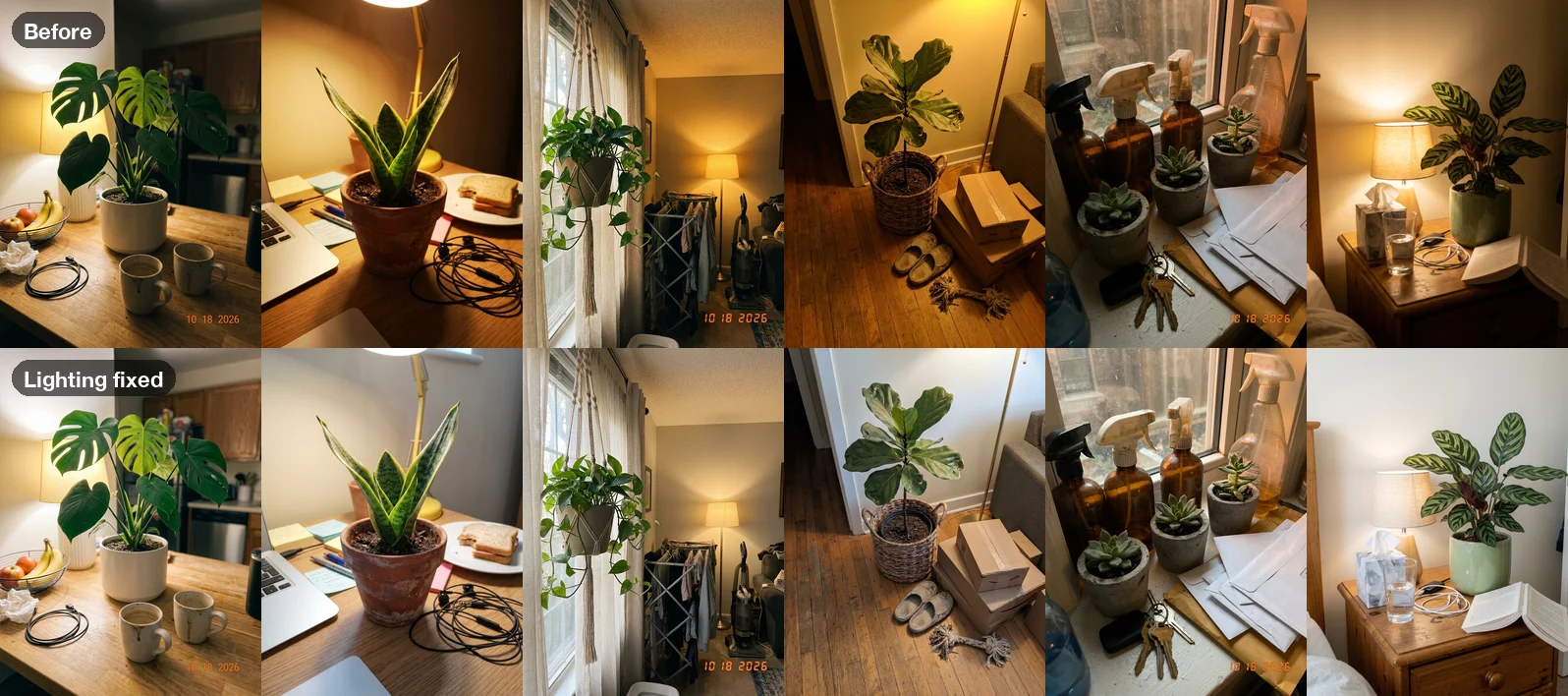
Five of six photos went from warm lamp light to neutral daylight, and every mug, cable and envelope stayed exactly where it was. The kitchen photo changed least: a bit brighter, still warm.
This is the edit where a classic preset does almost as well, because it is the same correction on every photo. The AI version helps when the photos were shot under different lamps and each needs a different correction to land on the same neutral look.
How to batch edit your own photos#
- Upload every photo as a reference image. In the generation form, open Reference images (optional) and drop them in. PNG, JPEG, WEBP and GIF up to 10MB each.
- Pick Per image under How to use the references. Each photo gets its own edit; Combine images would merge them into one picture instead.
- Write one prompt per line. Each line is one edit, and each line runs on every photo.
- Set the aspect ratio to auto on a model that offers it (the Nano Banana models do), so portrait photos stay portrait and landscape stay landscape.
- Check the total before you submit. The form shows the image count and the credits before anything is charged; images that fail are refunded automatically.
- Download the batch as a ZIP. The included CSV manifest lists the prompt and reference image behind every file, so each result can be matched to its original.
Mind the multiplication: every line runs on every photo. Four prompts on six photos is 24 images, which is what we wanted here. It is also why our three stamp-free photos went through the stamp prompt anyway.
Tip
If different photos need different fixes, sort them into folders first and run one short batch per fix: the stamped photos with the stamp prompt, the dark ones with the lighting prompt. If every photo needs every fix, put them all in one prompt (remove the clutter and the date stamp, then fix the lighting) so you pay for one image per photo instead of four.
For this test, 24 images on Nano Banana 2.1 at 1K cost 4 credits each, 96 credits for the batch. A one-off fix of one photo is easier in a chat app. Once you have a folder of photos, a bulk image generator that takes the whole folder and one list of prompts is the faster tool. To compare per-image prices and which models accept how many reference images, see the model comparison.
Which fixes work well in bulk, and which need care#
Safe to run in bulk and spot-check:
- Removing small objects: cables, cups, papers, price stickers you placed yourself
- Removing your own date stamps, captions and overlays
- White balance, exposure and mild sharpening
Run in bulk, then check every image:
- Removing large objects (whatever they hid gets invented)
- Background replacement (the subject gets redrawn)
- Anything that changes how many things are in the picture
Better done another way:
- A transparent background with the product cut out pixel for pixel. A dedicated background remover keeps the original pixels; a generative edit redraws them.
- Restoring a damaged old photo, which needs its own prompt and a closer check of faces. See our old photo restoration prompt test.
- Putting the same product into many new scenes. That is generation from a reference image, covered in product photos with consistent backgrounds.
Checklist#
- Every prompt ends with a protection line naming the parts that must not change
- Clutter is listed by type, not just "remove clutter"
- Prompts that should only touch some photos say if there is one, or those photos go in a separate batch
- Aspect ratio set to auto so each photo keeps its shape
- Credits checked against photos × prompts before submitting
- Every result compared with its original at full size, especially after background swaps and large removals
- Only your own stamps, captions and watermarks removed
FAQ#
Can AI edit multiple photos at once? Yes. Upload the photos as reference images, choose Per image, and write the edit as a prompt; the same edit runs on every photo in one batch. In our test, four prompts on six photos gave 24 edited images in one run.
Will the AI change parts of the photo I wanted to keep? It can. Small removals and lighting fixes kept everything else in place in our test. Background replacement redrew the plants, and in one photo dropped two of three pots. End every prompt with a line naming what must not change, and check each result.
How do I keep each photo's original aspect ratio? Set the aspect ratio to auto on a model that supports it. Each output then follows its own reference photo; all of our 3:4 photos came back at 3:4.
Can I apply a different edit to each photo? Not within a single Per image batch: every prompt runs on every photo. Group photos by the fix they need and run one batch per group.
Is AI better than a Lightroom preset for batch editing? For the same color or exposure correction on every photo, a preset is cheaper and exact. AI is better when the fix depends on what is in each photo, like removing whatever is on that particular table.
Can I remove watermarks or logos with this? Only marks you own, such as your own date stamps, captions or watermarks. Removing someone else's watermark or logo from their image can infringe their rights.