How to Generate Multiple Images from One Prompt (That Actually Differ)
Want to generate multiple images from one prompt that actually differ? Why "make 6 different images" fails, and how to turn one idea into one prompt per image.
You have one idea — "ad images of my water bottle in different scenes" — and you want ten pictures out of it, not one. So you type the idea, add "make 10 different images", and press generate. What comes back is one image, or ten near-copies of the same image, and sometimes a picture with the words "10 different images" painted into it.
This guide explains why that happens, and the one change that fixes it: to generate multiple images from one prompt that actually differ, the one prompt has to become many prompts — one per image. You can do that by hand in any chat assistant, or let BulkImagen's Write with AI do it inside the batch form, with the image count and credits on screen before anything is generated.
Why "make 6 different images" in a prompt doesn't work#
An image model renders one image per request. It does not read your prompt as instructions for a batch; it reads it as a description of a picture. So:
- The number is not a quantity. "Make 6 images" is just more words describing the one image it is about to draw. At best they are ignored; at worst the model tries to show "six" of something in a single frame.
- "Different" has nothing to differ from. Each request knows nothing about the others. Ask the same prompt six times and you get six close variations of the same composition — useful for picking the best take, useless when you wanted six scenes.
- The extra words leak into the picture. Phrases like "a set of", "variations", "panel 3" or "10 different images" often end up as visual content: grids, collages, stray lettering.
Tools that let you set an image count (BulkImagen's Images per combo stepper included) repeat the same prompt that many times. That is the right tool for "give me four takes on this exact shot". It is the wrong tool for "give me four different shots".
The fix: one prompt per image#
Variety has to be written down, image by image. A good set of prompts has two parts:
- A shared core, repeated word for word in every prompt — the subject, its key details, and the style. This is what makes the set look like it belongs together.
- One thing that changes per prompt — the scene, the angle, the art style, the moment in the story.
Here is "ad images of my water bottle in different scenes" written out as four prompts:
Photorealistic lifestyle ad photo of a matte sage-green insulated water bottle with a bamboo lid, natural light, shallow depth of field, standing in a car cup holder on a sunny morning commute
Photorealistic lifestyle ad photo of a matte sage-green insulated water bottle with a bamboo lid, natural light, shallow depth of field, on a camping table at dawn beside a tent
Photorealistic lifestyle ad photo of a matte sage-green insulated water bottle with a bamboo lid, natural light, shallow depth of field, on an office desk next to a laptop and a notebook
Photorealistic lifestyle ad photo of a matte sage-green insulated water bottle with a bamboo lid, natural light, shallow depth of field, on a rocky trail ledge with mountains behind
Notice what is not there: no "image 1 of 4", no "different", no count. Each line describes exactly one picture.
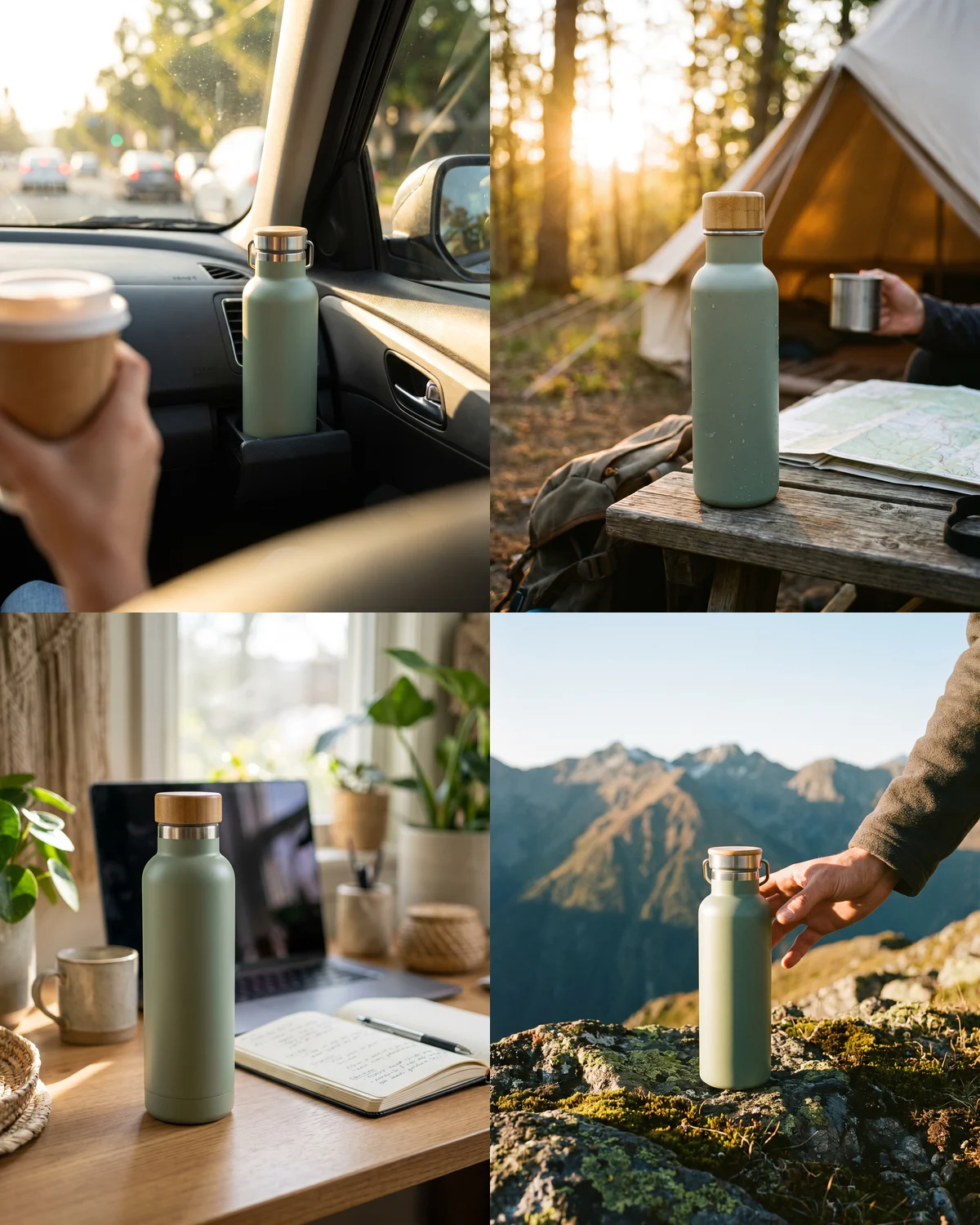
Four prompts, four genuinely different pictures of what is clearly the same bottle. Look closely and two of the lids grew a metal carry loop: text alone gets you close, not identical. When the product has to match exactly, upload a photo of it as a reference image and let every prompt build on that.
What to vary depends on the job:
| You want | Keep the same | Vary per prompt |
|---|---|---|
| Product ads | Product description, lighting style | Scene, setting, props |
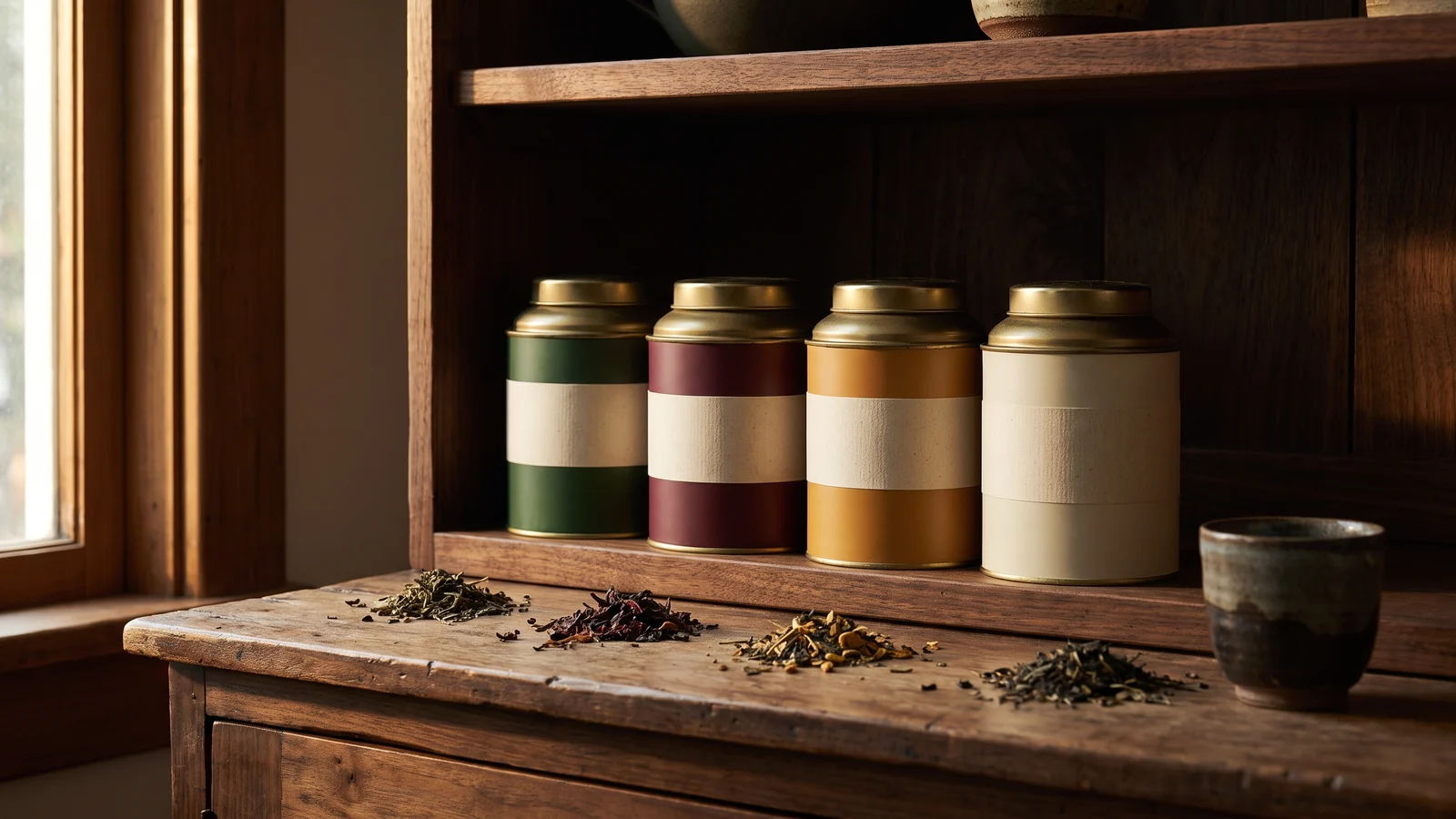
| Avatars or profile pictures | Subject (pet, person, mascot) | Art style, background |
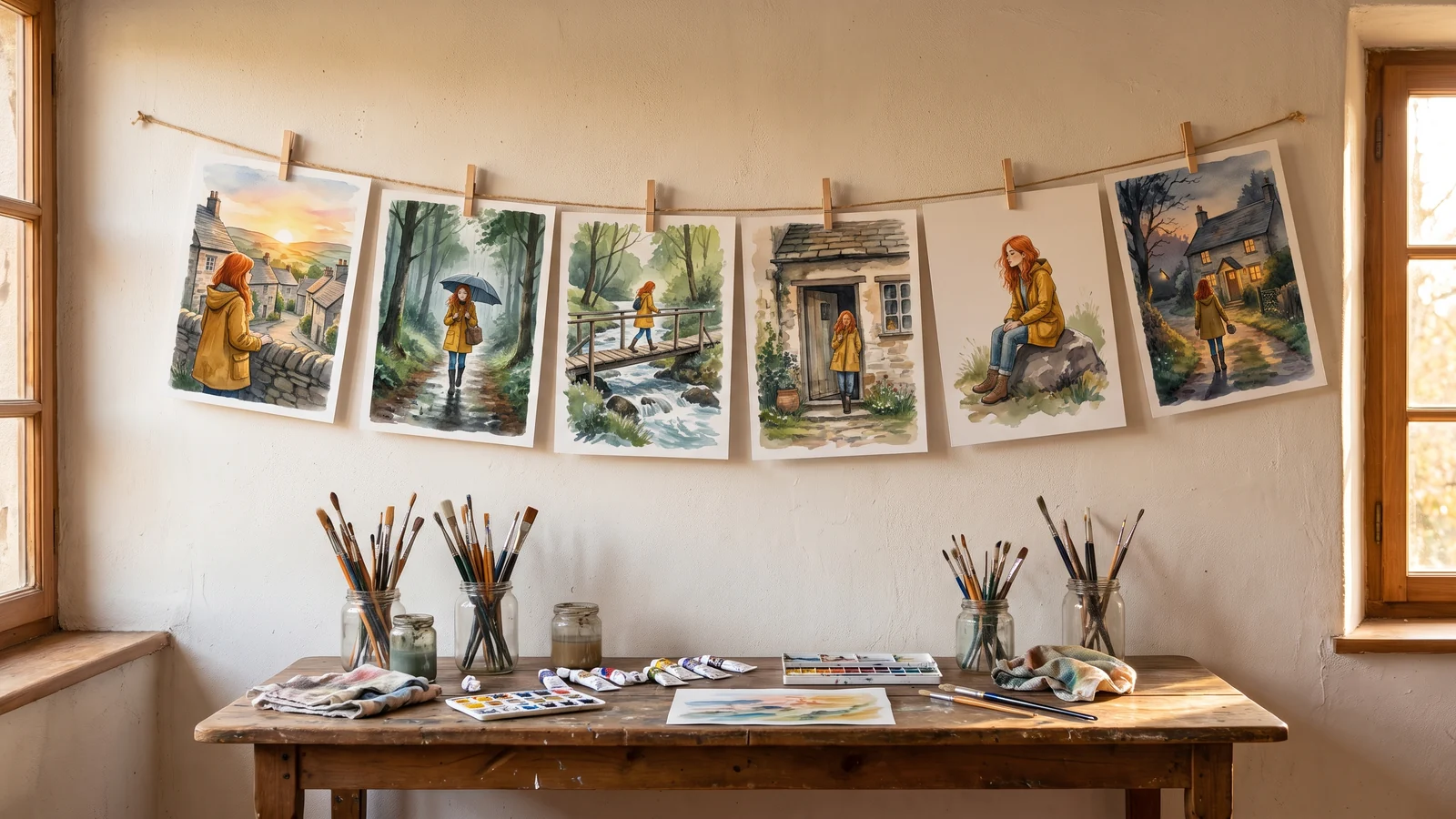
| A comic or storyboard | Character description, art style | The moment in the story |
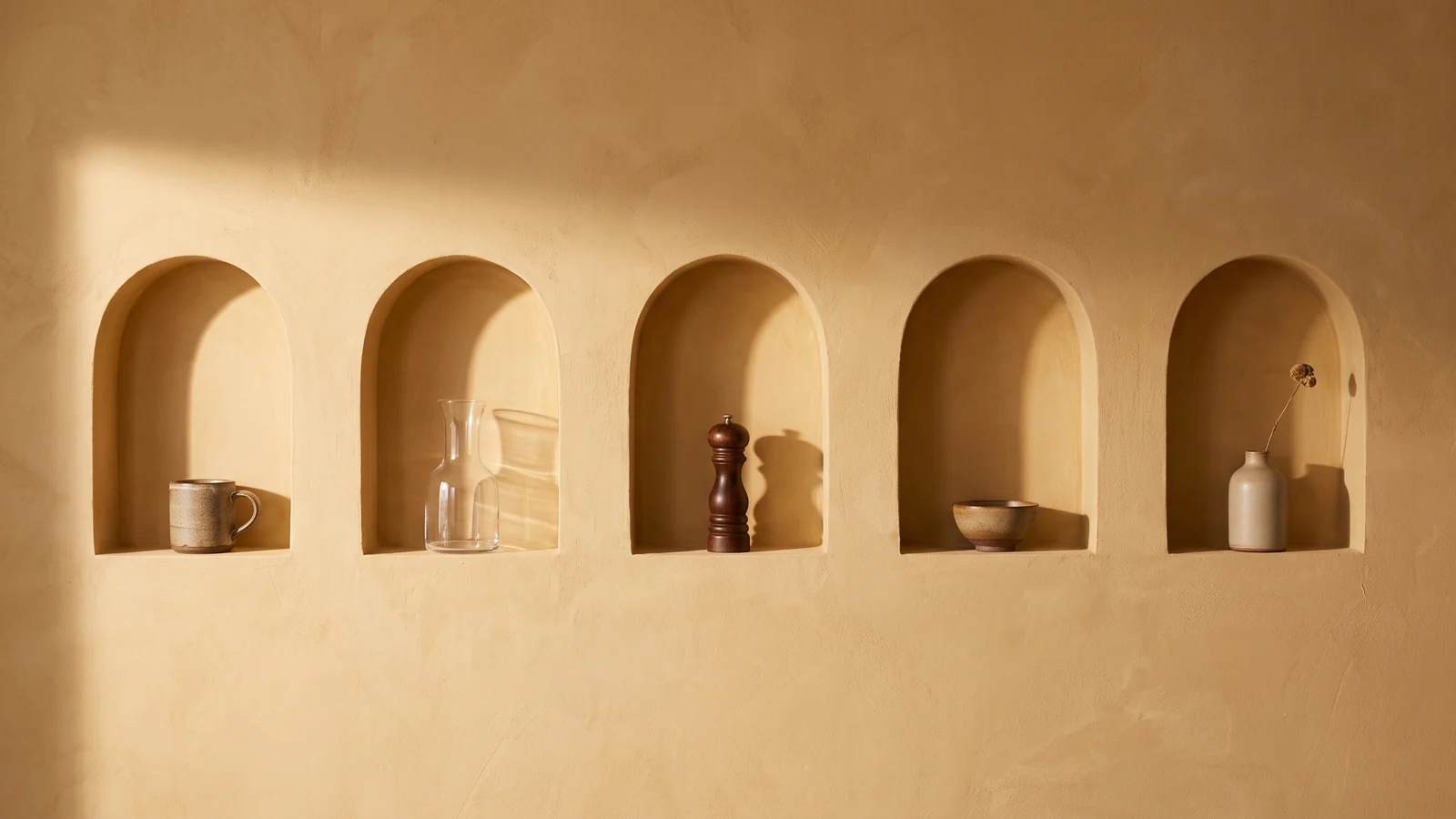
| Wallpapers or a themed set | Palette, style, mood | Subject or composition |
| Product angles | Product, backdrop, lighting | Camera angle, crop |
For sequences, keeping one character recognisable across panels is a topic of its own — see how to make consistent character AI images.
Doing it by hand#
You do not need a special tool to write the list. Any chat assistant can draft it if you ask for the right shape:
Write 10 image-generation prompts for: ad images of my insulated water bottle in different lifestyle scenes.
Rules: one prompt per line, no numbering. Repeat the same bottle description and photo style in every line, word for word. Change only the scene. Never mention counts, "variations" or other images.
Then paste the ten lines into a tool that generates one image per line. It works, but it is two tools and a copy-paste in between, and the count you end up with is whatever the assistant decided to write — you only find out what it costs once it is in the generator.
Doing it in BulkImagen: Write with AI#
BulkImagen is a bulk image generator built around that one-line-per-image list, and the list-writing step now lives in the same form.
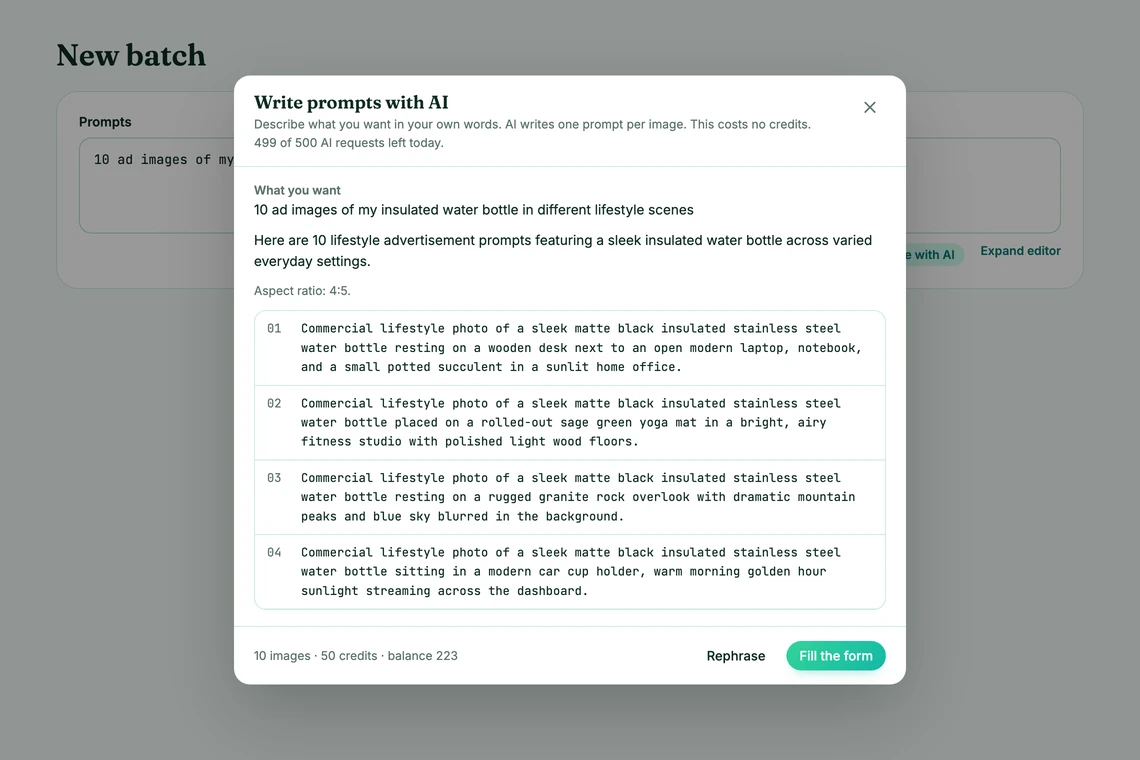
Step 1 — Say what you want. Open New batch from the dashboard and type your idea into the prompt box in plain words, the way you would say it to a person. Under the box, press Write with AI. With an empty box you can type in the dialog instead, or click one of the Try: examples to see what it does.
Step 2 — Read the plan. A few seconds later the dialog shows every prompt it wrote, numbered, plus a short note on what it planned and, when it fits the use case, an aspect ratio (4:5 for feed ads, 9:16 for stories, 16:9 for banners). At the bottom: 10 images · 50 credits · balance … — the exact count and price for this plan on your current model and resolution. Not what you meant? Rephrase and try again.
Step 3 — Fill the form. Press Fill the form. The prompt box now holds one prompt per line, Images per combo is set to 1 (one line, one image), and the aspect ratio is applied if one was suggested. A strip under the box says Replaced with 10 prompts, 1 image each with an Undo next to it, in case you want your original text back.
Step 4 — Edit, then generate. It is an ordinary list now: delete a scene you do not like, add one, change a model or resolution. The estimate updates as you go. Nothing is charged until you press Start batch.
A few things worth knowing:
- Writing prompts costs no credits. Only the images do. Free accounts get a few AI requests a day; paid plans get many more — the daily allowance for each plan is on the pricing page, and the dialog shows how many you have left.
- It writes in your language. Ask in German, get German prompts; ask in Japanese, get Japanese prompts.
- It respects your reference images. If you have uploaded a product photo, the prompts refer to "the product from the reference image" instead of inventing a new design.
- The count is always yours. The number you typed is a wish, not an order. The plan is capped by your plan's images-per-batch limit and by what your credits cover, and the dialog says which one shortened it. A 9-panel story that has to fit in 4 images is re-planned as a complete 4-panel story rather than cut off halfway.
Tip
Start with a small batch. Write the ten prompts, delete all but three, generate those, and check the look before running the rest. Adjusting one shared phrase across a list is easy; regenerating thirty images is not.
Already have a list? Improve with AI#
If your prompt box already holds two or more lines, the same button reads Improve with AI. Instead of planning a new set, it goes through your list line by line and makes each prompt more concrete — composition, setting, lighting, detail — while keeping its subject. You get exactly as many lines back as you put in, in the same order, and your image count does not change. If the result would not match your list line for line, the form is left untouched.
This is handy when your list came from a spreadsheet of product names or a quick brainstorm: short lines like "kitten on a windowsill" become prompts an image model can do more with. For the full workflow of running a long list, see how to generate images from a list of prompts.
Prompt patterns you can copy#
Four requests that work well as one-sentence inputs (they are also the dialog's Try: examples):
10 ad images of my insulated water bottle in different lifestyle scenes
6 avatars of a corgi, each in a different art style
A 4-panel comic: a kitten's first trip to the beach
8 minimalist phone wallpapers of mountains and sea
The more specific the request, the better the list. "Ad images of my bottle" gives a generic bottle; "ad images of my matte sage-green bottle with a bamboo lid, warm natural light" gives your bottle in every scene.
Checklist#
- One prompt per image — never "make N different images" inside one prompt
- A shared core repeated word for word in every prompt
- Exactly one thing that changes per prompt
- No counts, "variations", "set of" or panel numbers in the prompts
- Images per combo at 1 when every line is a different image
- Check the image count and credits, then generate a small test batch first
FAQ#
Can I generate multiple images from one prompt without writing a list? You can generate several images from the same prompt — that is what an image-count setting does — but they will be variations of the same shot. For images that differ, each one needs its own prompt.
Does Write with AI create the batch for me? No. It only fills the form. You see every prompt, the image count and the credits, and you start the batch yourself.
How many prompts can it write at once? As many as your plan allows in one batch, up to what your credits cover.
Is there a limit on AI requests? Yes, a daily one per plan, shown on the pricing page and in the dialog. A request that fails on our side is not counted.