AI Images for Website Directories and Glossaries: One Picture Per Entry
AI images for website directories and glossaries: turn your table of entries into one consistent picture per row, check each against its description, and ship.
On this page
- Two kinds of entry images
- Step 1: Start from the table you already have
- Step 2: Add one style line and join the columns
- Example 1: a 12-entry fabric glossary
- Check every entry against its description
- Example 2: header images for a help center
- Get the set into your site
- A checklist for your first directory batch
- FAQ
A glossary, a directory, a product library, a help center: these sites are lists of entries, and every entry page looks better with a picture at the top. The trouble is the count. Forty fabric types, ninety plant species, two hundred help articles. Stock libraries rarely have a clean photo of chambray next to one of poplin in the same light, and making them one at a time in a chat window takes a full afternoon per letter of the alphabet.
This guide is about AI images for website entries made the way the site itself is built: from the table you already have. One row becomes one prompt, one prompt becomes one image, and the whole set comes back in one consistent style. We ran two real batches for it, a 12-entry fabric glossary and 8 help center headers, and we show every result, including the one entry that came back wrong.
Generate in bulk
One prompt per line, hundreds of images, one ZIP to download.
Two kinds of entry images#
Before writing a single prompt, decide which kind of picture your entries need, because the rules are different.
| The picture must be right | The picture must match | |
|---|---|---|
| Examples | Glossaries, field guides, materials and ingredient libraries, breed or species directories | Help center articles, category pages, course modules, blog archives |
| What a reader does with it | Uses it to recognise the thing | Uses it to scan the page and recognise the section |
| What can go wrong | The image shows the wrong thing | The set looks like it came from five different sites |
| What to write in the prompt | The visible features that set this entry apart | One style line, plus a simple metaphor per entry |
| How to check | Every image against its description, zoomed in | The whole set side by side, at the size it will appear |
Most sites have both. A fabric shop has a glossary and a help center. We made one of each.
Step 1: Start from the table you already have#
Directory content almost always lives in a spreadsheet or a CMS export already: a name column and a short description column. Keep both. The name tells the model what to draw; the description is what makes it draw the right version of it.
Write descriptions for the eye, not for the history books. "Woven in Bengal since the 18th century" gives the model nothing to draw. "Light blue threads one way and white threads the other, no diagonal lines" does. If your existing descriptions are all history and usage, add a third column of two or three visible features and use that one instead.
Step 2: Add one style line and join the columns#
Every line is sent to the model on its own: it never sees the other entries. So consistency has to be written into each line, and the easy way is one shared style line glued to every row.
Put the style in one cell and build each prompt with a formula, then fill it down:
=A2 & " — " & B2 & ". " & $E$1Here column A holds the name, column B the description, and E1 the style line. Paste the finished column into the prompt box (one line per entry), or upload the sheet in Spreadsheet mode with that column headed prompt. Set Images per combo to 1, so each entry gets exactly one image. The mechanics of both are in our guide to generating images from a list of prompts.
Tip
Put the entry name first in each line, as the formula above does. In the ZIP download every file is named with its number and the first 40 characters of its prompt. We wrote our first batch style-first, and all twelve files started with Macro textile photograph for a fabric gl. Name first gives you Poplin — A tightly woven, smooth white co, which is a file you can find. Google's own image guidance says the same about file names: short and descriptive beats IMG00023.JPG.
Example 1: a 12-entry fabric glossary#
We picked fabrics on purpose: they look good, they are easy to check, and the list includes two classic look-alike pairs (denim and chambray, tweed and herringbone) to see whether descriptions can keep them apart. Each line below is the shared style plus the name and description. These are the exact prompts behind the grid, run on Nano Banana Pro at 2K, 1:1, for 72 credits:
Macro textile photograph for a fabric glossary entry: a neatly folded swatch of the fabric below, filling most of the frame, shot straight on in soft even daylight, plain light-gray seamless background, true-to-life color, crisp detail of the weave or pile, no text, no labels, no tags, no logos. Fabric: Linen — A plain-woven fabric made from flax, natural oatmeal color, with slightly uneven slubby yarns and soft crumpled wrinkles.
Macro textile photograph for a fabric glossary entry: a neatly folded swatch of the fabric below, filling most of the frame, shot straight on in soft even daylight, plain light-gray seamless background, true-to-life color, crisp detail of the weave or pile, no text, no labels, no tags, no logos. Fabric: Corduroy — A cotton fabric with raised parallel ribs called wales running in one direction, olive green, with a soft velvety texture on each rib.
Macro textile photograph for a fabric glossary entry: a neatly folded swatch of the fabric below, filling most of the frame, shot straight on in soft even daylight, plain light-gray seamless background, true-to-life color, crisp detail of the weave or pile, no text, no labels, no tags, no logos. Fabric: Denim — A sturdy cotton twill with fine diagonal lines, deep indigo threads one way and white threads the other, so the face looks blue and the back looks pale.
Macro textile photograph for a fabric glossary entry: a neatly folded swatch of the fabric below, filling most of the frame, shot straight on in soft even daylight, plain light-gray seamless background, true-to-life color, crisp detail of the weave or pile, no text, no labels, no tags, no logos. Fabric: Chambray — A lightweight plain-woven cotton with light blue threads one way and white threads the other, giving a soft heathered look without diagonal lines.
Macro textile photograph for a fabric glossary entry: a neatly folded swatch of the fabric below, filling most of the frame, shot straight on in soft even daylight, plain light-gray seamless background, true-to-life color, crisp detail of the weave or pile, no text, no labels, no tags, no logos. Fabric: Tweed — A rough, thick woolen fabric in heathered brown and green, with small flecks of rust and cream yarn scattered through the weave.
Macro textile photograph for a fabric glossary entry: a neatly folded swatch of the fabric below, filling most of the frame, shot straight on in soft even daylight, plain light-gray seamless background, true-to-life color, crisp detail of the weave or pile, no text, no labels, no tags, no logos. Fabric: Herringbone — A twill weave in charcoal and gray whose lines change direction in columns, forming a repeating V-shaped zigzag like a fish skeleton.
Macro textile photograph for a fabric glossary entry: a neatly folded swatch of the fabric below, filling most of the frame, shot straight on in soft even daylight, plain light-gray seamless background, true-to-life color, crisp detail of the weave or pile, no text, no labels, no tags, no logos. Fabric: Velvet — A fabric with a dense, short, soft pile in deep burgundy, whose sheen shifts from bright to dark where the folds catch the light.
Macro textile photograph for a fabric glossary entry: a neatly folded swatch of the fabric below, filling most of the frame, shot straight on in soft even daylight, plain light-gray seamless background, true-to-life color, crisp detail of the weave or pile, no text, no labels, no tags, no logos. Fabric: Seersucker — A cotton fabric with alternating narrow stripes of blue and white, where the blue stripes are puckered and the white stripes lie flat.
Macro textile photograph for a fabric glossary entry: a neatly folded swatch of the fabric below, filling most of the frame, shot straight on in soft even daylight, plain light-gray seamless background, true-to-life color, crisp detail of the weave or pile, no text, no labels, no tags, no logos. Fabric: Poplin — A tightly woven, smooth white cotton with a crisp matte surface and very fine crosswise ribs, the classic dress-shirt fabric.
Macro textile photograph for a fabric glossary entry: a neatly folded swatch of the fabric below, filling most of the frame, shot straight on in soft even daylight, plain light-gray seamless background, true-to-life color, crisp detail of the weave or pile, no text, no labels, no tags, no logos. Fabric: Gingham — A light cotton with an even check pattern of red and white squares, plus lighter red squares where the stripes overlap.
Macro textile photograph for a fabric glossary entry: a neatly folded swatch of the fabric below, filling most of the frame, shot straight on in soft even daylight, plain light-gray seamless background, true-to-life color, crisp detail of the weave or pile, no text, no labels, no tags, no logos. Fabric: Boucle — A cream woolen fabric woven from looped, curly yarns, giving a nubby, pebbly surface like tiny curls.
Macro textile photograph for a fabric glossary entry: a neatly folded swatch of the fabric below, filling most of the frame, shot straight on in soft even daylight, plain light-gray seamless background, true-to-life color, crisp detail of the weave or pile, no text, no labels, no tags, no logos. Fabric: Jersey — A soft heather-gray knit with rows of tiny V-shaped stitches on the face, slightly stretchy, the fabric of a basic T-shirt.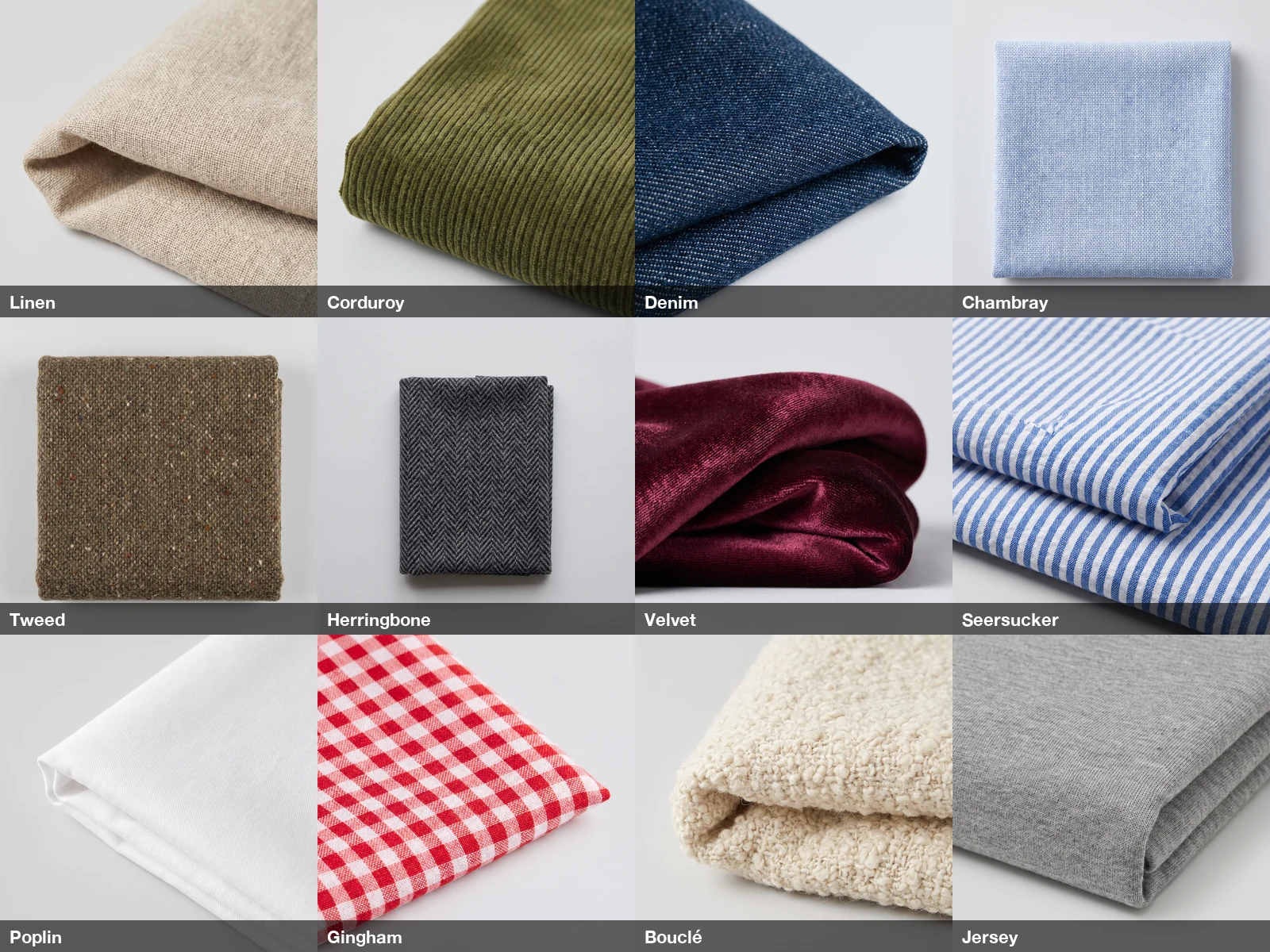
As a set it works: the same light, the same background and the same framing on every swatch, which is exactly what a glossary grid needs. Both look-alike pairs came out distinct. The denim shows diagonal twill lines while the chambray is a flat crosshatch, and the herringbone zigzags where the tweed is flecked. The descriptions did that: they named the one feature that separates each pair.
Check every entry against its description#
Eleven of the twelve are right. Poplin is not. Poplin is a plain weave, and what came back is a smooth white twill with clear diagonal lines, closer to a cotton drill. At grid size you cannot see it. Zoomed in, it is obvious.
Our description asked for "very fine crosswise ribs" but never said what poplin is not. For "white cotton" the model reached for the most common look, which is twill. A glossary reader who clicks "poplin" to learn what it looks like would learn the wrong thing.
The fix was one line. We added the property that rules out the near miss, in a plain weave, no diagonal lines, and re-ran only that row as a batch of one, for 6 credits. You can do the same with Edit on the result, which copies it into a new batch. The other eleven stayed as they were.
Macro textile photograph for a fabric glossary entry: a neatly folded swatch of the fabric below, filling most of the frame, shot straight on in soft even daylight, plain light-gray seamless background, true-to-life color, crisp detail of the weave or pile, no text, no labels, no tags, no logos. Fabric: Poplin — A tightly woven, smooth white cotton in a plain weave, no diagonal lines, with a crisp matte surface and very fine crosswise ribs, the classic dress-shirt fabric.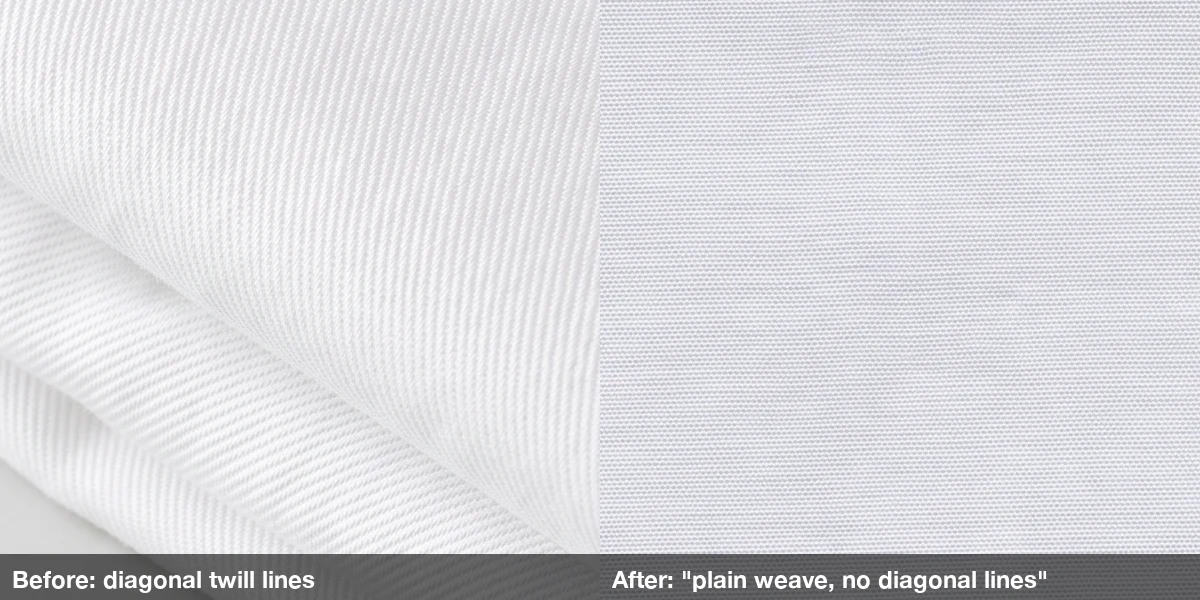
The re-run came back right on the first try: a flat plain weave with fine crosswise ribs. It also came back folded into a neat square instead of draped, so it no longer matches the framing of its neighbours exactly. One image is a small sample, and a fix that works here may still need another try on a different entry.
A checking routine that catches this kind of miss:
- Open each image at full size, not in the grid.
- Read its description and tick off each visible feature it names.
- Look hardest at entries that have a close cousin in the list.
- Re-run only the failures, with the missing feature spelled out.
Warning
Some directories should not use generated images as the reference at all. If a reader will use the picture to identify something where a mistake causes harm, such as mushrooms, venomous spiders, toxic plants or skin conditions, use real, verified photos and keep AI images to decorative roles. Google's own guidance on generative AI content says the same in general terms: fact-check AI output before publishing, and consider telling readers how it was made.
Example 2: header images for a help center#
Help articles have nothing to get "right". Nobody checks whether the picture on Reset your password is accurate. What matters is that eighty articles look like one product. Same approach, different style line. The description column here is the real one-line article summary, pasted as it was. These eight ran on GPT Image 2 at 1K, 16:9, for 40 credits:
Flat vector header illustration for a help center article: one simple central visual metaphor for the article below, muted indigo and warm apricot palette on an off-white background, soft geometric shapes, gentle grain, generous empty space, no text, no letters, no numbers, no logos, no user interface screenshots. Article: Reset your password — Request a reset link by email and choose a new password to get back into your account.
Flat vector header illustration for a help center article: one simple central visual metaphor for the article below, muted indigo and warm apricot palette on an off-white background, soft geometric shapes, gentle grain, generous empty space, no text, no letters, no numbers, no logos, no user interface screenshots. Article: Invite teammates to your workspace — Send email invites, pick each person's role, and resend or cancel invites that are still pending.
Flat vector header illustration for a help center article: one simple central visual metaphor for the article below, muted indigo and warm apricot palette on an off-white background, soft geometric shapes, gentle grain, generous empty space, no text, no letters, no numbers, no logos, no user interface screenshots. Article: Export your data — Download all of your projects and records as a spreadsheet file you can open anywhere.
Flat vector header illustration for a help center article: one simple central visual metaphor for the article below, muted indigo and warm apricot palette on an off-white background, soft geometric shapes, gentle grain, generous empty space, no text, no letters, no numbers, no logos, no user interface screenshots. Article: Set up two-factor authentication — Add a second sign-in step with an authenticator app on your phone to protect your account.
Flat vector header illustration for a help center article: one simple central visual metaphor for the article below, muted indigo and warm apricot palette on an off-white background, soft geometric shapes, gentle grain, generous empty space, no text, no letters, no numbers, no logos, no user interface screenshots. Article: Connect your calendar — Sync meetings both ways so new events show up in your calendar and here automatically.
Flat vector header illustration for a help center article: one simple central visual metaphor for the article below, muted indigo and warm apricot palette on an off-white background, soft geometric shapes, gentle grain, generous empty space, no text, no letters, no numbers, no logos, no user interface screenshots. Article: Change your plan — Upgrade or downgrade at any time; the difference is prorated on your next invoice.
Flat vector header illustration for a help center article: one simple central visual metaphor for the article below, muted indigo and warm apricot palette on an off-white background, soft geometric shapes, gentle grain, generous empty space, no text, no letters, no numbers, no logos, no user interface screenshots. Article: Restore a deleted project — Deleted projects stay in the trash for 30 days, and you can bring one back with a single click.
Flat vector header illustration for a help center article: one simple central visual metaphor for the article below, muted indigo and warm apricot palette on an off-white background, soft geometric shapes, gentle grain, generous empty space, no text, no letters, no numbers, no logos, no user interface screenshots. Article: Manage notifications — Choose which updates reach you by email, push or not at all, and set quiet hours.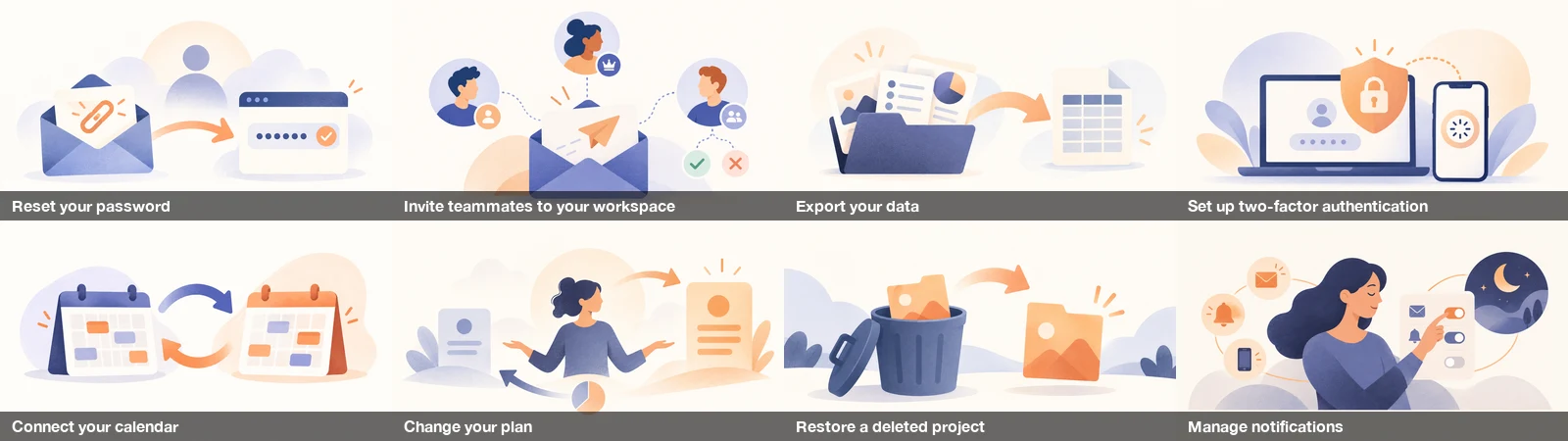
All eight kept the palette, the grain and the amount of empty space, and none of them contains letters. "No text, no letters, no numbers" plus "no user interface screenshots" held across the batch; the only symbols are password dots and check marks. The weakest is Change your plan: a shrugging figure between two cards says "choice" more than "billing". For a help center that is good enough. A sharper metaphor would be one edited line, the same kind of fix as the poplin re-run.
Get the set into your site#
When the batch is done, Download ZIP gives you every image in one archive, with two things that matter for a directory:
- A file per entry, in list order. With the name first in each prompt, the file names already say which entry they belong to, so renaming to your CMS slugs (
poplin.webp) is a quick find-and-replace or script. That's what Google recommends doing automatically when you have thousands of images. prompts.csvinside the ZIP. One row per file: the file name, the full prompt, model, aspect ratio and resolution. Match it back to your original sheet on the prompt column and you know which image goes on which page without opening any of them.
Set Format to WebP in the download panel. Our 2K fabric images arrive as multi-megabyte originals, which is far too heavy for a glossary grid. If your template wants a fixed size, set it in Size before downloading.
Then write the alt text. You already have it: the description column. "Chambray: a lightweight plain-woven cotton with light blue and white threads" is exactly the descriptive, in-context alt text Google asks for. Edit it down rather than inventing new copy. And fact-check it against the picture, which you did in the checking step anyway.
A checklist for your first directory batch#
- Decide which entries need the picture to be right and which only need it to match.
- Keep the name and description columns; describe visible features, not history.
- One shared style line, joined to every row with a formula, name first.
- Run 5 to 10 rows first, look at them at full size, then run the rest.
- Check each "must be right" image against its description, hardest on look-alikes.
- Re-run only the failures with the missing feature spelled out.
- Download as WebP, rename from
prompts.csv, reuse descriptions as alt text.
FAQ#
How much does a directory batch cost? Lines × the model's price per image at the chosen resolution. Our 12 fabrics on Nano Banana Pro at 2K were 72 credits, and the 8 help headers on GPT Image 2 at 1K were 40. The form shows the total before you start, and current prices per model are on the models page.
Can I do hundreds of entries at once? Yes, up to your plan's per-batch limit. Longer lists split into several batches. Limits per plan are on the pricing page. Run a small sample first: a style line that looks wrong on 10 entries looks wrong on 300.
Will the images match my brand? Only as well as the style line describes it. Name your palette, background and medium. For a stronger lock, add one approved image as a reference image in Per image mode, as in our vocabulary flashcards guide.
What if one entry is wrong? Fix that line and re-run just that one. Failed generations are refunded automatically; a wrong-but-finished image isn't, which is why a 10-row test comes first.
Do I have to say the images are AI-generated? We are not aware of a general rule for directory sites, and this is not legal advice. Google suggests telling readers how content was made where it helps them, and its Merchant Center has its own rules for AI images in product listings. A one-line note such as "illustrations are AI-generated" costs nothing and is the honest default for reference content.
Got a table of entries waiting for pictures? Paste the first ten rows into the bulk image generator and see whether the style line holds before you run the rest.