Bulk Image-to-Image: One Reference Photo, Twelve Scenes, the Same Vase Every Time
Bulk image-to-image with consistent settings: upload one reference photo, paste a list of scenes, and get the same product in every image. Prompts and results.
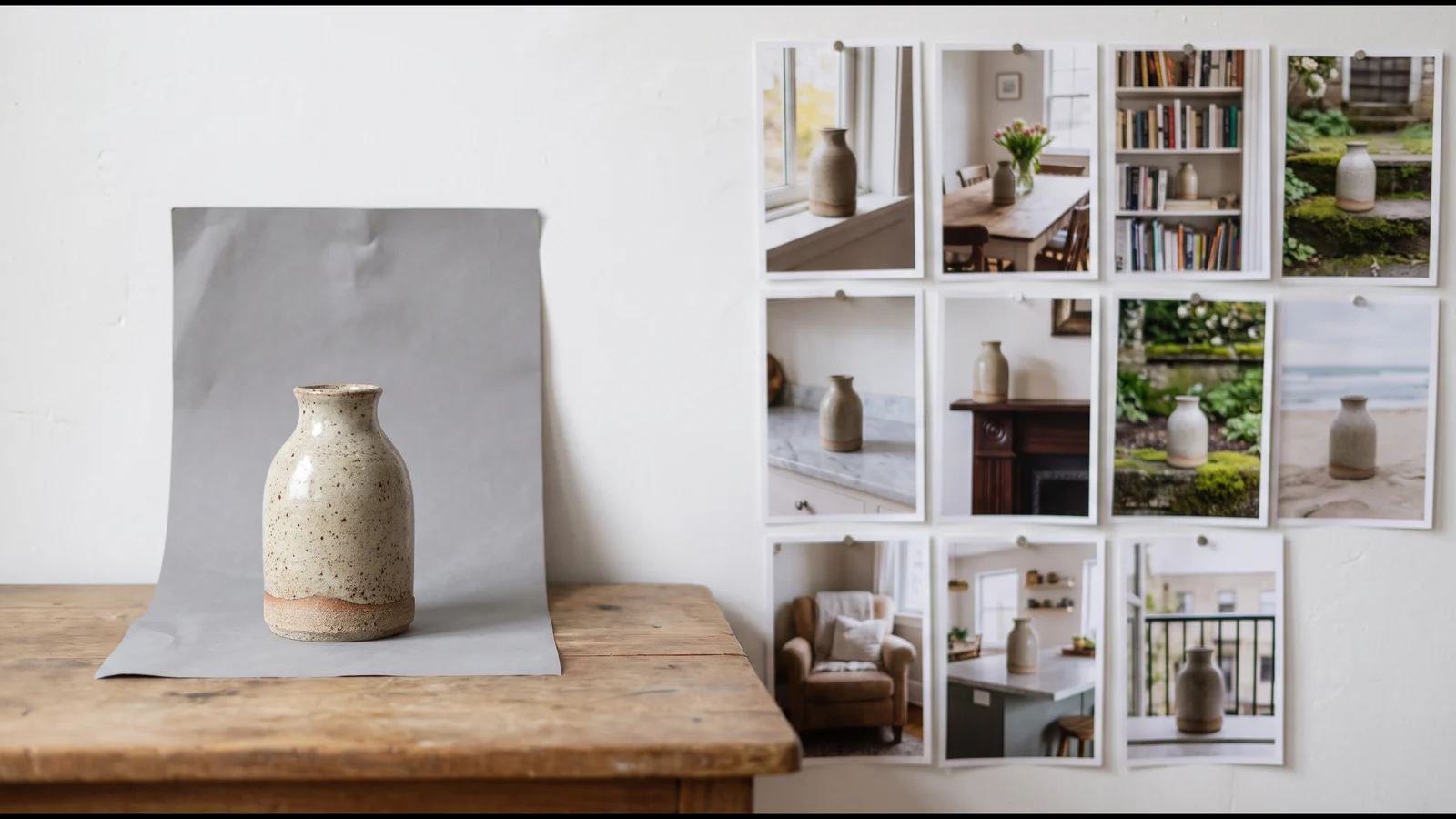
Bulk image-to-image is the job where you have one photo of a thing and need it in fifty places: the same vase on a windowsill, a dining table, a bookshelf, a garden step, each a separate image, all unmistakably the same vase. Shops need it for listings and lifestyle shots, brands for ad variations, illustrators for a character in many scenes. The hard part is not generating fifty images. It is generating fifty images where the object does not quietly change shape between them.
This guide shows how to do it with no code and settings that stay fixed across the whole run: one reference photo, a pasted list of scene prompts, one model, one aspect ratio, one resolution, one ZIP. We ran the batch while writing it, a handmade stoneware vase in twelve scenes on Nano Banana Pro, plus a small control group with no reference photo so you can see exactly what the reference buys you. The prompts are below, ready to run.
批量生成
一行一个提示词,几百张图,一个 ZIP 下载。
What bulk image-to-image means here#
"Image-to-image" covers three different jobs, and a batch tool has a mode for each. Naming them up front saves a wrong batch:
| You have | You want | Mode in the batch form | Images you get |
|---|---|---|---|
| One reference photo | That object in many different scenes | Per image, one reference, N prompts | N |
| Many photos | The same edit applied to each (cleanup, relight, new background) | Per image, N references, one prompt | N |
| Several photos of one thing, or several things | One image that uses all of them at once (a product and a model, three angles of one object) | Combine images | One per prompt |
| No photo | Images from text alone | Text only | One per prompt |
This article is the first row: one reference, many prompts. The second row is a different workflow, covered in batch edit photos with AI, with a form set up for it on the bulk AI photo editor page. Per image mode pairs every reference with every prompt, so one photo and twelve lines is twelve images, and three photos and twelve lines is thirty-six; the form shows the multiplication before you pay.
Why a reference beats a description#
The obvious shortcut is to skip the photo and describe the object carefully in every prompt. We tried that first, as a control: three of the twelve scenes with the vase written out in words ("a handmade stoneware vase with a rounded body, narrow neck and slightly flared rim, matte speckled oatmeal glaze, thin unglazed clay ring at the base") and no reference image.
The three results are three different vases. The windowsill one came back short and wide-shouldered, the tulip one tall with a long neck, the studio one a slim bottle shape. Each is a perfectly good "handmade stoneware vase with a speckled oatmeal glaze". None is the same object as any other, and none is the vase in our reference, because the model had never seen it.
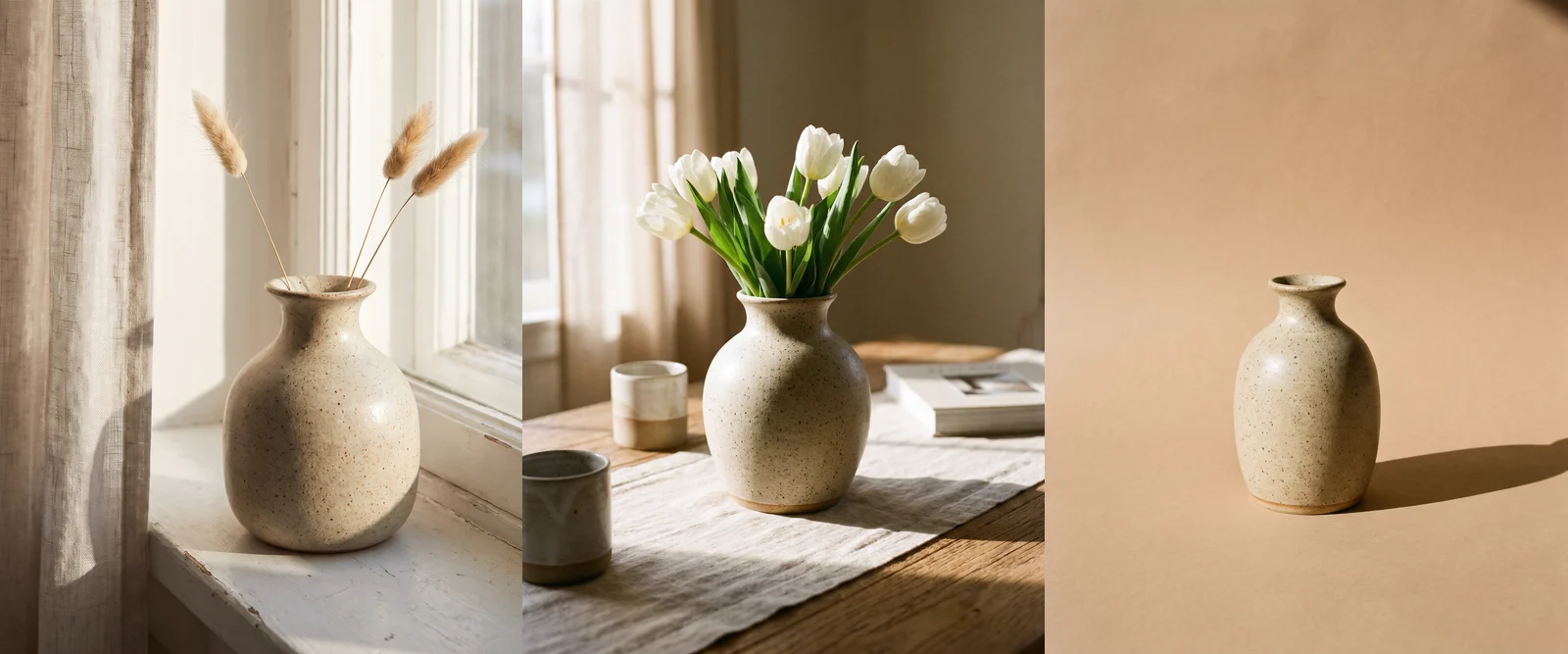
That is the whole case for image-to-image in bulk. A description gives the model a category; a reference gives it an instance. Every detail you do not write down is a detail the model is free to reinvent, and across fifty images it will reinvent all of them.
The batch we ran#
The reference is itself an AI render, which keeps this article free of anyone's real product: a stoneware vase with a speckled oatmeal glaze, photographed straight on against plain gray. A real product photo works the same way, and the cleaner it is, the better: one object, plain background, nothing cropped, label or detail facing the camera.
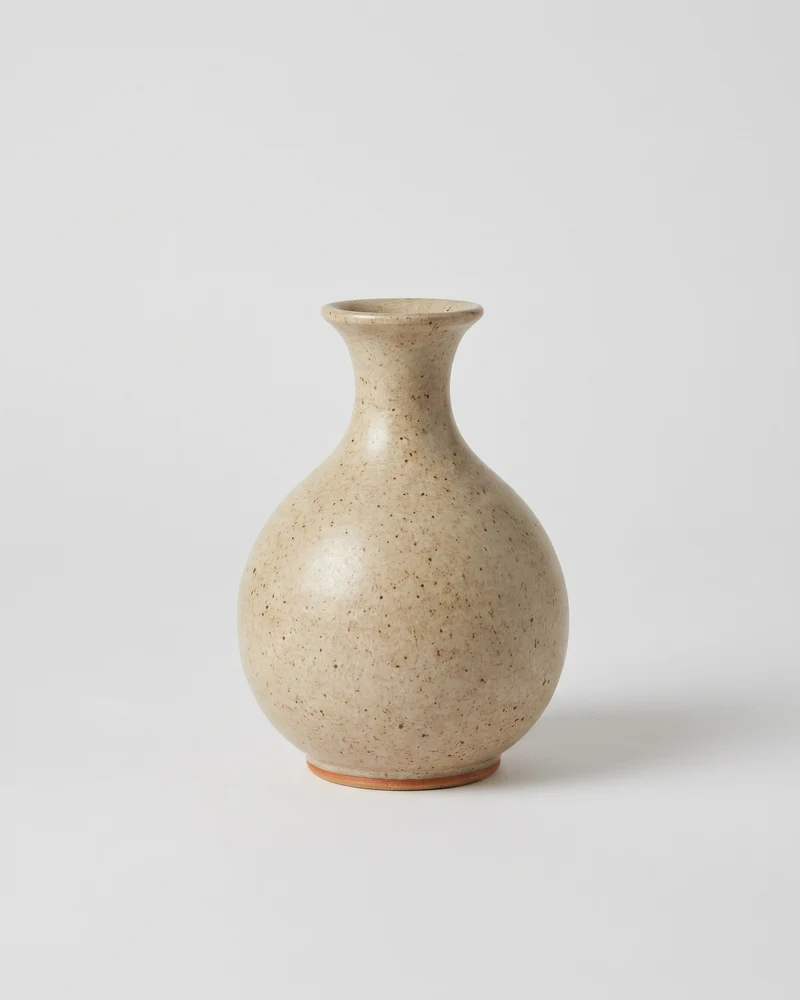
Then twelve scene lines, each written as the scene first and a fixed protection sentence at the end that names what must not change. Here are the first four; upload a product photo of your own and they run as written:
Lifestyle product photo: the vase on a white wooden windowsill in soft morning light, three stems of dried grass in it, sheer curtain blurred behind, no text; keep the vase from the reference image exactly as it is: same shape and proportions, same narrow neck and flared rim, same matte speckled oatmeal glaze, same unglazed ring at the base; do not redesign it, do not add patterns, logos or any text to it
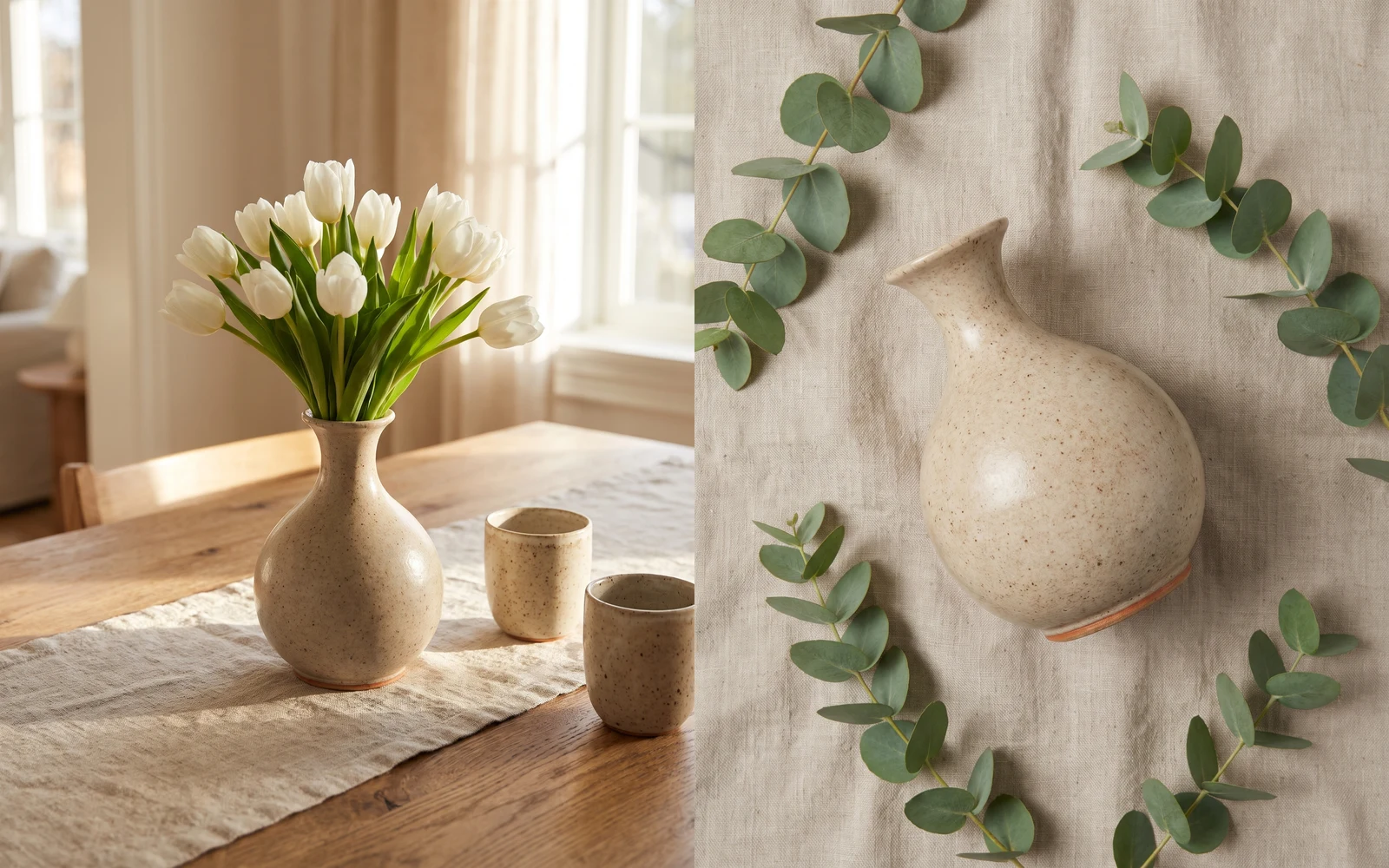
Lifestyle product photo: the vase on an oak dining table holding fresh white tulips, a linen runner and two ceramic cups nearby, warm window light, no text; keep the vase from the reference image exactly as it is: same shape and proportions, same narrow neck and flared rim, same matte speckled oatmeal glaze, same unglazed ring at the base; do not redesign it, do not add patterns, logos or any text to it
Lifestyle product photo: the vase on a bookshelf between stacked books and a small brass clock, cozy afternoon light, shallow depth of field, no text; keep the vase from the reference image exactly as it is: same shape and proportions, same narrow neck and flared rim, same matte speckled oatmeal glaze, same unglazed ring at the base; do not redesign it, do not add patterns, logos or any text to it
Studio product photo: the vase standing alone on a seamless warm beige backdrop, one hard directional light casting a long crisp shadow, centered with empty space around it, no text; keep the vase from the reference image exactly as it is: same shape and proportions, same narrow neck and flared rim, same matte speckled oatmeal glaze, same unglazed ring at the base; do not redesign it, do not add patterns, logos or any text to it
And the other eight scenes, each followed by the same protection sentence:
Lifestyle product photo: the vase on a marble bathroom counter next to a folded gray towel and a bar of soap, bright clean light, no text; …
Lifestyle product photo: the vase on a weathered stone garden step surrounded by green ferns, dappled sunlight, no text; …
Lifestyle product photo: the vase on a kitchen counter beside a wooden bowl of lemons and a cutting board, bright daylight, no text; …
Lifestyle product photo: the vase on a bedside table with a small lamp glowing and a folded linen duvet behind, evening mood, no text; …
Lifestyle product photo: the vase on a dark fireplace mantel with a few pampas grass plumes in it, candles beside it, moody warm light, no text; …
Studio product photo: the vase on a terracotta colored plinth against a matching terracotta wall, midday sun from the side, minimalist, no text; …
Top-down flat lay product photo: the vase lying on its side on natural linen fabric with scattered eucalyptus sprigs, soft even light, no text; …
Close-up product photo: the upper half of the vase filling the frame, the glaze texture and the rim in sharp focus, blurred neutral background, no text; …
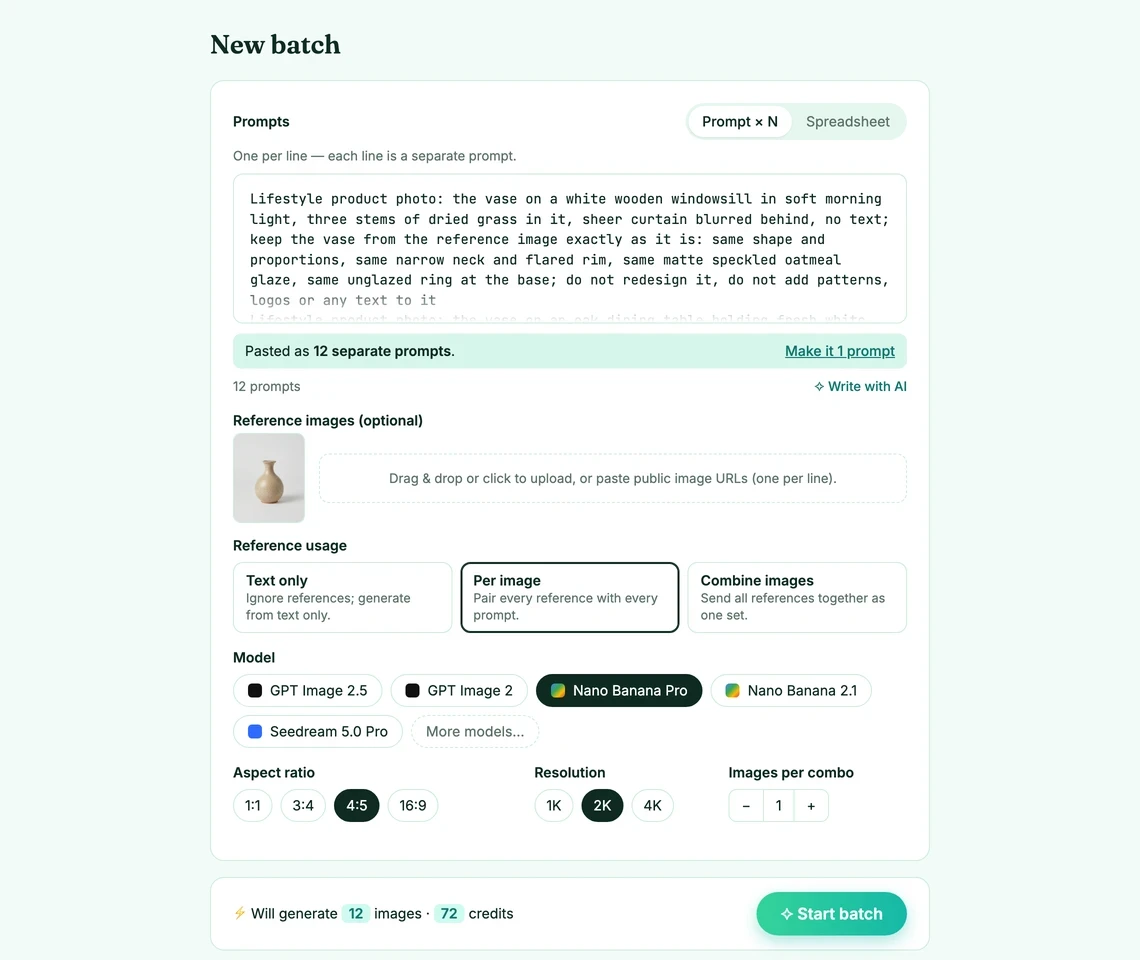
Settings, fixed for the whole batch: Nano Banana Pro, 4:5 (the portrait ratio most shop and social templates want), 2K, reference usage Per image, one image per prompt. The form read the block as twelve prompts, showed the reference thumbnail, and put the total above the button: 72 credits for twelve images.
All twelve came back in about a minute, and all twelve are the same vase: the rounded body, the narrow neck with its small flare, the speckled glaze and the unglazed ring at the base survive every scene, including the two that change the object's state (tulips in it, lying on its side) and the one that moves in close. The scenes themselves are reinvented per line, as asked: the windowsill got its sheer curtain, the kitchen its bowl of lemons, the mantel its candles, the garden step its ferns.
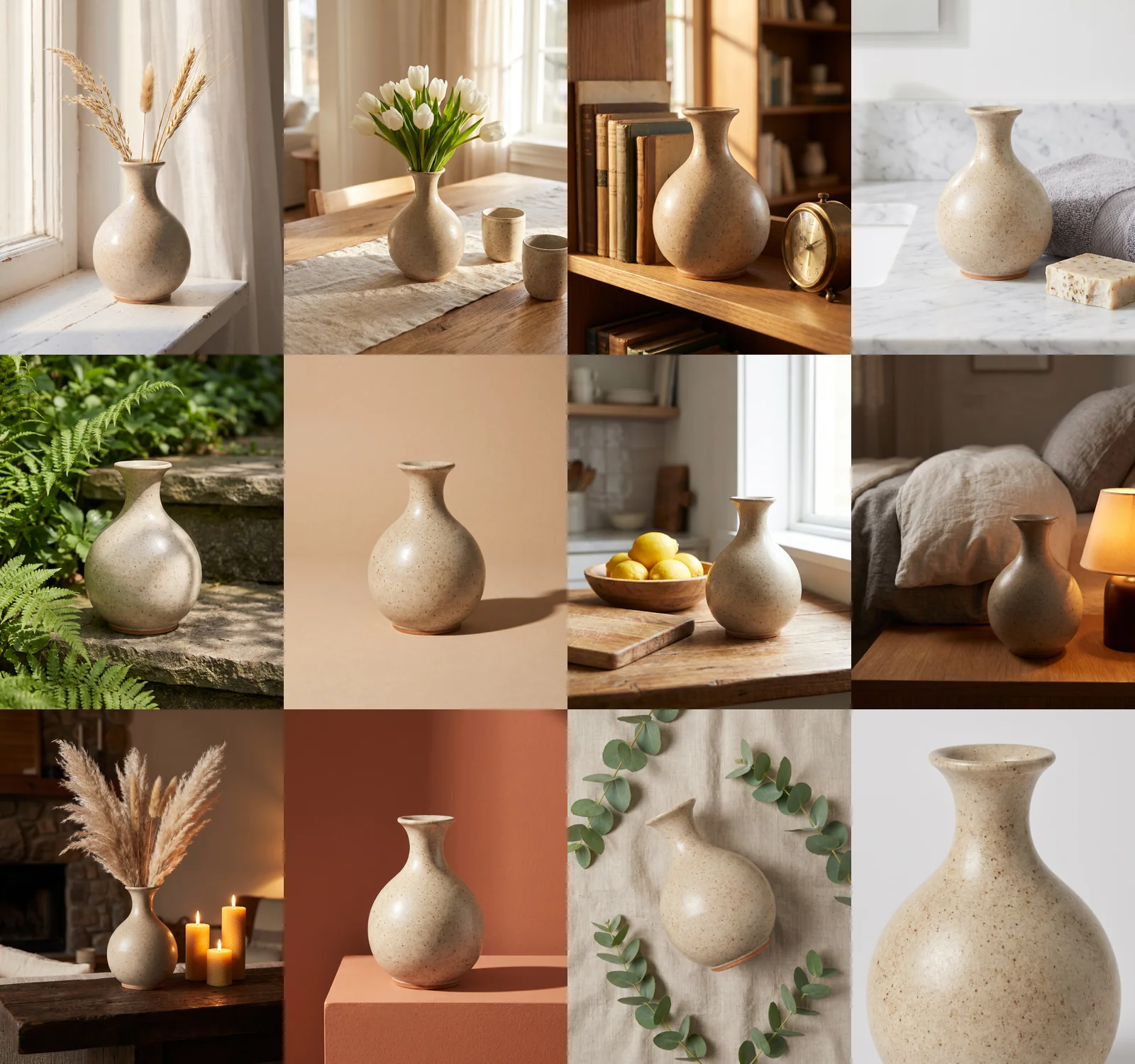
At full size the match holds up. The tulip vase and the flat-lay vase share the same rim profile and the same base ring, and the glaze speckle is the same kind of speckle, though not pixel for pixel the same pattern, which is the one thing a reference does not give you (more on that below). What we would fix before shipping is small: in the bookshelf shot the vase reads a touch larger next to the books than it should, and the garden shot picks up a faint green cast from the ferns. Both are one-line reruns.
Writing scene lines that keep the object intact#
The twelve lines share one structure, and it is the structure that does the work:
- Shot type first. "Lifestyle product photo", "Studio product photo", "Top-down flat lay", "Close-up". It sets the camera before the model reads anything else, and it is also what ends up at the start of each file name in the ZIP, so the files sort by shot type.
- The scene, in one clause. Surface, surroundings, light. Name the things you want around the object; the model will add props of its own otherwise, and they are usually tasteful but not yours.
no textin every line, because product scenes attract labels, price tags and shop signs.- The protection sentence, identical in every line. Name the details a customer would notice first: shape and proportions, the neck and rim, the glaze, the unglazed ring. End with the two prohibitions that matter: do not redesign it, do not add patterns, logos or text to it.
Two refinements from the batch:
- If a scene changes the object, say so inside the scene. "Holding fresh white tulips" and "lying on its side" both alter how the vase appears, and the protection sentence still held because the change was asked for explicitly. The model distinguishes "a change I was told to make" from "a change I made up" surprisingly well.
- The protection sentence protects the object, not the scene. Backgrounds, props and light are reinvented per line, which is the point. If you also need the room to be the same room, that is a second reference in Combine images mode, and a different article: product photos with consistent backgrounds.
Tip
The same pattern scales from one product to a catalog: write the scene list once, then run it against each product photo. On-brand product photos for new SKUs builds that reusable shot list, and AI ad creative variations runs two flavors of one bottle through six ad concepts with the same protection-sentence trick. For a person rather than an object, read consistent character AI images first; faces need a different approach.
Consistent settings: what to fix and what to vary#
"Consistent settings" is most of what makes a bulk image-to-image run look like a set rather than twelve lucky renders:
| Setting | Fix it for the batch? | Why |
|---|---|---|
| Model | Yes | Each model has its own idea of light, color and texture; mixing them in one set shows |
| Aspect ratio | Yes | One ratio per batch; a listing grid with mixed ratios looks broken |
| Resolution | Yes | 2K for anything a buyer will zoom; 1K for a first exploration round |
| Reference usage | Yes, Per image | One reference, every prompt |
| Images per prompt | 1 for a scene list | Raise it only when you want several takes of the same scene |
| The scene | Vary per line | That is the list |
| The protection sentence | Identical per line | Copy it, do not reword it |
If you want a second ratio of the same set, say 1:1 for a marketplace thumbnail, run the list again as a second batch with the ratio changed. Ratio is a batch-level setting, so "every size in one run" is not a thing; it is one short batch per size.
Step by step#
- Prepare one clean reference. Straight on, plain background, nothing cropped. If the only photo you have is cluttered, crop it to the object first; a tighter reference gave a cleaner result in our Amazon product image test.
- Write the scene list. One line per scene, shot type first,
no text, then the protection sentence. If you have the scenes in your head but not on paper, press Write with AI under the prompt box, describe the set in a sentence, and append the protection sentence to each line it writes. - Upload the reference and choose Per image. The form shows the thumbnail and the mode; with one reference the total equals the number of lines.
- Fix model, ratio and resolution. Pick them once. The models that take reference images are listed on the models page with how many each accepts.
- Read the total and start. Will generate 12 images · 72 credits in our case. Every plan has a per-batch cap, listed on the pricing page; a long scene list times several references may need to run as a few batches.
- Check, then download. Open each result at full size next to the reference. Fix a line, rerun just that line, then download the ZIP with its CSV manifest.
Which models take a reference image?#
Not every model does, and they differ in how many references they accept per prompt. For one-reference scene lists any of these works; the count matters when you move to Combine images mode.
| Model | References per prompt | Credits per image at 2K | Notes |
|---|---|---|---|
| Nano Banana Pro | up to 4 | 6 | What this batch used; strongest at keeping texture and small details |
| Nano Banana 2.1 | up to 4 | 6 | Same family, a little looser on fine detail |
| GPT Image 2.5 | up to 8 | 10 | Most references per prompt; tends to re-stage the shot more freely |
| Seedream 5.0 Pro | up to 4 | 12 | Strong on photographic realism |
Credits are per image and come from the same configuration that bills the batch; the models page always has the current figures.
What to check before you ship#
Image-to-image in bulk is reliable enough to run unattended and not reliable enough to publish unchecked. From this batch and the earlier ones linked above, the things that slip:
- Small surface details are re-drawn, not copied. Glaze speckle, a label's line art, a fabric weave: the model reproduces the kind of detail, not the exact pixels. For a product whose exact artwork matters, keep the hero image a real photo and use the batch for the lifestyle shots.
- Extra props appear. Usually plausible (a second cup, a book), occasionally wrong. Say what should be there and the model adds less.
- Scale drifts a little. Next to a cup or a book the vase can read slightly larger or smaller than it is. A size reference in the scene line ("a 20 cm vase next to a coffee mug") helps.
- Count your objects. Three stems can become four. Anything with a number in it needs a glance.
A line that misses is a one-image rerun, not a new batch, so checking is cheap. Once the list is right, the same twelve lines run against the next product photo with nothing changed but the upload, which is the point of doing this in a bulk image generator rather than one chat at a time.
FAQ#
What is bulk image-to-image? Generating many images from one or more reference photos in a single run, rather than one at a time. The common shape is one reference and a list of scene prompts: the object stays the same across every image, the scene changes per line, and the settings (model, ratio, resolution) are fixed for the whole batch.
How many images can I make from one reference photo? As many lines as your plan's per-batch cap allows, one image per line in Per image mode; longer lists run as several batches. The reference is uploaded once and reused for every prompt, so there is no per-image upload step.
Does the reference photo have to be a real photo? No. Ours was an AI render. Any clear image of the object works: a real product photo, a render, or a previous generation you liked. Cleaner references give more consistent results: plain background, straight on, nothing cropped.
Will the product look exactly the same in every image? Shape, proportions, color and the details you name in the protection sentence stay consistent. Fine surface detail is re-drawn each time rather than copied, so a label's exact artwork or a glaze's exact speckle pattern will vary slightly. For those, keep one real hero photo and use the batch for scenes.
Can I use several reference photos at once? Yes, two ways. Per image with several references runs every prompt against every photo (three photos and twelve lines is thirty-six images), which is for applying the same scene list to several products. Combine images sends all references together as one set for each prompt, which is for composing one image from several inputs, such as a product and a backdrop.
Which setting keeps the results consistent? Fix the model, aspect ratio and resolution for the batch, keep the protection sentence identical in every line, and vary only the scene. Those four choices do more for consistency than any single prompt word.
Is this the same as batch editing photos? No. Batch editing is many photos and one instruction (remove clutter, relight, swap background), covered in batch edit photos with AI. Bulk image-to-image as described here is one photo and many instructions.