Old Photo Restoration Prompt: 5 AI Models Tested Side by Side
One old photo restoration prompt, five AI models, the same two damaged photos: Nano Banana, GPT Image and Seedream compared on faces, framing and color.
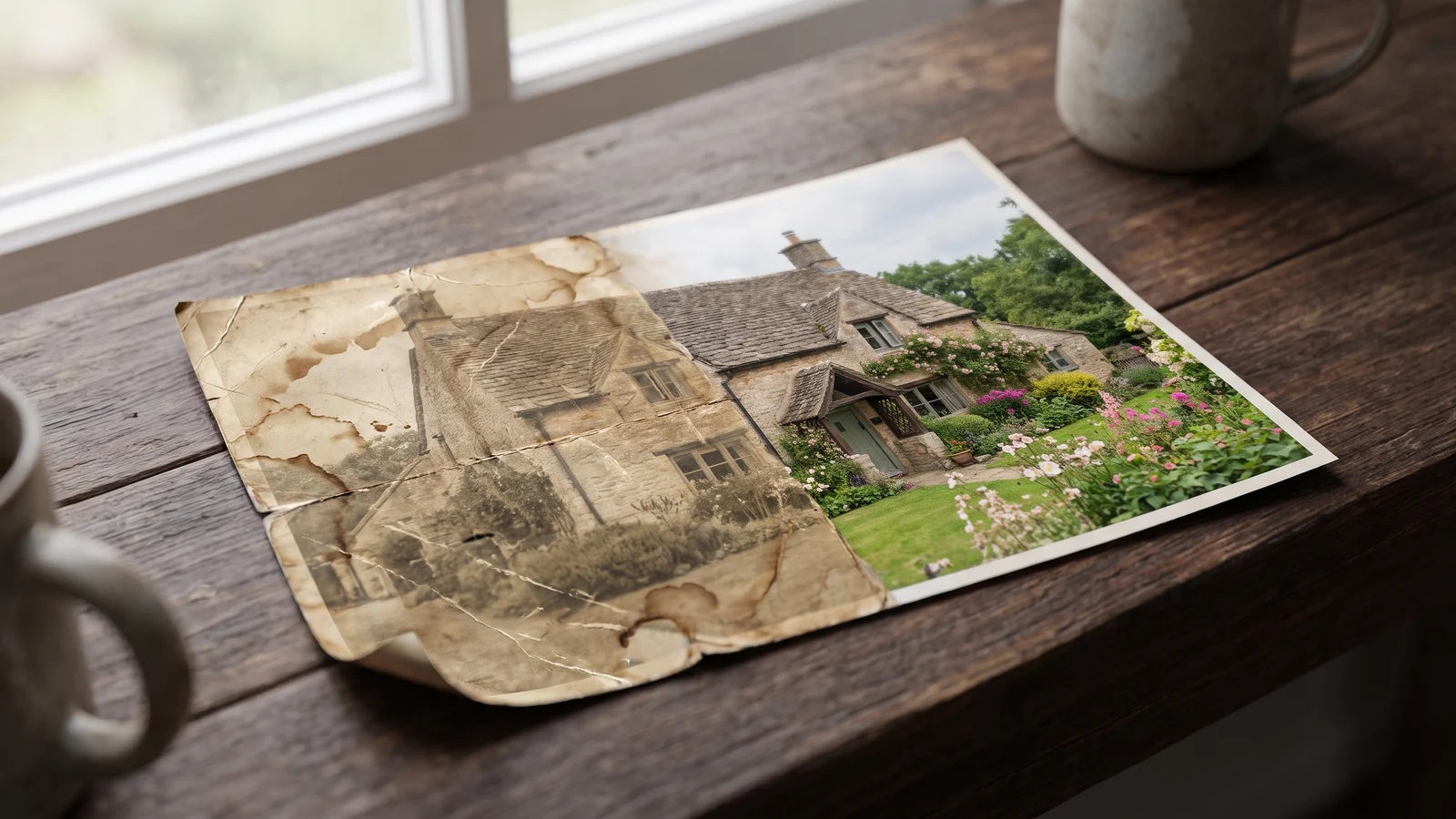
A good old photo restoration prompt is suddenly one of the most searched image prompts around — mostly people asking how to do it in Gemini. The idea is simple: hand an AI model a scan of a creased, faded family photo and get back a clean, colorized version.
What nobody tells you is how much the model matters. We took one restoration prompt, two damaged photos and five image models — two from Google, two from OpenAI and one from ByteDance — and ran them all the same way. The results differ a lot, and not only in sharpness: some models keep the people in your photo, some quietly redraw them.
Below is the exact prompt, the side-by-side results, what each model got right and wrong, and how to restore a whole album at once instead of one photo at a time.
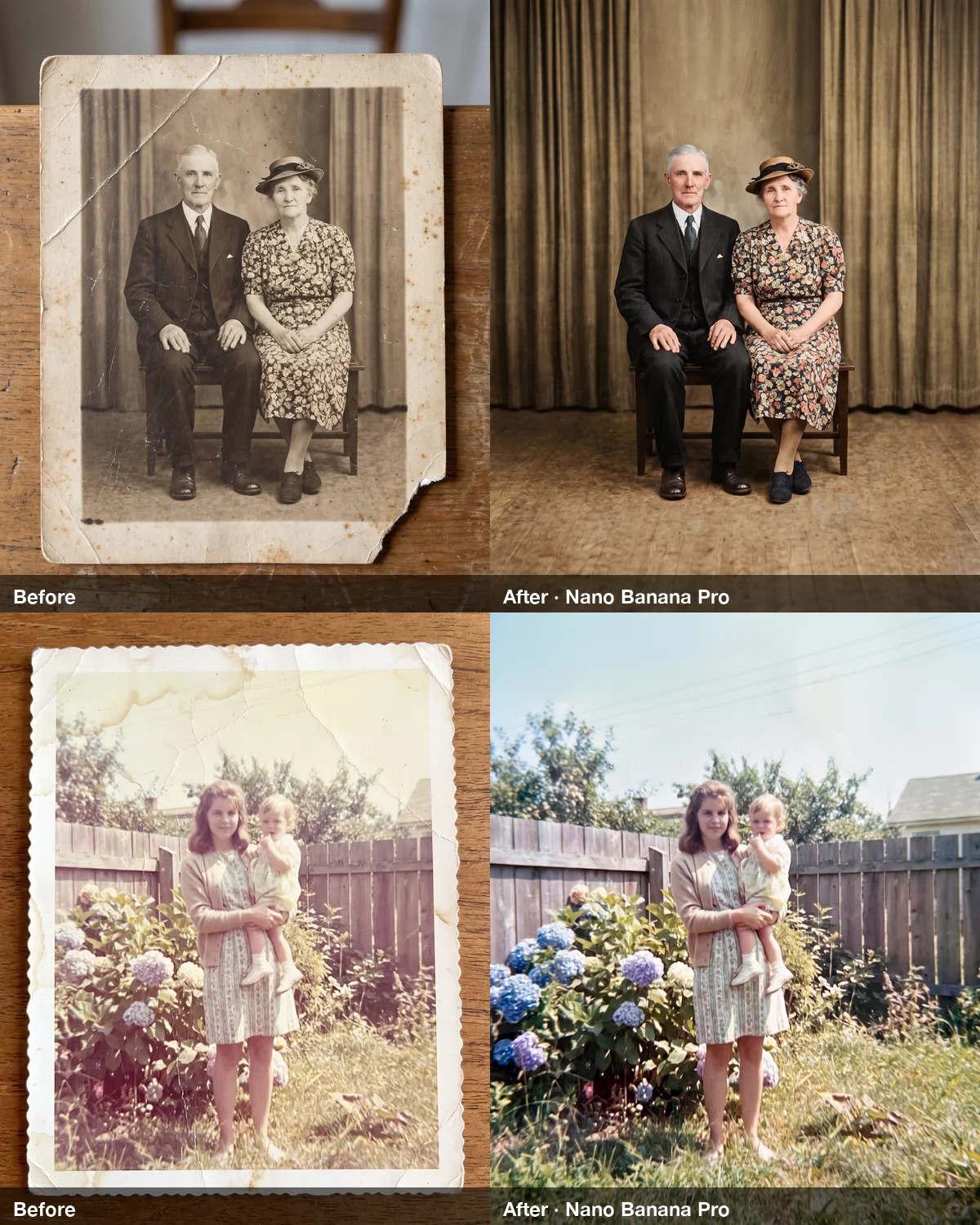
The old photo restoration prompt we tested#
This is the prompt every model received, word for word. Copy it as is, or adapt it with the variations further down.
Restore the old photograph from the reference image. Show only the photo itself, filling the frame: no table, no paper border, no background around it. Remove all creases, folds, scratches, dust, stains and tears, rebuild any missing corner, and fix the faded and shifted colors. Colorize it with natural, realistic skin tones and period-appropriate clothing colors. Keep every person exactly as they are: same face, same features, same expression, same age, same hairstyle, same pose and same clothing. Do not beautify, slim, smooth or modernize anyone. Keep the original composition and framing. The result should look like a clean, well-preserved original photograph from the same era, not a modern photo.Each sentence is there for a reason:
- "Show only the photo itself" — most old photos are phone snapshots of a print lying on a table. Without this line, models restore the table too.
- The damage list — naming creases, stains and missing corners works better than a vague "fix the damage".
- "Keep every person exactly as they are" — the most important line. Restoration models want to improve faces; you have to tell them not to.
- "Do not beautify, slim, smooth or modernize" — blocks the airbrushed, magazine look.
- "Same era, not a modern photo" — keeps the colors believable for a 1940s or 1960s print.
How we tested#
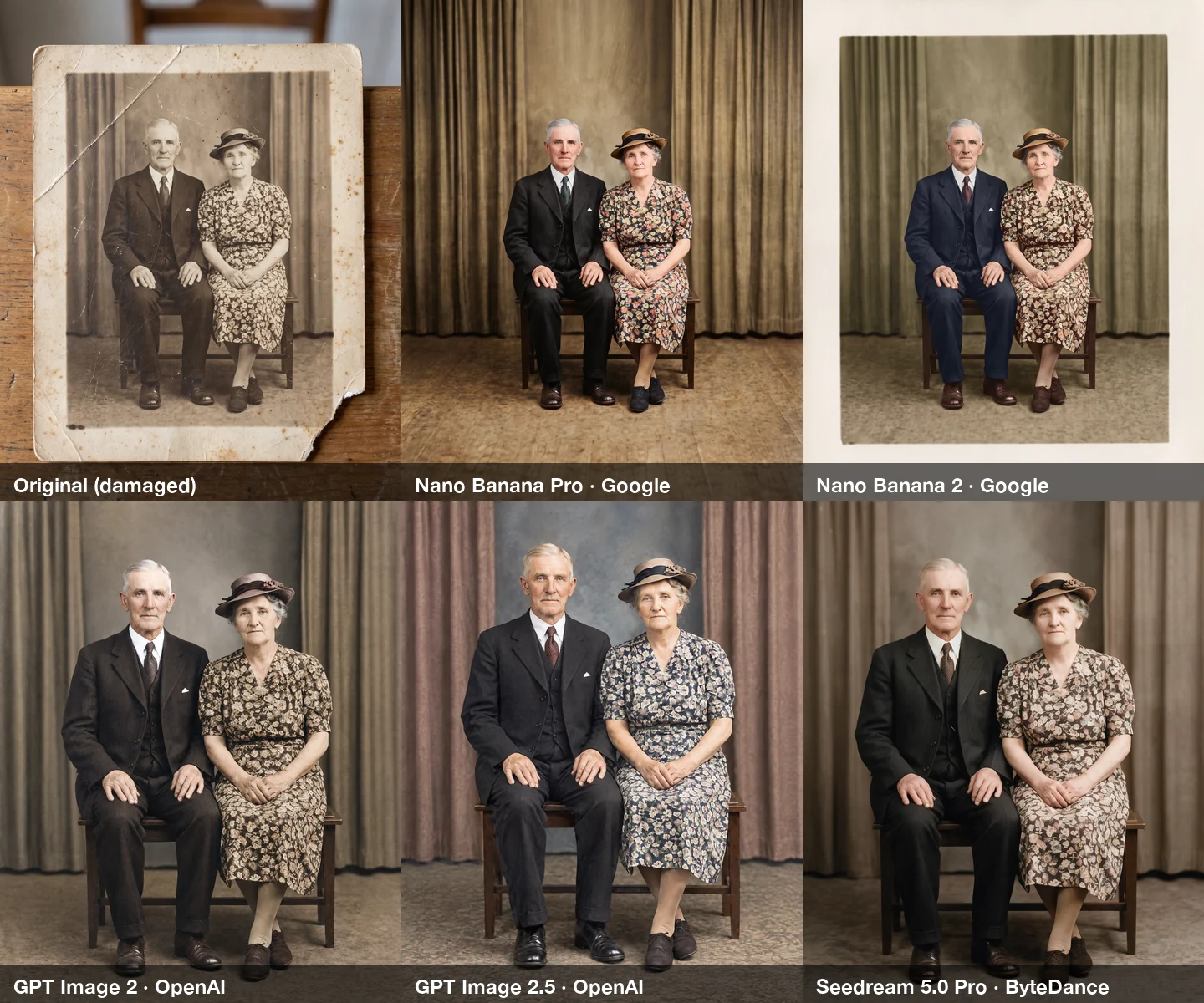
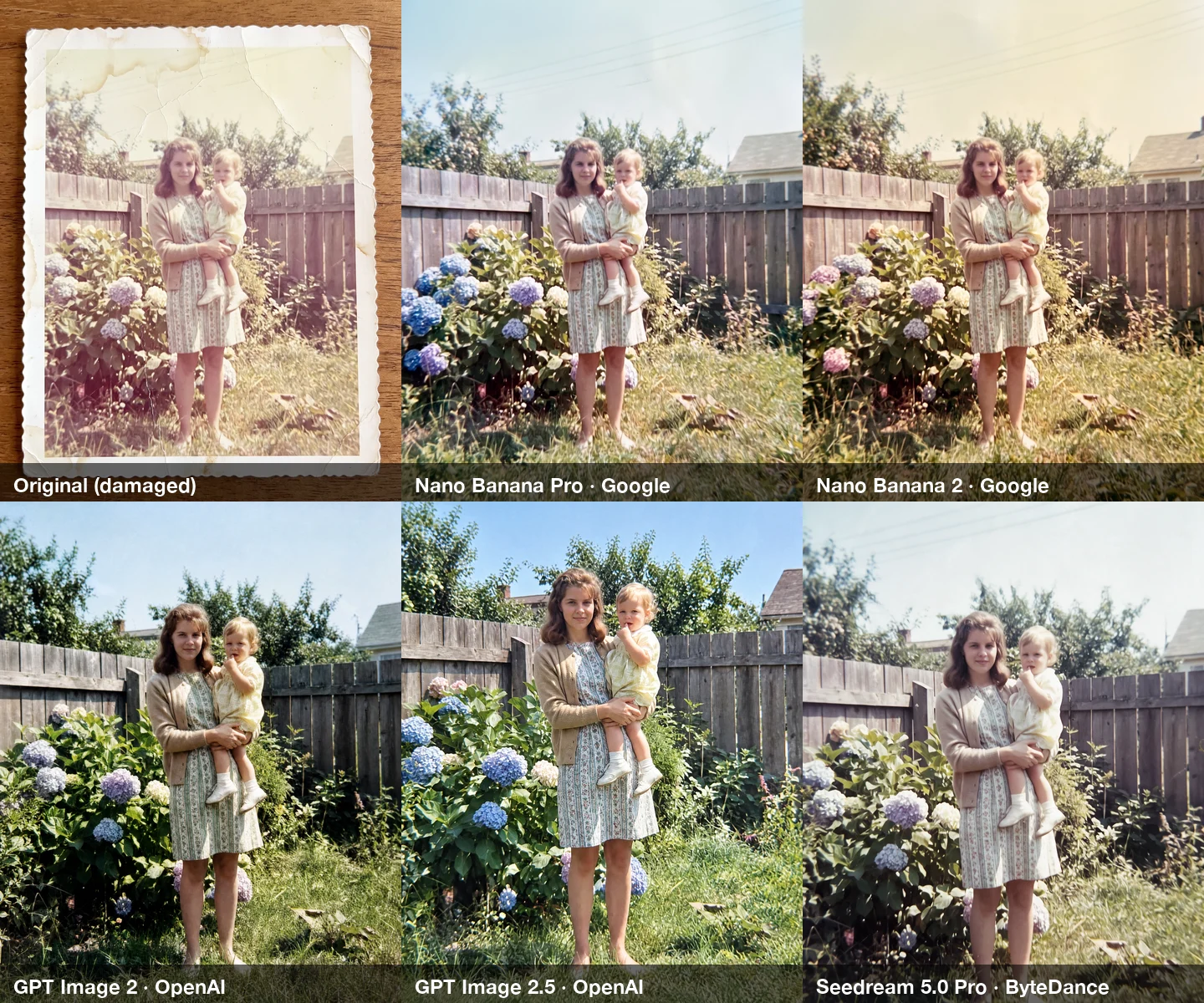
- Two damaged photos, both photographed lying on a wooden table the way people usually digitize prints: a creased, foxed 1940s black-and-white studio portrait of an older couple with a torn corner, and a washed-out 1960s color snapshot of a mother and toddler with water stains and a heavy yellow-magenta cast.
- The people are fictional. We generated both damaged photos with an AI model rather than use anyone's real family pictures. They are convincing enough to test on, but it is worth saying plainly.
- Same settings everywhere: the prompt above, 2K resolution, the closest available portrait aspect ratio, one attempt per photo, no cherry-picking.
- Five models, as available in October 2026: Nano Banana Pro and Nano Banana 2 (Google — the model family behind image generation in the Gemini app), GPT Image 2 and GPT Image 2.5 (OpenAI), and Seedream 5.0 Pro (ByteDance).
Two photos is a small sample, so read the results as a strong hint rather than a law. But the differences below showed up on both photos, consistently.
Results: five models, side by side#
| Model | Keeps faces | Keeps framing | Color & era | Sharpness | 2K credits |
|---|---|---|---|---|---|
| Nano Banana Pro (Google) | Closest to the original | Yes — kept the composition, removed the border | Restrained, believable period color; fixed the 1960s color cast | Soft, like a real print | 6 |
| Nano Banana 2 (Google) | Very close | Kept a white paper border it was told to remove | Left the 1960s color cast partly uncorrected | Soft | 6 |
| GPT Image 2 (OpenAI) | Close | No — cropped in tighter and changed the backdrop | Natural, slightly cooler | Sharpest of the five | 10 |
| GPT Image 2.5 (OpenAI) | Redrew faces the most | No — cropped in and replaced the backdrop | Vivid and modern, more like a new photo than an old print | Sharp | 10 |
| Seedream 5.0 Pro (ByteDance) | Close, but smoothed and brightened skin | No — cropped in (less on the snapshot) | Restrained, period-appropriate | Soft | 12 |
The quick version:
- To keep the person you remember: Nano Banana Pro, then Nano Banana 2 and Seedream 5.0 Pro, then GPT Image 2, with GPT Image 2.5 last.
- For the crispest "remastered" look: GPT Image 2.
- Only one model did everything the prompt asked — repair, colorize, keep the faces, keep the framing, drop the border: Nano Banana Pro. It was also the cheapest at 2K, tied with Nano Banana 2.
Faces: where the models really differ#
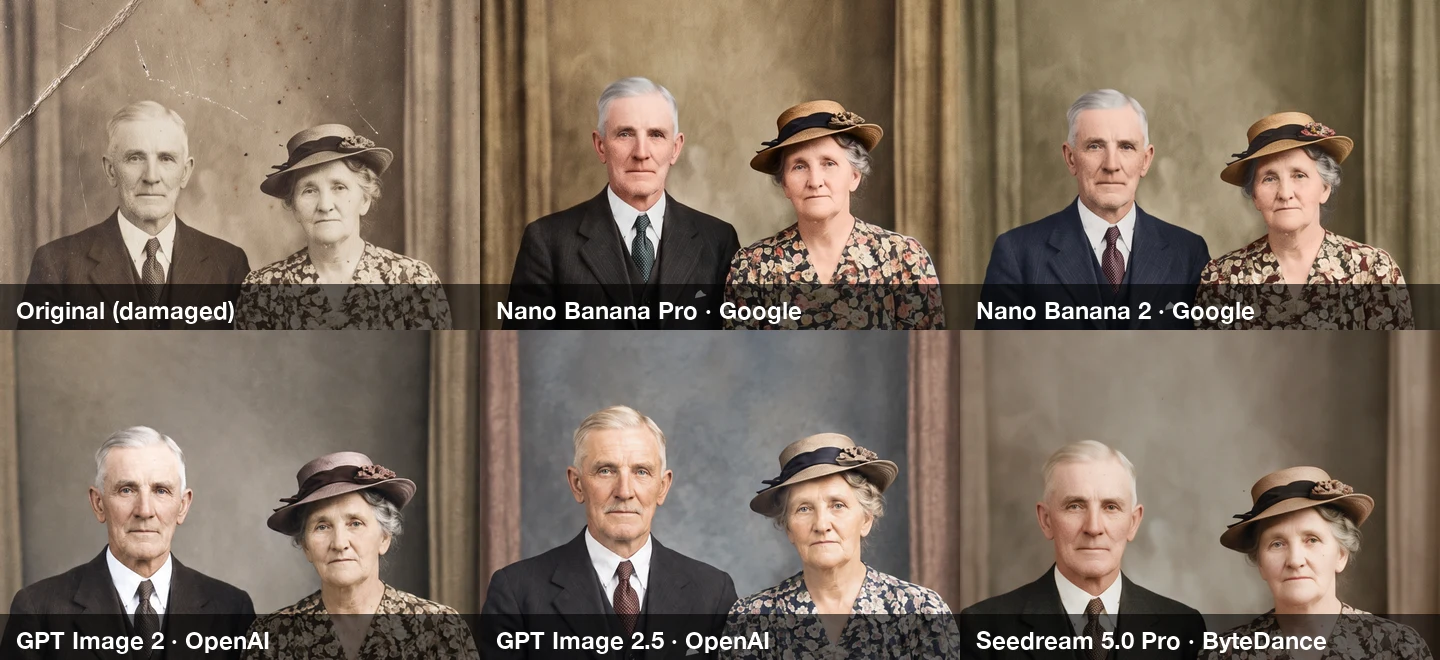
Up close, the differences are easier to see than in the full frames:
(The couple's portrait was black and white, so nobody knows the real colors of the suit, the hat or the dress. Each model guessed differently — that is a choice, not a mistake. Faces and framing are what can actually be checked.)
- Nano Banana Pro and Nano Banana 2 read as the same two people as the original: same jawlines, same eyes, same set of the mouth. They add detail a damaged print never had, but it is detail in the right places.
- GPT Image 2 keeps the likeness and is noticeably sharper — the closest thing to a high-resolution rescan. It also swapped the backdrop and cropped the frame.
- GPT Image 2.5 made the most changes: the man's face is noticeably redrawn, and in the 1960s snapshot the young mother comes back looking like a more polished, different person. Both pictures read as modern studio shots rather than old prints.
- Seedream 5.0 Pro keeps the people recognizable but evens out skin and lifts brightness — a light "beauty filter" that the prompt explicitly asked against.
What AI restoration can and can't do#
Every model here works by redrawing the photo, not by repairing the pixels you gave it. That has consequences worth knowing before you print anything:
- Small details drift. In Nano Banana Pro's version of the couple, the man's striped tie came back with a dot pattern. Patterns, jewelry and text are the usual casualties.
- Missing parts are invented. The torn corner and the bits of curtain and floor outside the original print were filled in by the model. They look plausible; they are not a record of what was there.
- Sharper is not more accurate. A crisp face is the model's best guess at detail the print never held. For a family album that is usually fine. For anything where accuracy matters — genealogy records, evidence, archives — keep the original scan alongside the restoration and label which is which.
Tip
Always save the untouched scan. Restorations are easy to redo with a better prompt or a newer model; a lost original is gone.
Prompt variations#
These are adjustments to the tested prompt for common situations. We tested the full prompt above; treat these as starting points and check the first result before running a batch.
Keep it black and white — replace the colorize sentence:
Keep it in black and white with natural, even grey tones; do not add color.Lock the likeness harder — add to the end when faces still drift:
The faces must be identical to the reference image: do not change the shape of the eyes, nose, mouth, jaw or hairline, and do not make anyone look younger or older.Repair only, keep the age — for photos you want to look old, just undamaged:
Remove the damage only. Keep the original faded colors, film grain and softness of the period; do not colorize, sharpen or modernize it.Restore a whole album at once#
Chat apps are built around one conversation turn at a time, so a 40-photo shoebox means 40 rounds of upload, prompt, wait and download. If you have more than a handful of photos, a bulk image generator is the faster route: one prompt, all the photos, one download.
In BulkImagen that is a single batch:
- Start a New batch and paste the restoration prompt into the prompt box.
- Upload all your scans as reference images, then choose Per image under How to use the references — each photo is paired with the prompt and restored separately.
- Pick the model and resolution. Based on the test above, Nano Banana Pro at 2K is the best default for faithful restorations (6 credits per photo). Switch to GPT Image 2 if you want the sharpest result and do not mind tighter framing.
- Check the total before you start. The form shows the image count and credits — 30 photos on Nano Banana Pro at 2K is 30 × 6 = 180 credits — then Start batch and download everything as one ZIP.
Run a small test first: two or three of your hardest photos — the most damaged, the most faded — before the whole album. If faces drift on your photos, add the likeness lock above and try again. Compare model prices and specs on the models page, or read more about Nano Banana and Seedream.
FAQ#
What is the best AI model for old photo restoration? In our test, Nano Banana Pro kept faces and framing most faithfully and was the cheapest at 2K. GPT Image 2 gave the sharpest result but cropped the frame. With a sample of two photos, test your own hardest photo before committing an album.
Can I use this prompt in Gemini? Yes. The prompt is plain language and model-agnostic. Gemini's image generation runs on the Nano Banana family, which performed best in our comparison.
Will AI restoration change faces? It can. Every model redraws the photo. The "keep every person exactly as they are" and "do not beautify" lines reduce it a lot, and the choice of model matters more than any single phrase.
Can I keep a photo black and white? Yes — swap the colorize sentence for the black-and-white variation above.
Can I restore many photos at once? Yes. Upload them all as reference images in one batch with the Per image mode, and every photo gets the same prompt.