How to Bulk Create Social Media Posts with AI Images
Bulk create social media posts with AI: one line per post, a native render for feed and stories, exact Instagram sizes on download and a CSV for your planner.
On this page
- Bulk create vs. bulk generate: which one you need
- Step 1: Write one line per post
- Step 2: Pick the ratio for each format
- Step 3: Run the list once per format
- Step 4: Check every headline before you schedule
- Step 5: Download at the exact pixel size
- Step 6: Hand the set to your scheduler
- Common mistakes
- A checklist for your first series
- FAQ
A month of social content is mostly the same post thirty times: the same look, a new headline, a new picture. Making that by hand means thirty trips through a design tool. If you want to bulk create social media posts, the work splits into two jobs — getting thirty different images, and putting them into the right sizes for each platform — and most tools only do one of them.
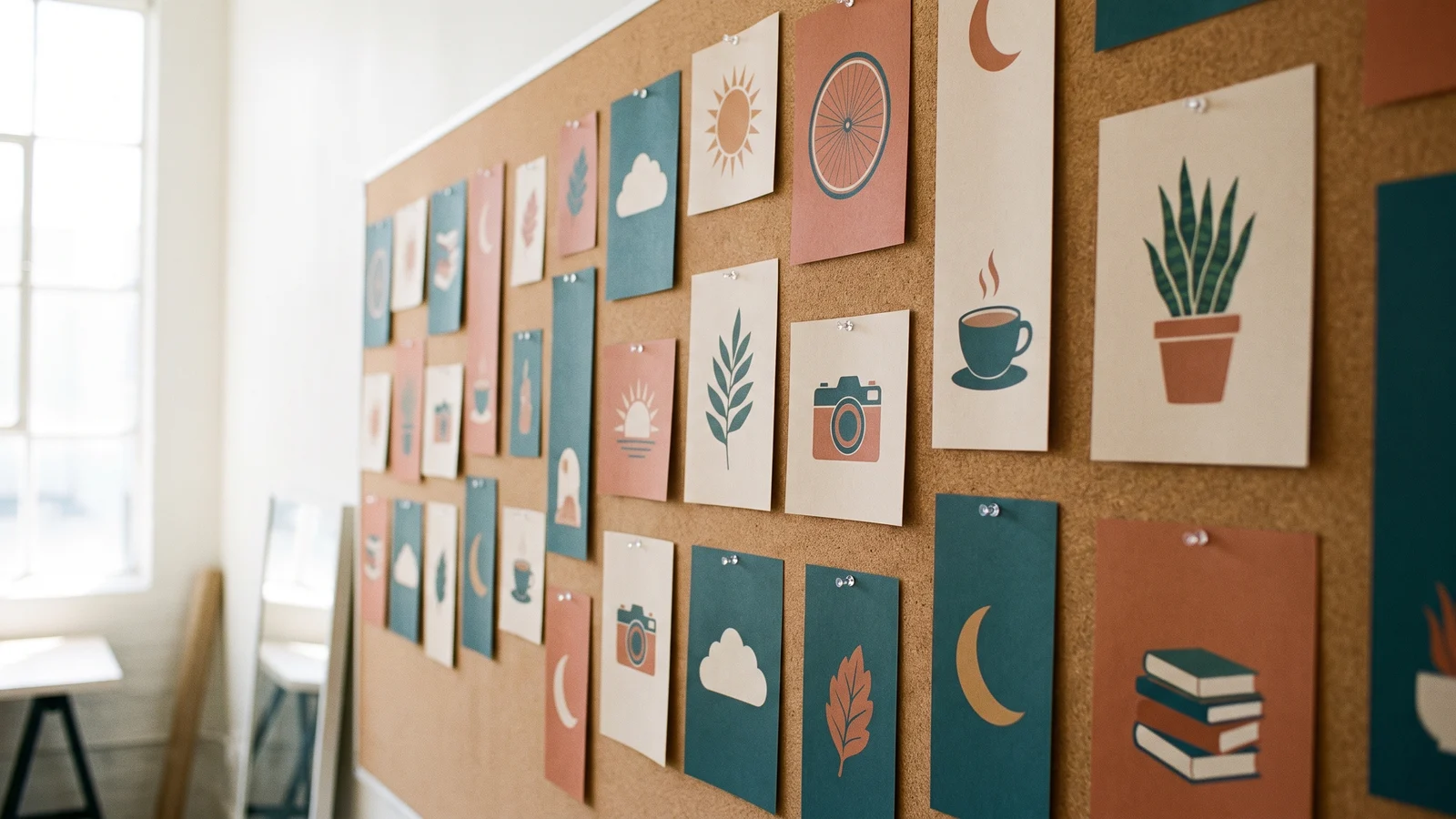
This guide shows how to do both in BulkImagen: a list of posts in, every image rendered natively for the feed and for stories, every file downloaded at the exact Instagram pixel size, and a CSV that maps each file back to its post. The sample posts below were all made for an invented neighbourhood bike shop and came out of two small batches.
Generate in bulk
One prompt per line, hundreds of images, one ZIP to download.
Bulk create vs. bulk generate: which one you need#
"Bulk create" in most design tools means filling a template. Canva's Bulk Create is the best-known example: you design one post, connect a spreadsheet, and every row fills the template's text and image placeholders. According to Canva's help center (as of October 2026), it is available on Canva Pro, Teams, Business, Enterprise, Education and Nonprofits — not the free plan — and works on desktop only. The images it places are ones you already have: you pick them from your media library or embed them in the cells of a Canva Sheet or XLSX file. It does not create new pictures.
An AI batch does the other half: it makes a new image for every row. Nothing has to exist before you start.
| Template bulk create (e.g. Canva) | AI batch (BulkImagen) | |
|---|---|---|
| Input | A designed template + a spreadsheet | A list of prompts, one per post |
| Images | Yours, one per row, supplied in advance | New, generated per row |
| Text on the image | Exact, in your brand fonts | Rendered by the model — check every one |
| Best for | Fixed layouts, strict brand typography | Fresh visuals every post, no source images |
They are not rivals. If your posts need pixel-exact brand typography, generate the visuals without text here and lay the words on in your template tool. If a model-rendered headline is good enough — and for short headlines it usually is — you can do the whole job in one place, which is what the rest of this guide does.
Step 1: Write one line per post#
In BulkImagen one line in the prompt box is one prompt, and one prompt is one image. A post series is a list, so write it as one: a shared style block that stays word for word the same, plus the part that changes.
flat editorial illustration for an Instagram post, warm cream background, terracotta and deep teal palette, bold rounded sans-serif headline at the top reading "Check your tire pressure weekly", below it a bicycle wheel with a hand pump attached, clean simple shapes, generous margins, no logos, no other text
flat editorial illustration for an Instagram post, warm cream background, terracotta and deep teal palette, bold rounded sans-serif headline at the top reading "Clean your chain every 300 km", below it a bicycle chain and a small brush with a few soap bubbles, clean simple shapes, generous margins, no logos, no other text
flat editorial illustration for an Instagram post, warm cream background, terracotta and deep teal palette, bold rounded sans-serif headline at the top reading "Squeaky brakes? Check the pads", below it a close-up of a rim brake with worn pads, clean simple shapes, generous margins, no logos, no other text
flat editorial illustration for an Instagram post, warm cream background, terracotta and deep teal palette, bold rounded sans-serif headline at the top reading "Store your bike indoors in winter", below it a bicycle leaning in a cosy hallway with snow outside the window, clean simple shapes, generous margins, no logos, no other text
Three rules make a series look like a series:
- Keep the style block identical. Palette, background, type style and layout in the same words on every line. Rewording it per line is how a set drifts.
- Put the headline in quotes and keep it short. Models copy a quoted string far more faithfully than a described one, and short lines are copied more reliably than long ones.
- Say "no other text". Without it, models like to add a slogan, a fake handle or a date you did not ask for.
Tip
Start from a sentence instead of a list. Click Write with AI under the prompt box, describe the series ("12 Instagram tips for a bike repair shop, flat illustration, headline on each"), and it writes one prompt per image for you. It costs no credits; you still review the list before anything is charged.
If your post plan already lives in a spreadsheet, switch the input to Spreadsheet and upload the .csv, .xls or .xlsx — BulkImagen reads the prompt column and ignores the others, so you can keep dates and captions next to it. More detail in our guide to generating images from a list of prompts.
Step 2: Pick the ratio for each format#
Every platform crops differently, and a headline that sits nicely in a square can be cut off in a story. Rather than generating once and cropping hard, render each format natively and let the model compose for it.
| Where it goes | Generate at | Download preset |
|---|---|---|
| Instagram / Facebook feed (portrait) | 4:5 | Instagram portrait · 1080×1350 |
| Instagram feed (square) | 1:1 | Instagram post · 1080×1080 |
| Stories, Reels covers, TikTok | 9:16 | Instagram story · 1080×1920 |
| X / LinkedIn link images | 16:9 | X post · 1600×900 |
| YouTube thumbnail | 16:9 | YouTube thumbnail · 1280×720 |
The aspect ratio applies to the whole batch, so one batch is one format. That is less work than it sounds — see the next step.
Step 3: Run the list once per format#
Set the first batch up: paste the list, choose the model, set Aspect ratio to 4:5, leave the resolution at 1K and set Images per combo to 1 (it starts at 4, which would render every post four times). The bar at the bottom shows the cost before anything happens — Will generate 4 images · 20 credits with GPT Image 2 — and credits are charged only when you press Start batch.
When it finishes, press Remix. It copies the batch's prompts and settings into a new batch without charging anything; change the aspect ratio to 9:16 and start it. Same posts, now composed for stories.
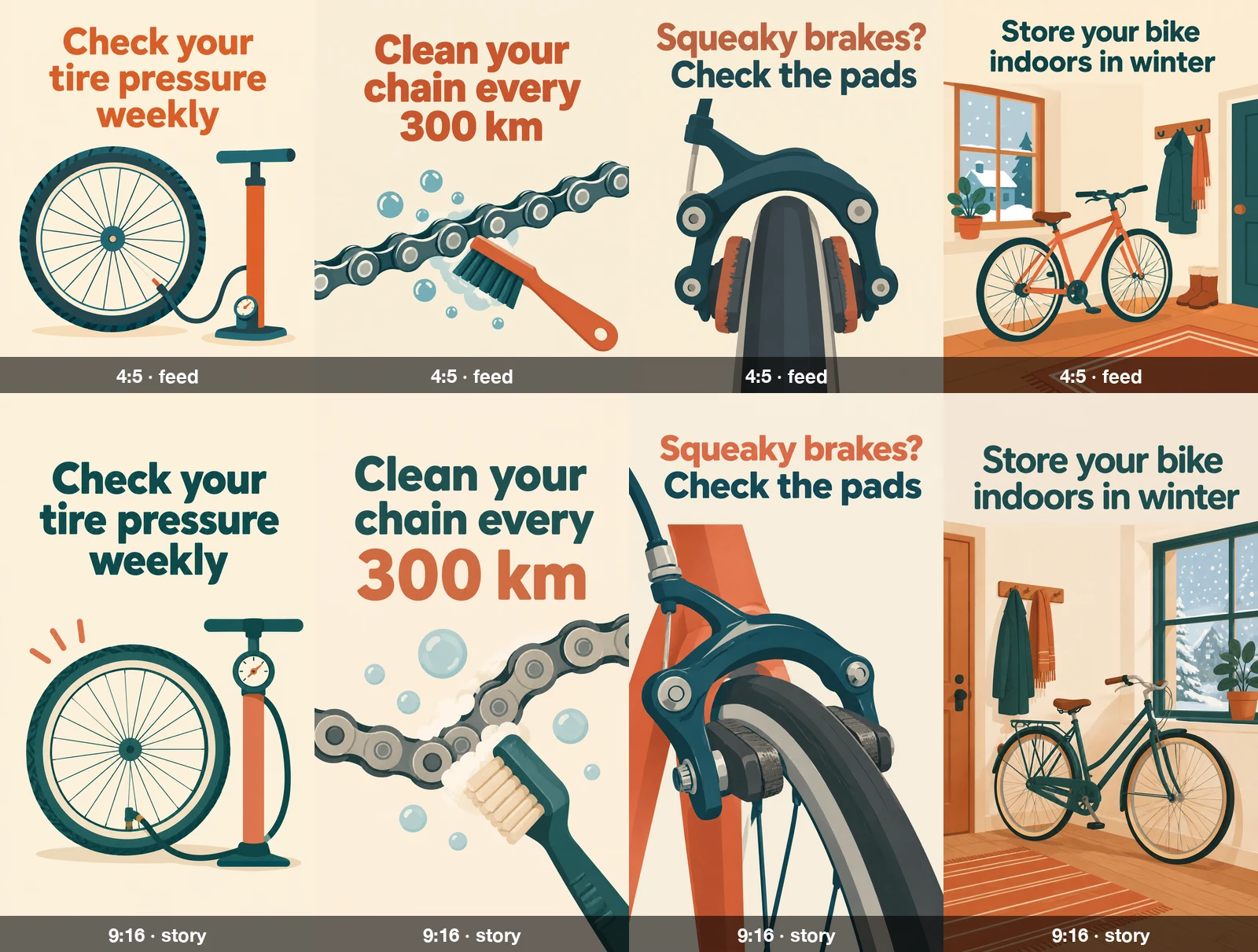
Compare the rows. The story versions are not stretched feed posts: the model pushed each headline down from the top edge and redrew the picture for a tall frame — the brake becomes a side view along the fork, the hallway is rearranged around a taller window. That is the point of rendering each format instead of cropping one.
The palette held across all eight. Which element got which colour did not: the headline is terracotta on some posts and teal on others. If your headline colour matters, name it in the style block ("headline in deep teal") instead of only listing the palette.
Step 4: Check every headline before you schedule#
In our test, all eight headlines — four posts in two formats, with GPT Image 2 — came out spelled correctly, including the number in "300 km" and the question mark, and none of the images picked up text we did not ask for. That is a small sample of short headlines, not a guarantee: longer sentences, unusual words and small type are where models slip.
Read every image at full size before it goes anywhere near a scheduler. A wrong letter in a headline is the one mistake an AI-made post cannot hide. If one image is off, Try again re-renders just that one; if a line keeps failing, shorten the headline or move the words into your template tool.
Step 5: Download at the exact pixel size#
Generated images come in the model's own pixel dimensions, not the platform's. Fix that on the way out: on the batch page click Select & edit, then Select all, and pick a size preset in the bar that appears — Instagram post, Instagram portrait, Instagram story, X post, YouTube thumbnail, Facebook cover and more. Download ZIP then saves every file at exactly those pixels, resized in your browser at no cost. When the preset's shape differs from the image, a crop box appears on each thumbnail; drag it to choose what to keep, and each image can be framed separately, so a headline near the edge is never cut blindly.
You can also switch the format to JPG or WebP there; the label shows the typical saving, and both are far smaller than the original PNGs. Already have images that just need resizing? The free bulk Instagram image resizer does it in your browser without uploading anything.
Step 6: Hand the set to your scheduler#
Download all (or Download ZIP from Select & edit) packs the batch into one ZIP. Files are numbered in list order and named after the start of their prompt, and the archive includes prompts.csv: one row per file with the file name, the full prompt, model, aspect ratio and — when you resized on download — the output width and height. Most planners that import posts from a CSV want a file column and a caption column side by side; prompts.csv gives you the first half, and you paste your captions next to it.
Common mistakes#
| Mistake | What happens | Fix |
|---|---|---|
| Style block reworded per line | Posts stop looking like one series | Copy the shared part word for word |
| Long headline | Letters dropped or swapped | Keep it to a short phrase; put the rest in the caption |
| No "no other text" | Invented slogans, handles or dates | End every line with it |
| One square render cropped to 9:16 | Headline cut off in stories | Remix the batch at 9:16 instead |
| Images per combo left at 4 | Four takes of every post, four times the credits | Set it to 1 |
A checklist for your first series#
- One post per line, style block identical, headline in quotes.
- Images per combo at 1, one batch per format, Remix for the next format.
- Every headline read at full size.
- Download preset matched to the platform; crop box checked on each tile.
prompts.csvkept with the ZIP for the scheduler.
FAQ#
Can I bulk create social media posts for free? New accounts get free credits, enough for a first small series. After that you pay per image with prepaid credits; see pricing for the per-image cost of each model and how many images a batch can hold on each plan.
Which model writes text on images best? In this test GPT Image 2, the default model, got all eight short headlines right. In our Nano Banana 2.1 vs Nano Banana Pro comparison, Pro wrote exactly what it was given while 2.1 liked to add words. Our models page compares every model side by side.
Can I use my own photos instead of generated scenes? Yes. Upload a reference image and choose Per image, and every line is rendered around that photo — the same approach we use for bulk product photos.
When your post list is ready, paste it into the bulk image generator and run the first four lines as a test before the whole month.