AI Images for YouTube Videos: Every Scene of the Script in One Batch
Make AI images for YouTube videos from your script: one line per scene, one style lock on every line, a reference frame for consistency, and 1080p downloads.
On this page
- How many images does a video need?
- Step 1: Turn the script into a scene list
- Step 2: Put one style lock on every line
- Step 3: Lock the look with a reference frame
- Step 4: Check the settings and the estimate
- Step 5: Check every frame
- Step 6: Download the frames in script order
- Common mistakes
- A checklist for your next video
- FAQ
An explainer or documentary-style video needs a picture on screen for every few lines of narration. A ten-minute script easily means 60 to 100 images. Stock footage runs out or looks generic, and generating the images one at a time in a chat app has a worse problem: by scene 20 the style has drifted, the colours have changed and the video looks like a slideshow from five different channels.
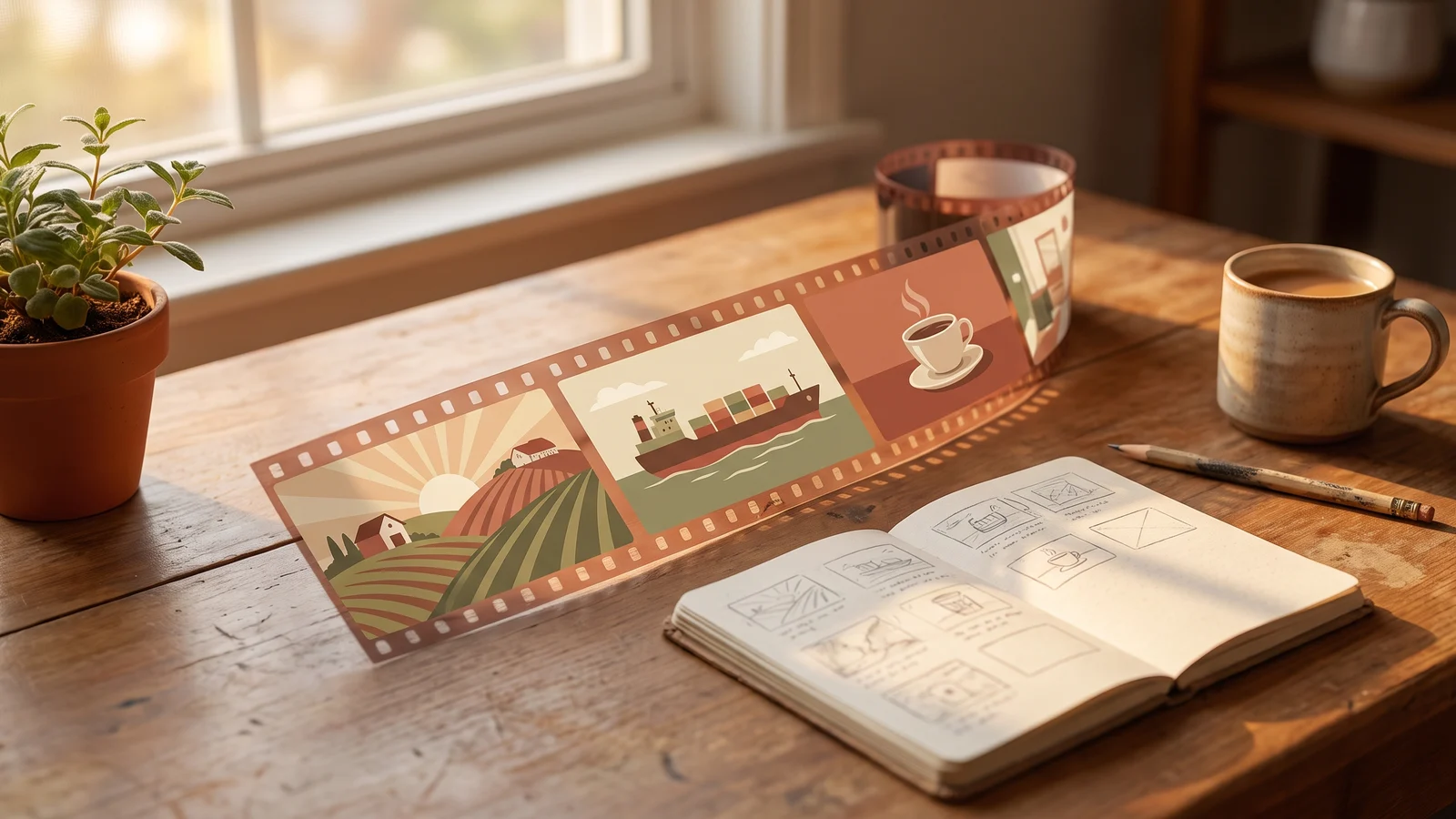
This guide shows how to make AI images for YouTube videos as one job: turn the script into a scene list, lock the style once, run every scene in one batch and download the frames at 1080p in script order. Every frame in this post comes from one test video we made this way — a short explainer about how coffee gets from the farm to your cup.
Generate in bulk
One prompt per line, hundreds of images, one ZIP to download.
How many images does a video need?#
Count your narration, not your minutes. A practical starting point is one image per sentence or short paragraph of narration — whenever the voice-over moves on to a new idea, the picture should too. Fast-paced channels change the picture more often; calm documentary styles hold one image longer and add slow zooms in the editor.
Whatever the pace, the work has the same shape: a numbered list of scenes, each one a picture. That list is exactly what a bulk image generator takes as input.
Step 1: Turn the script into a scene list#
Go through the script and write one line per scene. Each line describes what the viewer sees, not what the narrator says:
| Narration | Scene line |
|---|---|
| "It starts on a hillside, thousands of kilometres from your kitchen." | Coffee cherries ripening on a green hillside farm at sunrise |
| "Every cherry is picked by hand." | A farmer's hands picking ripe red coffee cherries into a woven basket |
| "Then the beans cross an ocean." | Sacks of green coffee beans being loaded onto a cargo ship at a busy port |
Two rules keep the list usable:
- One picture per line. "The farmer picks cherries and then dries them" is two scenes. Split it.
- Concrete nouns, not ideas. "Globalisation" can't be drawn; "a cargo ship leaving port at dusk" can.
Starting from an idea rather than a finished script? Describe the video in one sentence in the prompt box — a 10-scene explainer about how coffee gets from farm to cup, flat 2D illustration — and click Write with AI. It writes one prompt per scene; check the list, then click Fill the form. Writing the list costs no credits.
Step 2: Put one style lock on every line#
Each line is sent to the model on its own, so the look of the video has to be written into every line, word for word. Decide the style once — medium, palette, light, composition — and add it to each scene:
Coffee cherries ripening on a green hillside farm at sunrise. Flat 2D editorial illustration for a YouTube explainer, clean simple shapes, soft paper grain texture, warm muted palette of terracotta, olive green, cream and deep brown, gentle natural light, wide cinematic composition, no text, no letters, no logos
A farmer's hands picking ripe red coffee cherries into a woven basket. Flat 2D editorial illustration for a YouTube explainer, clean simple shapes, soft paper grain texture, warm muted palette of terracotta, olive green, cream and deep brown, gentle natural light, wide cinematic composition, no text, no letters, no logos
Sacks of green coffee beans being loaded onto a cargo ship at a busy port. Flat 2D editorial illustration for a YouTube explainer, clean simple shapes, soft paper grain texture, warm muted palette of terracotta, olive green, cream and deep brown, gentle natural light, wide cinematic composition, no text, no letters, no logos
Three habits make the difference:
- Name the palette. "Warm colours" drifts; "terracotta, olive green, cream and deep brown" doesn't.
- Always end with "no text, no letters, no logos". Models love to write on signs, sacks and screens, and a misspelled word on screen is the fastest way to look cheap. Titles and captions belong in your editor.
- Keep the scene part short and the style part identical. The scene is what changes; the style is what makes 80 frames look like one video.
Step 3: Lock the look with a reference frame#
The style lock gets the frames close. A reference frame makes them match. For our test video we made the farm scene first:
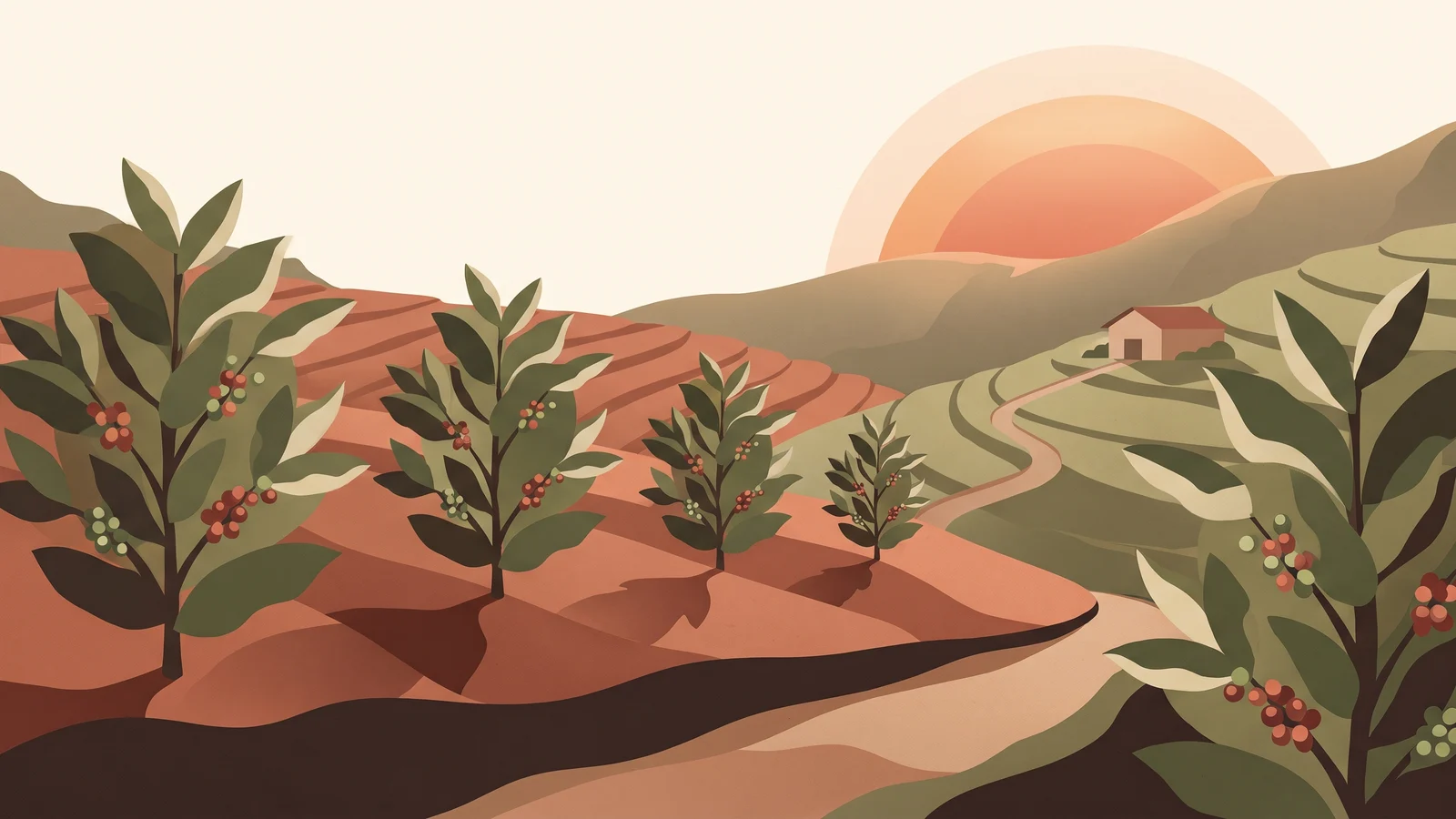
- Make the first scene on its own. Re-run it until the style is exactly right for the whole video. This frame is your style sheet.
- Upload it as a reference image for the rest of the list and choose Per image — the reference is paired with every line, so each frame is drawn from its own scene while copying the look of the approved one.
- Add one sentence to every line: match the art style, colour palette and level of detail of the reference image; draw only the new scene described here. The second half matters — without it, models sometimes redraw the reference scene.
If the video has a recurring narrator or character, make a clean picture of that character first and use it as the reference instead; our guide to consistent character AI images covers the details.
For the test video we then ran the other six scenes twice: once with the style lock alone, once with the style lock plus frame 1 as the reference.
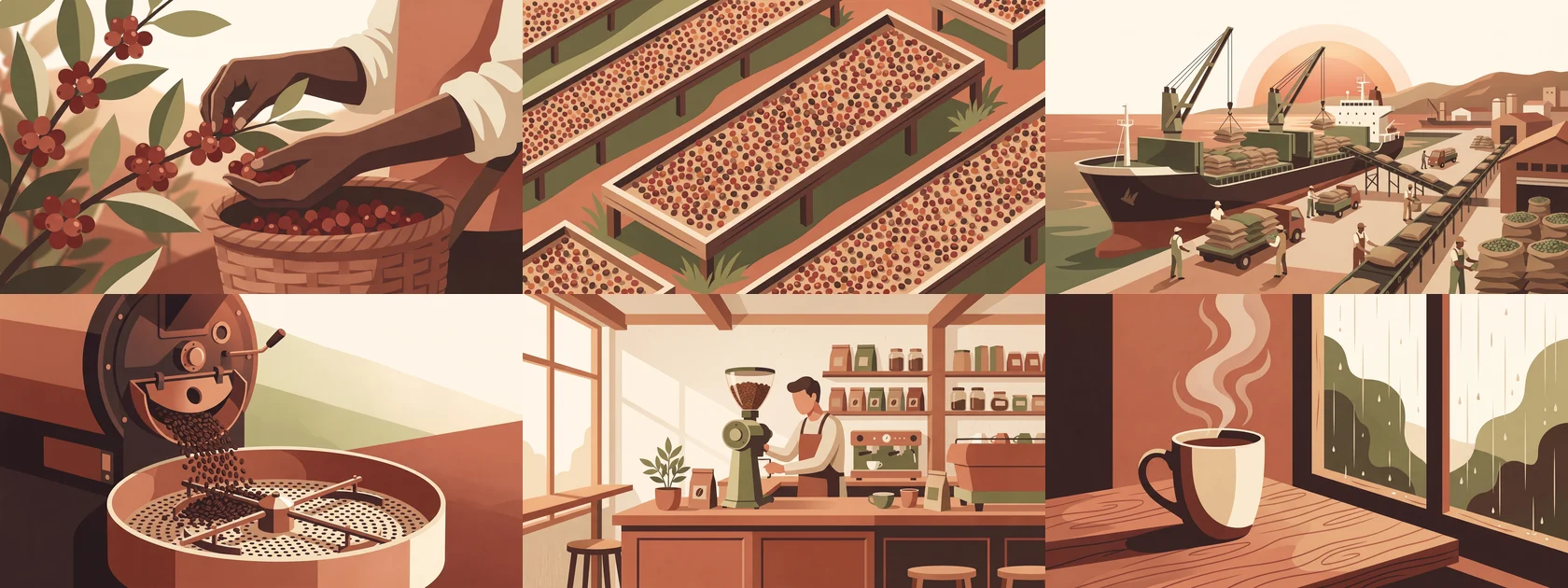
The style lock alone already got close — same medium, same broad palette. The reference is what kept the last details in line. Without it the frames drifted greener and brighter, the coffee cup came back half-realistic with a blurred photo background, and "sacks of green coffee beans" turned into green drums. With it, every frame kept the cream sky, the terracotta-and-olive palette and the flat shapes of frame 1.
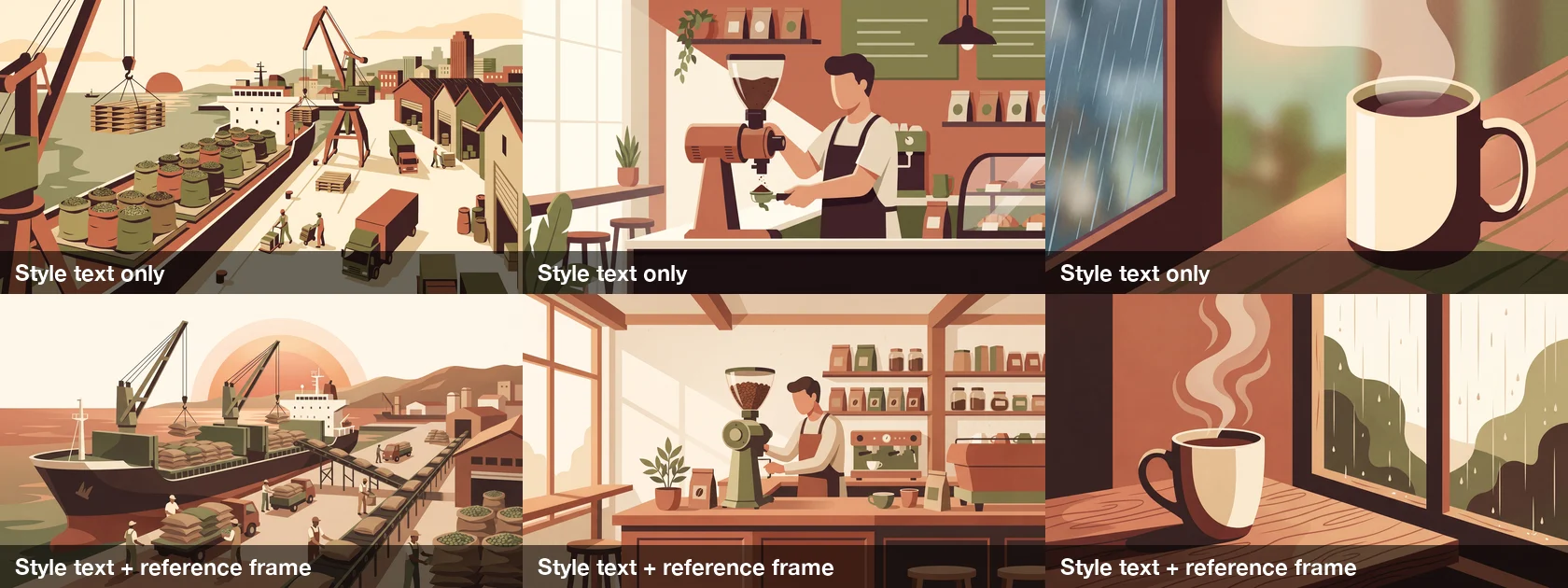
The reference can also over-steer: our port scene borrowed frame 1's big setting sun. If a frame copies something it shouldn't, say so in that line ("no sun in the sky") and re-run it.
Step 4: Check the settings and the estimate#
- Aspect ratio 16:9 for regular videos. For Shorts, run the same list again at 9:16 — one batch per format.
- Resolution 2K. Our 2K frames came out at 2752 × 1536 px — more than enough to downscale to 1080p, with room to crop or add a slow zoom in the editor.
- Images per combo 1. One frame per scene. A higher number draws every scene several times — useful only when you want to choose between versions.
- Model. Our test video used Nano Banana Pro at 2K, 6 credits a frame; it followed the palette closely and kept every frame free of text. Our models page compares price and style for every model.
The form shows the total before anything is charged — Will generate 6 images · 36 credits for the six scenes after frame 1 — and credits are spent only when you press Start batch. Each plan has a per-batch image limit; for a long video, run one batch per chapter of the script. Pricing lists the limit for each plan.
Step 5: Check every frame#
Our six frames needed no re-runs: no text on the sacks, labels or café menu board, and every scene matched its line. The one thing to watch was the reference bleeding through, like the borrowed sun in the port scene. Look at each frame for these four problems before it goes on the timeline:
| Problem | How to spot it | Fix |
|---|---|---|
| Text in the image | Letters on signs, sacks, screens or labels | Try again; add "no signs, no labels" to that line |
| Style drift | One frame darker, more detailed or a different medium | Try again with the reference attached |
| Wrong detail for the story | A ship where the script says a truck | Make the scene line more specific and re-run that line |
| Same composition every time | Every frame a wide shot | Vary the camera in the scene line: close-up, overhead, wide |
Try again re-draws one frame and leaves the rest of the batch untouched.
Step 6: Download the frames in script order#
Download all gives you every frame in one ZIP, numbered in the order of your list — so the files already sit in script order when you drop them on the timeline. For exact video sizes, open the batch, click Select & edit, then Select all, and under Size choose Custom — drag a box and enter 1920 × 1080. Then Download ZIP.
The thumbnail is one more image: write a scene line for it, run it at 16:9 and pick the YouTube thumbnail size (1280 × 720) on download.
Common mistakes#
| Mistake | What happens | Fix |
|---|---|---|
| Narration pasted as the prompt | Abstract, confusing pictures, sometimes with the words written in | Describe what the viewer sees |
| Style written differently on each line | The video looks stitched together from several channels | Copy the style lock word for word |
| No "no text" in the style | Garbled words on screen | End every line with "no text, no letters, no logos" |
| Everything in one giant batch | One bad style decision repeated 100 times | Approve the first frame, then run the rest |
| Images per combo above 1 | Several versions of every scene to sort through | Set it to 1 |
A checklist for your next video#
- Script split into scenes, one picture per line, written as what the viewer sees.
- One style lock — medium, palette, light — on every line, ending with "no text".
- First frame approved, then used as a reference in Per image mode.
- 16:9 (or 9:16 for Shorts), 2K, images per combo 1, estimate read before Start batch.
- Every frame checked for text, drift and story details.
- Downloaded at 1920 × 1080, already in script order.
FAQ#
How many AI images do I need for a 10-minute video? It depends on your pace. Narration usually runs at roughly 130–150 words a minute, so ten minutes is around 1,300–1,500 words; at one image per sentence or short paragraph, that is somewhere between 60 and 120 images. Run them in chapters so you can check the style early.
Can I make the same images for Shorts? Yes. Run the same scene list again at 9:16; the style lock and the reference frame keep both versions consistent.
Which model is best for video frames? Use a model that follows a named palette and "no text" closely. Our test video used Nano Banana Pro at 2K and every frame stayed in the style with no stray lettering; try your style lock on three or four scenes before running the whole script. The models page lists price per image for each.
What about storyboards for a film or animation? The same list-based method works for shot-by-shot storyboards; our AI storyboard generator is set up for that, with one line per shot and a character anchor on every line.
Can I keep the same presenter or character in every frame? Yes — make one clean picture of the character first and use it as the reference image in Per image mode, as described in Step 3.