KDP Coloring Book Pages with AI: Size, DPI and Margins That Pass
Make KDP coloring book pages with AI at print size: the trim size, ratio and resolution to pick, why 2K falls short of 300 DPI, and how to check margins.
En esta página
- The short answer
- Step 1: Pick the trim size
- Step 2: Decide about bleed (usually: no bleed)
- Step 3: Choose the aspect ratio and resolution
- Step 4: Write margins into the prompt
- Step 5: Export at the exact pixel size
- Step 6: Check every page before it goes in the book
- Before you publish: the AI disclosure
- Checklist
- FAQ
Making the drawings is the easy part of a KDP coloring book. The part that trips people up is everything around the drawings: which trim size to pick, how many pixels a page needs, what bleed is, and why a page that looks fine on screen gets flagged for its margins. Get those wrong and you find out after forty pages are already made.
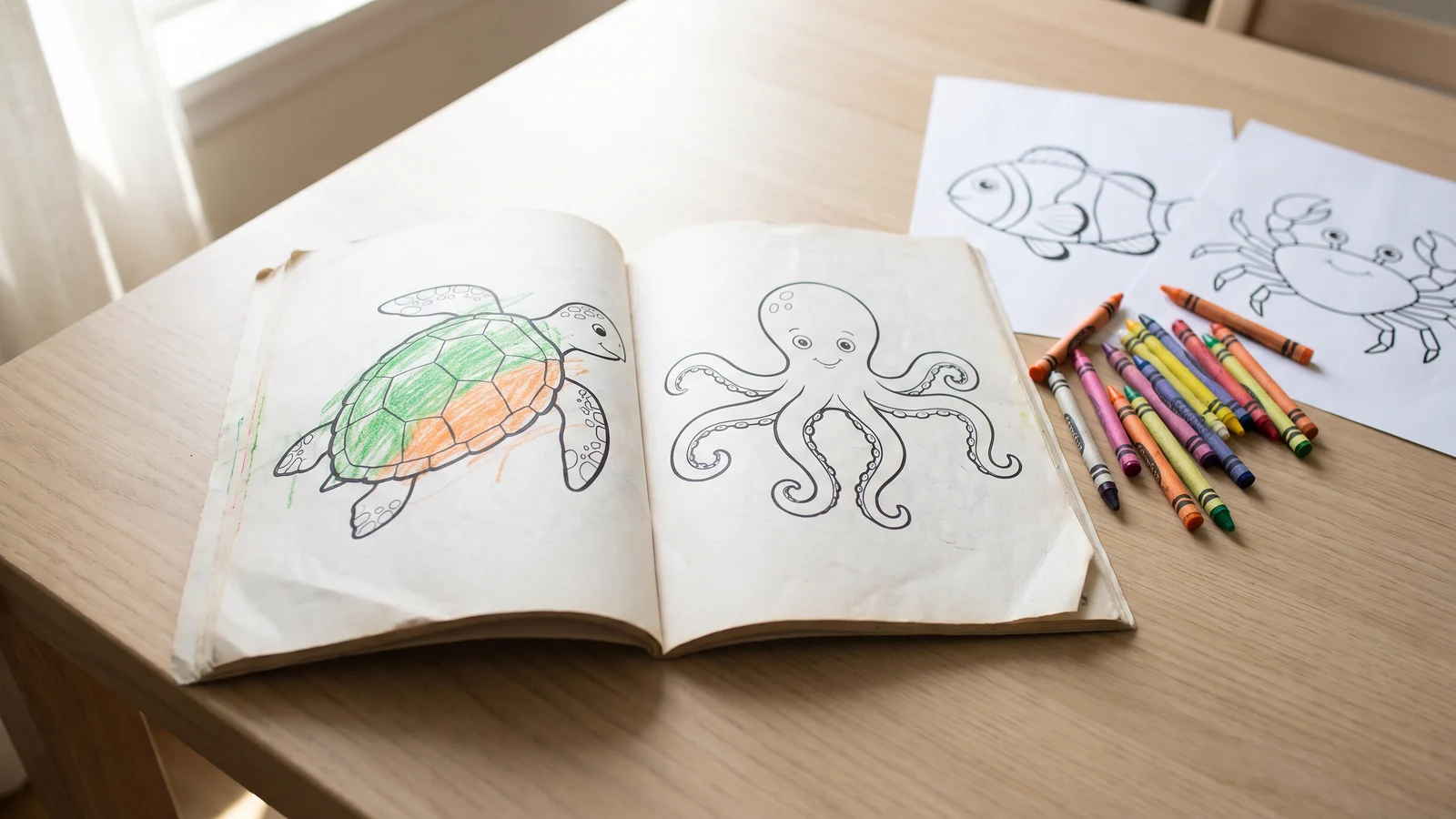
This guide covers the print side of a KDP coloring book made with AI: pick the trim size, generate every page at a ratio and resolution that reaches 300 DPI, export at the exact pixel size, and check each page before it goes in the book. Every number below comes from Amazon's KDP help pages (checked November 2026) or from a test book we generated for this post — a set of ocean-animal pages for young children. For the drawing side — writing the page list and keeping one style across the book — see our guide to making a coloring book with AI.
Genera imágenes por lotes
Un prompt por línea, cientos de imágenes, un ZIP para descargar.
The short answer#
- Trim size: 6 × 9 in is the most common KDP paperback size; 8.5 × 11 in and 8 × 10 in are the usual large formats.
- Bleed: a coloring page has white space all round, so you normally do not need bleed.
- Pixels: at 300 DPI without bleed, 6 × 9 is 1800 × 2700 px, 8 × 10 is 2400 × 3000 px, and 8.5 × 11 is 2550 × 3300 px.
- Generate at 4K. In our test, 2K pages at 2:3 came out at 1696 × 2528 px — about 281 DPI on a 6 × 9 page, below the 300 DPI KDP recommends.
- Check the left and right margins. Models draw a roughly square picture in the middle of a tall page, so the sides are where pages fall short.
Step 1: Pick the trim size#
KDP prints paperbacks in a fixed list of trim sizes, and every page in the book is that size. For coloring books, three are common:
| Trim size | Typical use | Page count (black ink, white paper) |
|---|---|---|
| 6 × 9 in | Pocket and travel books, the most common KDP size | 24–828 |
| 8 × 10 in | Children's books | 24–828 |
| 8.5 × 11 in | Large-format kids' and adult coloring books | 24–590 |
Bigger pages give a child more room to colour and show off detailed adult designs; smaller pages are cheaper to print and easier to carry. Pick one before you make a single page — the trim size decides the aspect ratio you generate at.
Step 2: Decide about bleed (usually: no bleed)#
Bleed is a printing term. When a picture has to run all the way to the edge of the paper, the file is made a little bigger than the finished page, and the extra strip is cut off when the pages are trimmed. The guillotine is never perfectly exact, so without that extra strip a slightly off cut leaves a thin white line along the edge.
KDP's rule is to extend the image 0.125 in past the trim on the top, bottom and outside edge, which makes a 6 × 9 page 6.125 × 9.25 in. Bleed only works in a print-ready PDF, and if one page has bleed, the whole interior has to be set up with it.
A coloring page is black lines on white paper with an empty border round the drawing. If the cut is a hair off, nobody can tell. So for most coloring books the answer is no bleed — and the page sizes line up with the aspect ratios a model can generate, which makes everything that follows simpler. Only use bleed if your design runs to the paper edge, such as a full-page dark background.
Step 3: Choose the aspect ratio and resolution#
KDP recommends images of at least 300 DPI and warns against enlarging them after they are placed. DPI here is simply pixels divided by inches: a 6 in wide page needs 6 × 300 = 1800 px across.
| Trim size | Pixels at 300 DPI (no bleed) | Generate at | Our 2K result |
|---|---|---|---|
| 6 × 9 in | 1800 × 2700 | 2:3 (exact match) | 1696 × 2528 px → ~281 DPI |
| 8 × 10 in | 2400 × 3000 | 4:5 (exact match) | not tested; 2K is about 4 megapixels and this page needs 7.2 |
| 8.5 × 11 in | 2550 × 3300 | 3:4 (nearest; trimmed slightly on export) | 1792 × 2400 px → ~211 DPI |
The pattern is the same for every size: 2K is not enough for a print book, 4K is. Our 4K pages at 2:3 came out at 3392 × 5056 px — far more than 1800 × 2700, so they are scaled down on export and stay sharp. Our test book used Nano Banana Pro at 4K, 10 credits a page; the models page lists the price of every model at 4K.
If your trim size has no matching ratio, generate at the nearest one and let the export crop the difference, as with 3:4 for 8.5 × 11.
Step 4: Write margins into the prompt#
KDP sets a minimum margin on every side. For a book of 24 to 150 pages without bleed, the inside edge (the gutter, where the pages are bound) needs at least 0.375 in and the other edges at least 0.25 in. Longer books need a wider gutter — 0.5 in from 151 pages.
Nothing important should sit inside those strips. For a coloring page that means the drawing itself, and here we hit the one real problem in our test: the model drew a roughly square picture in the middle of a tall page. Top and bottom had more than an inch of white; the left and right were thin. On a 6 × 9 page our first batch left 0.34–0.47 in at the sides at 4K and only 0.21–0.25 in at 2K — three of the six pages failed the 0.375 in gutter.
The fix that worked was to ask for the space explicitly. This is the style block from our second batch; put it on every line, after the subject:
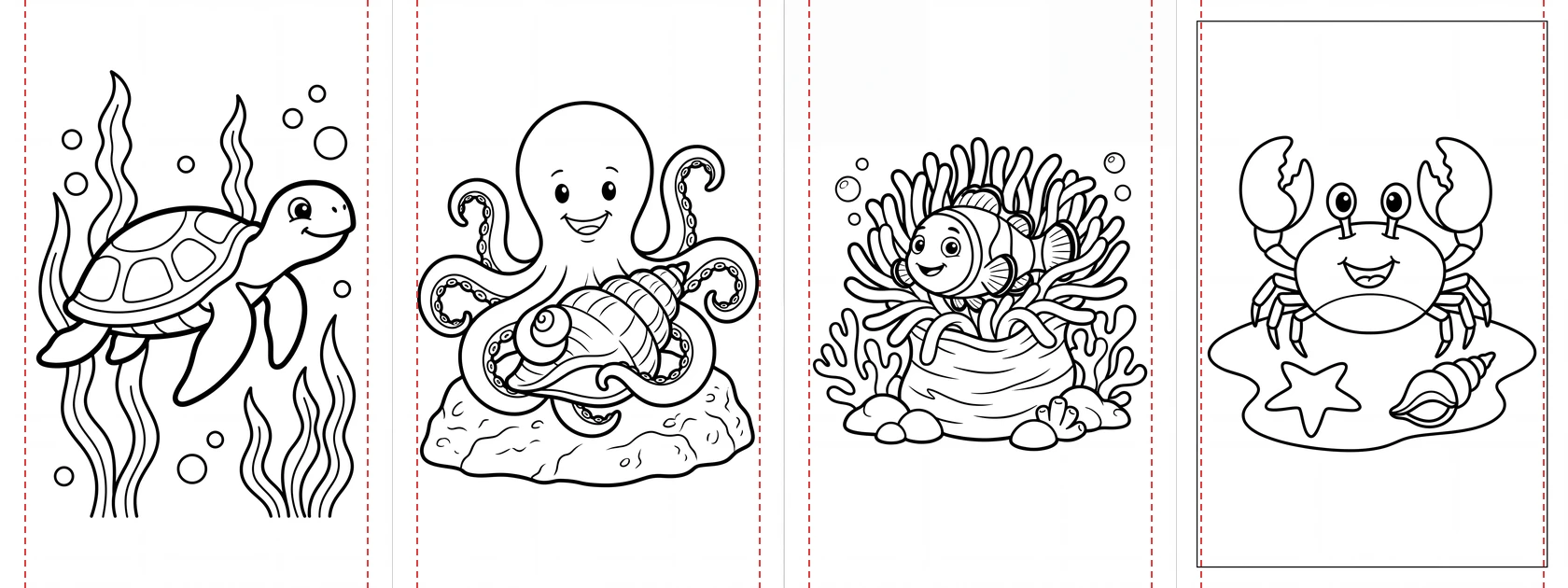
A friendly sea turtle swimming past seaweed and a few bubbles. Children's coloring book page for ages 4 to 8, black and white line art only, thick clean closed outlines, simple shapes, no shading, no gray, no solid black areas, pure white background, one main subject in the centre, tall portrait composition, keep the whole drawing inside the middle 80% of the page width, leave at least 10% empty white space on the left and on the right, wide empty white margin on every side, no text, no border
A smiling octopus sitting on a rock with its arms curled around a seashell. Children's coloring book page for ages 4 to 8, black and white line art only, thick clean closed outlines, simple shapes, no shading, no gray, no solid black areas, pure white background, one main subject in the centre, tall portrait composition, keep the whole drawing inside the middle 80% of the page width, leave at least 10% empty white space on the left and on the right, wide empty white margin on every side, no text, no border
A clownfish peeking out of a sea anemone on a coral reef. Children's coloring book page for ages 4 to 8, black and white line art only, thick clean closed outlines, simple shapes, no shading, no gray, no solid black areas, pure white background, one main subject in the centre, tall portrait composition, keep the whole drawing inside the middle 80% of the page width, leave at least 10% empty white space on the left and on the right, wide empty white margin on every side, no text, no border
With it, the side margins moved to 0.38–0.56 in, and the drawings got taller to fill the page. It is not a guarantee: the octopus only just cleared 0.375 in, and the crab page came back with a rectangle drawn round it despite "no border". That is why Step 6 checks every page.
Step 5: Export at the exact pixel size#
Open the finished batch, click Select & edit, then Select all, and set Size:
- 8.5 × 11 in: choose US Letter · 300dpi (2550 × 3300 px).
- 8 × 10 in: choose Photo print 8×10 in (2400 × 3000 px).
- 6 × 9 in: choose Custom and type 1800 × 2700.
A crop box appears on each page, locked to the shape of the size you picked, so you can see what will be kept; drag it on any page that needs it. Then click Download ZIP. Every page comes out at the exact pixel size of the trim, in the order of your page list.
Note
The crop box can only cut into a picture, not add white space around it. If a drawing is too wide for the margins, re-run that page rather than trying to fix it on export.
Step 6: Check every page before it goes in the book#
Check each page at full size, not as a thumbnail. Margins, frames and the wrong subject all turned up in our ten test pages; gray is the classic coloring-page fault even though we didn't get any this time.
| Check | What to look for | Fix |
|---|---|---|
| Side margins | Drawing closer than 0.375 in to the left or right edge (about 210 px on a 3392 px-wide 4K page, 113 px after export to 1800 px) | Try again on that page |
| Frames and edge lines | A rectangle round the page, or a faint line along one edge | Try again; it is random, the next run is usually clean |
| Gray | Shaded areas or gray fills that print as smudges | Add "no gray" if it keeps coming back |
| Wrong subject | Two turtles when the line asked for one | Try again, or make the subject more specific |
| Resolution | Pixels below the table in Step 3 | Re-run at 4K; don't upscale |
Try again re-draws one page and leaves the rest of the book alone, so a bad page costs one page's credits, not a new batch.
Before you publish: the AI disclosure#
KDP asks you to tell it about AI-generated content when you publish, and its definition explicitly includes interior images and artwork — even if you edited them heavily afterwards. Pages made this way are AI-generated, so answer that question yes. You are also responsible for making sure the content meets KDP's content guidelines, including not copying characters you don't own.
Checklist#
- Trim size chosen first: 6 × 9, 8 × 10 or 8.5 × 11.
- No bleed, unless the design runs to the paper edge.
- Generated at 4K, at 2:3, 4:5 or 3:4 to match the trim.
- Margin sentence on every line of the page list.
- Exported at the exact trim pixels at 300 DPI.
- Every page checked for side margins, frames, gray and the right subject.
- AI-generated content disclosed when publishing.
FAQ#
What size should KDP coloring book pages be? At 300 DPI without bleed: 1800 × 2700 px for 6 × 9 in, 2400 × 3000 px for 8 × 10 in and 2550 × 3300 px for 8.5 × 11 in. Add 0.125 in to the width and 0.25 in to the height only if you use bleed.
Do coloring book pages need bleed on KDP? Usually not. Bleed is for pictures that run to the paper edge. A coloring page has white space round the drawing, so a slightly uneven cut doesn't show.
Is 2K resolution enough for a KDP coloring book? Not in our test. 2K pages at 2:3 came out at 1696 × 2528 px, about 281 DPI on a 6 × 9 page, and 2K at 3:4 is about 211 DPI on 8.5 × 11. Generate at 4K and scale down on export.
Do I have to disclose AI-generated coloring pages to KDP? Yes. KDP's definition of AI-generated content includes interior images and artwork, and it asks you to disclose it when you publish or republish a book.
How many pages can I make at once? As many as your plan's per-batch limit allows; for a long book, run one batch per chapter. Pricing lists the limit for each plan. When your page list is ready, run the first chapter in the bulk image generator as a test.