


A blog with eighty posts and three featured images is common, and so is the weekend spent fixing it one stock photo at a time. This blog featured image generator takes your titles as a list, one post per row, applies one art direction to all of them, and returns a featured image for every post in a single batch.
Uno por línea: pega una columna entera de una hoja de cálculo. Añade « | » y luego Headline on the image (optional) para fijarlo en cada línea.
—
Arrastra y suelta o haz clic para subir: PNG / JPEG / WEBP / GIF, hasta 10 MB cada una.
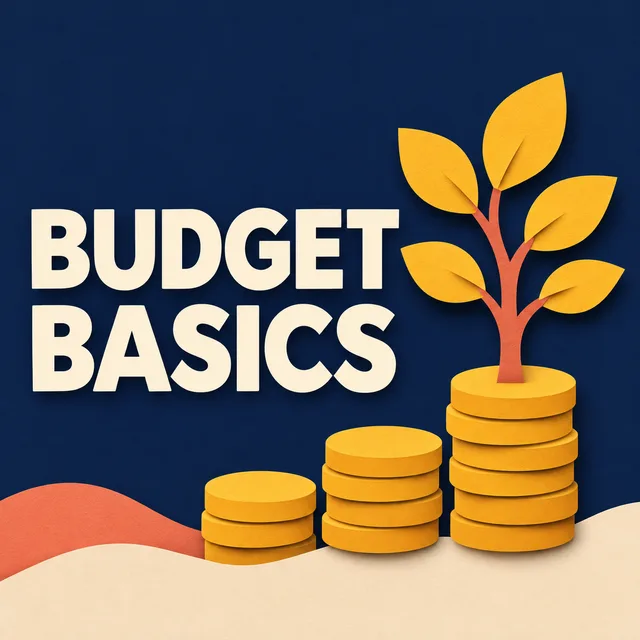
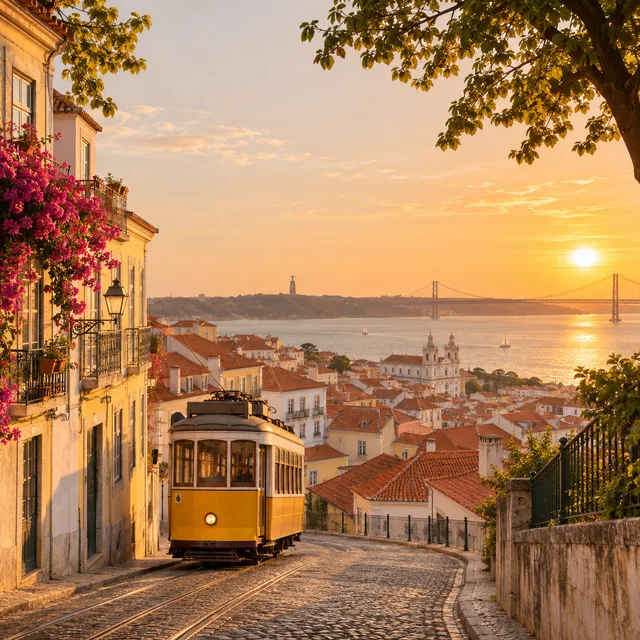
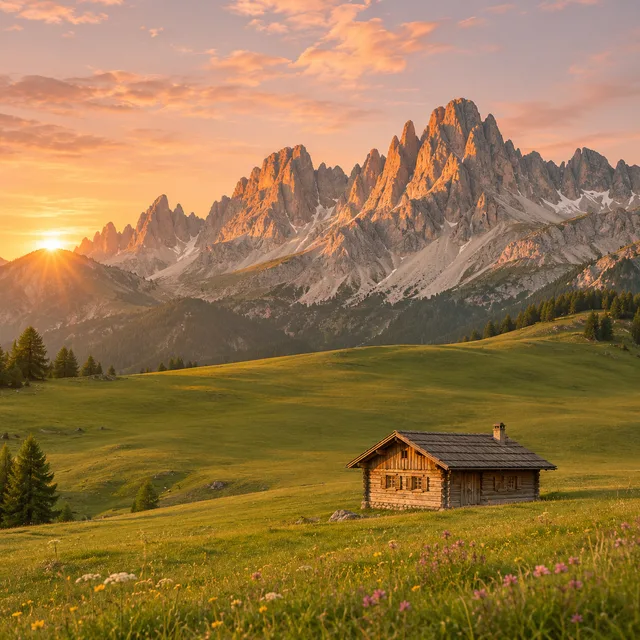
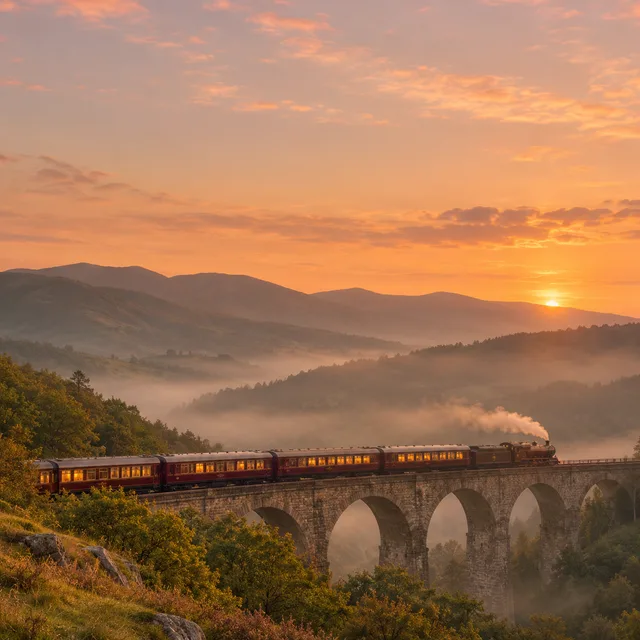
Each row is one run for an imaginary blog: a single art direction and four different post titles. The first blog also has its titles set on the image; the other four leave a calm middle for your own type. Read down a row and you see the point of the featured image batch: four posts about unrelated things that still look like they live on the same site.
paper-cut illustration in navy and mustard, the post title set on two lines at left; Budget Basics, Emergency Fund, Index Funds 101, Cut Subscriptions
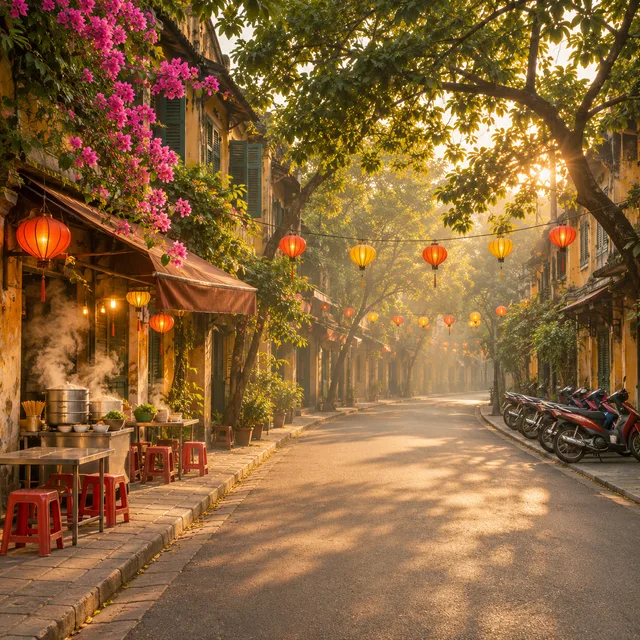
one golden-hour colour grade, no people; Lisbon rooftops, the Dolomites, a night train, a Hanoi street at dawn
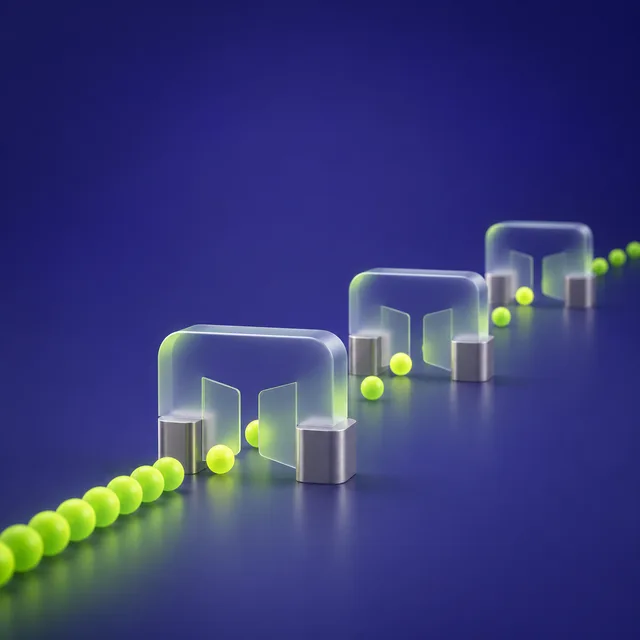
frosted glass objects on deep indigo with a lime accent; database indexes, zero-downtime deploys, caching, rate limiting



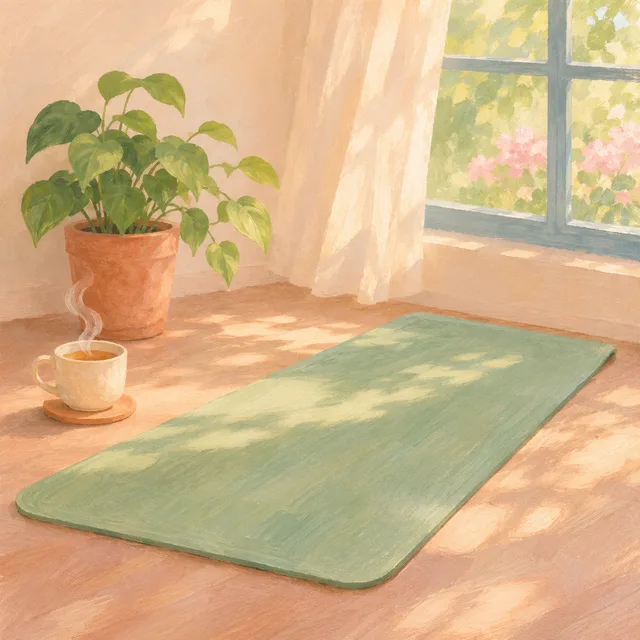
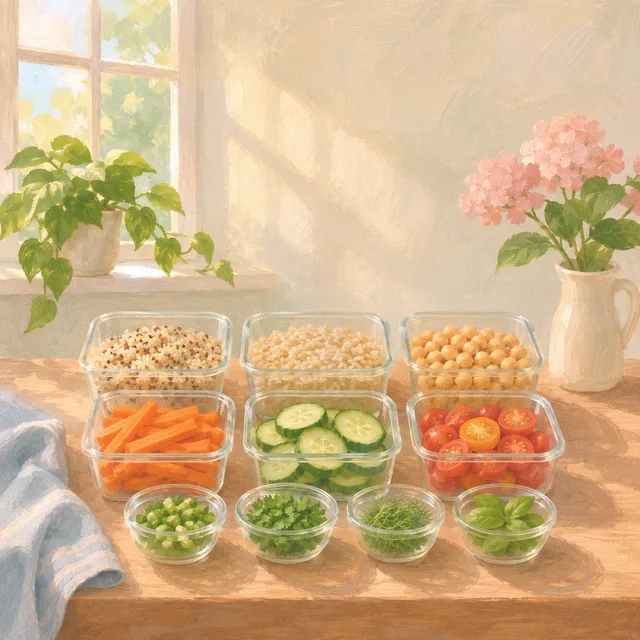
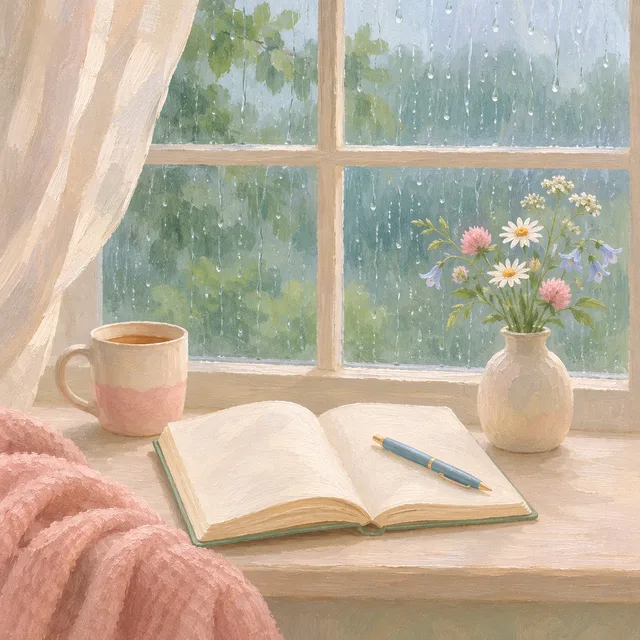
soft gouache in sage and blush; a sleep routine, morning stretching, meal prep, journaling

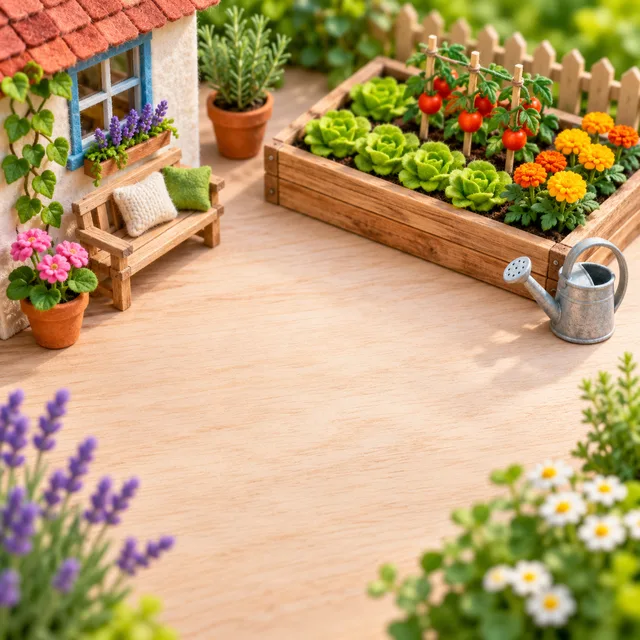
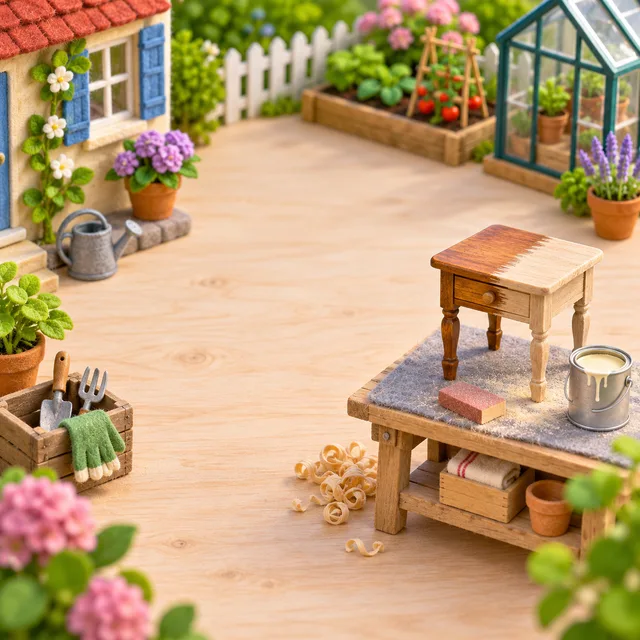
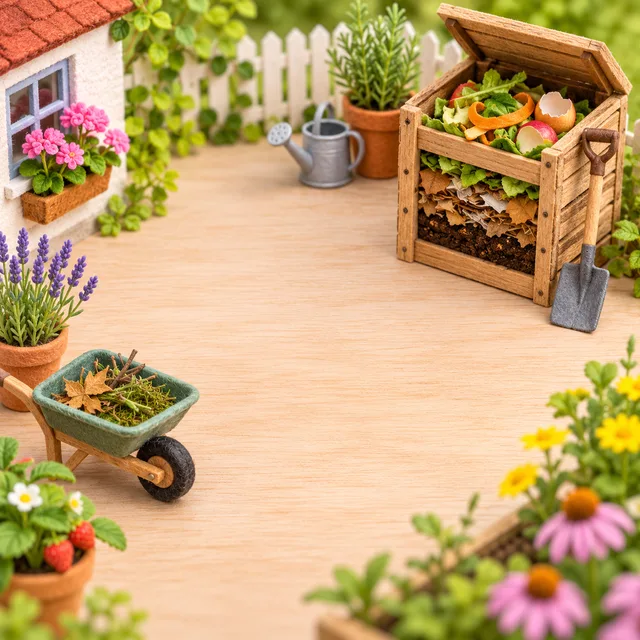
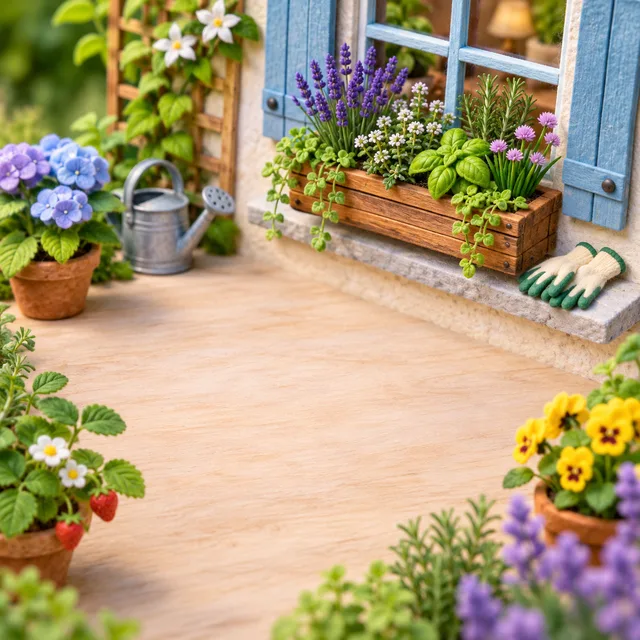
tilt-shift miniature scenes on a pale wooden table; a raised bed, refinishing a table, composting, a window box
One art direction · one post per row · every cover in one ZIP
A single featured image is a design task. Forty of them is a production task, and production is the part a batch can take over without anyone's taste being removed from the process.
Your editorial calendar or CMS export is already a list of titles. Paste them in, one post per row, and each row becomes its own featured image drawn from what that post is about, rather than a recycled stock image of a laptop next to a plant.
The palette, the medium, the lighting and the composition are written once and the form puts them on every post. Ten posts or two hundred, the featured image on each reads as the same blog's work, and the archive page stops looking like a thrift shop of unrelated images.
Most themes lay the post title over or beside the image, so the default here keeps the middle of the frame calm. If you want the title in the picture itself, add a short headline to the row and the generator sets it in the image.
Three steps. The decision that matters is the art direction, because every featured image in the batch inherits it.
Choose a medium (photograph, flat graphic, 3D render, painted illustration, miniature scene) and write a line of art direction: the palette, the light, how busy the frame is. Keep it identical on every row. This line is what makes thirty featured images look like a series.
One row per post, using the title or a plain description of its topic. Concrete subjects work better than abstract ones: a lifebuoy for an emergency fund, a gate for rate limiting. Paste the whole list at once, one post per line; the look you set above is applied to every line, so you only write the posts.
Each post comes back with two options. Keep the stronger image, download the batch as one ZIP, then crop to the exact size your theme and social previews need and upload. Add the alt text yourself, since only you know what the post says.
If the posts exist and the featured image is the missing piece, a batch is the shortest route to a finished archive.
Years of posts, a theme that shows a thumbnail image on every archive card, and half of them blank. Run the backlog in one sitting and give the whole archive the same look instead of patching one post at a time.
A client site with a hundred posts and one brand guideline. Write the guideline into the art direction once, run each batch from the content calendar, and hand over an image set that matches the brand and itself.
Release notes, weekly digests and help articles all benefit from a recognisable header image. One art direction and one title per row keeps a long-running publication looking consistent from the first issue to the latest.
Something not covered? Email us at support@bulkimagen.com
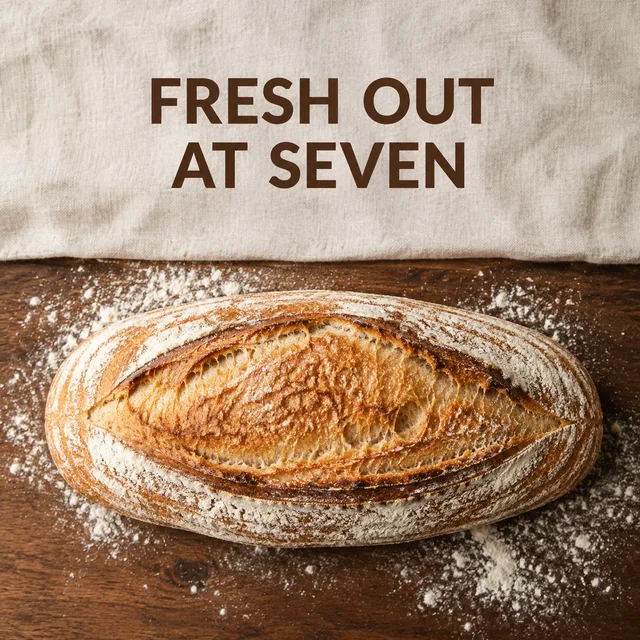
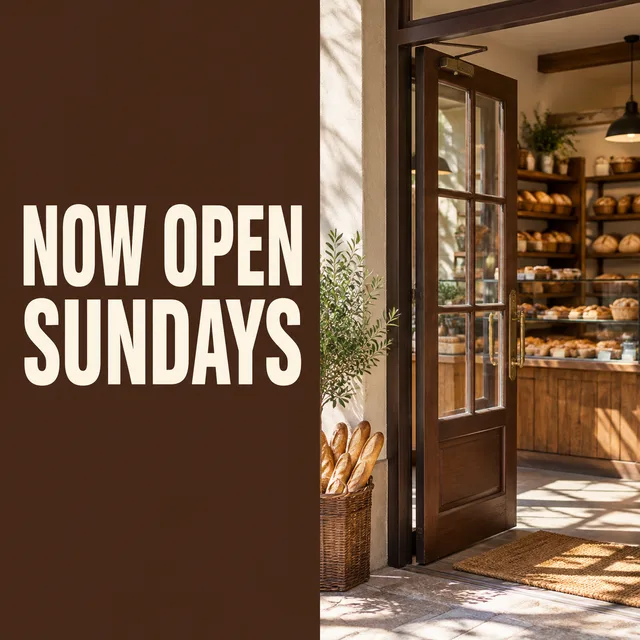
A social media post generator that works from a list: one row per post, the headline set on the image, a whole week of square posts in one batch and one ZIP.

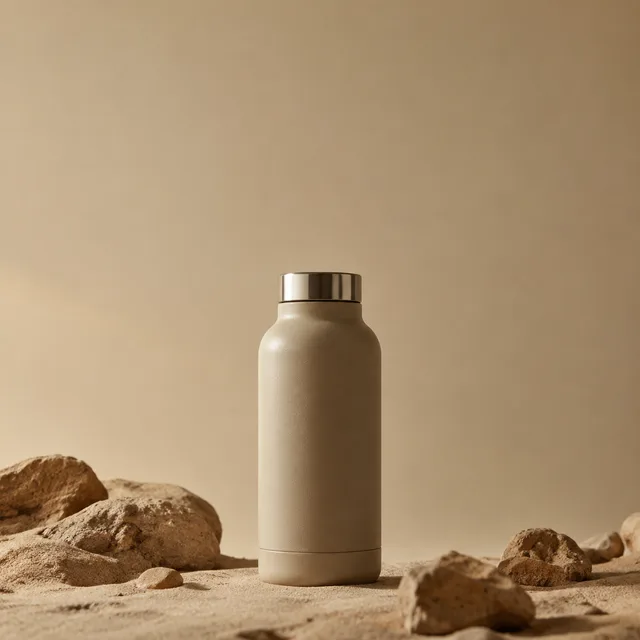
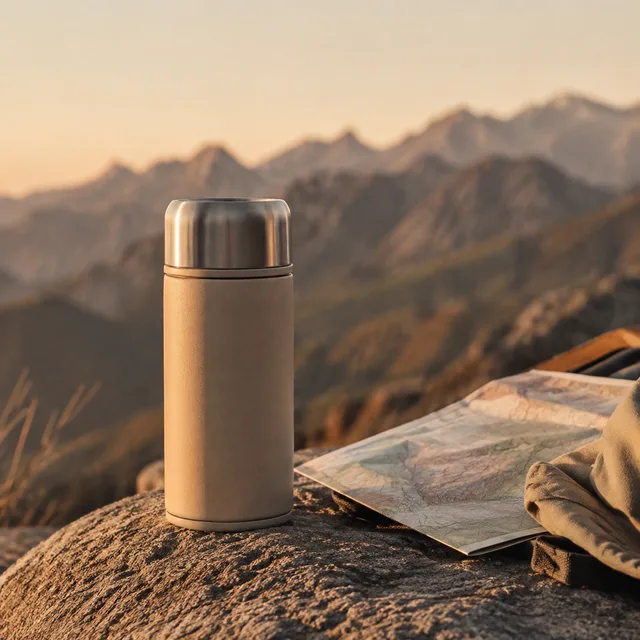
Un generador de anuncios con IA que trabaja desde una hoja: una fila por variante, ganchos por visuales por formatos, toda la prueba creativa en un lote.
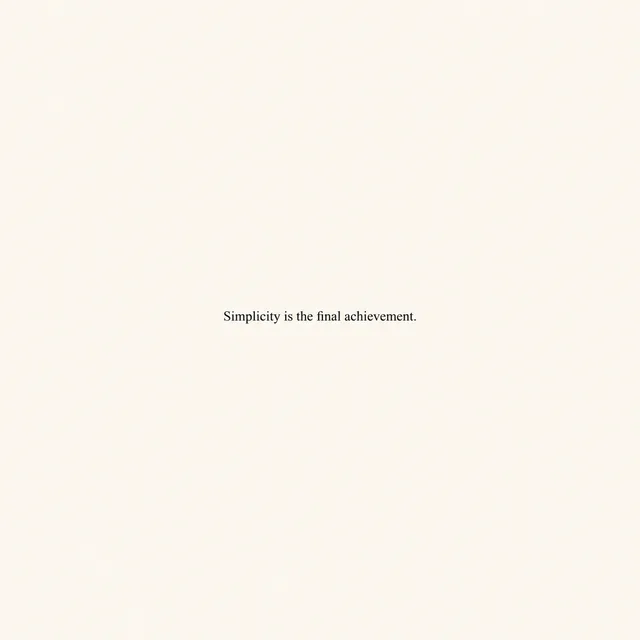

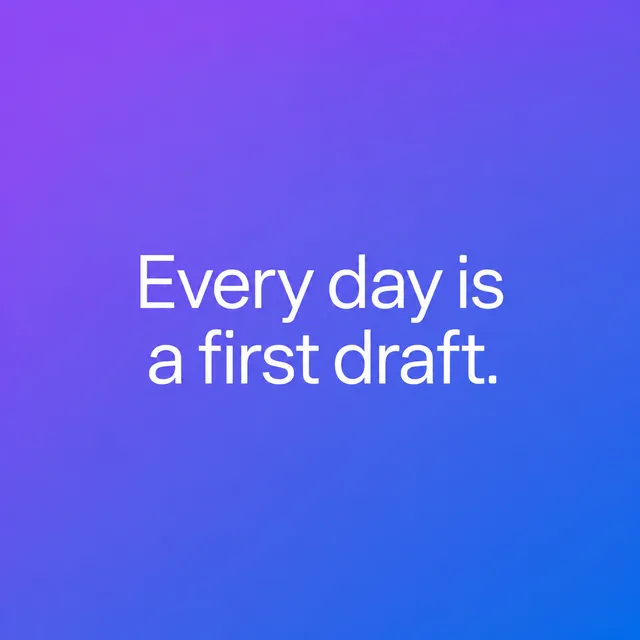
Con este generador de frases con IA creas en lote decenas de imágenes con frases desde un prompt guiado. Elige un estilo, pega tus frases y descarga la serie.
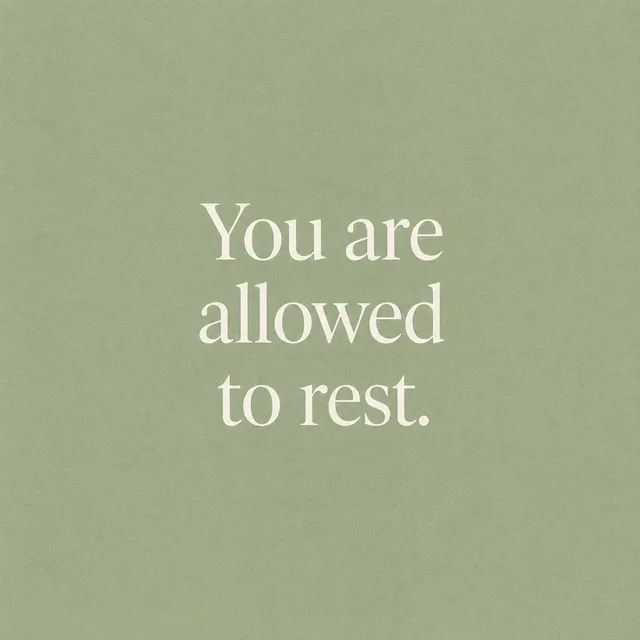

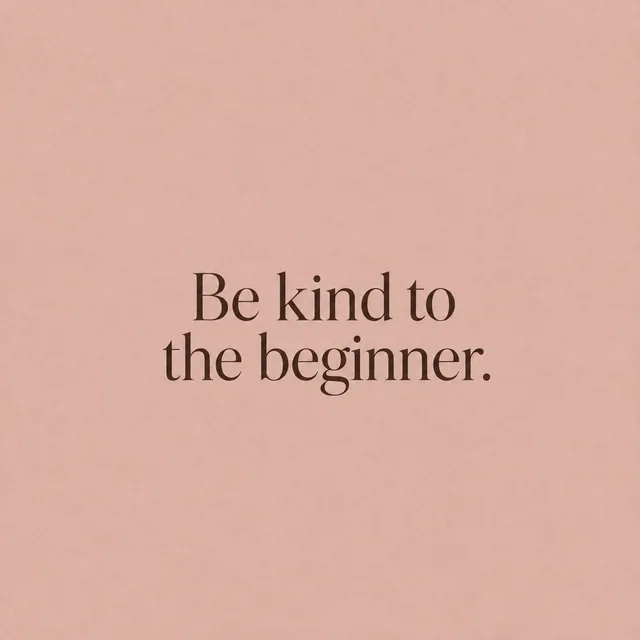
Con este generador de tarjetas de afirmaciones creas en lote una baraja entera desde un solo prompt. Elige un estilo sereno, pega tus afirmaciones y descárgala.
Write your art direction once, paste the post titles, and let the blog featured image generator return an image for every one. Pick the best take, trim to size and publish, and stop leaving posts blank.